Check color contrast and text readability per WCAG standards
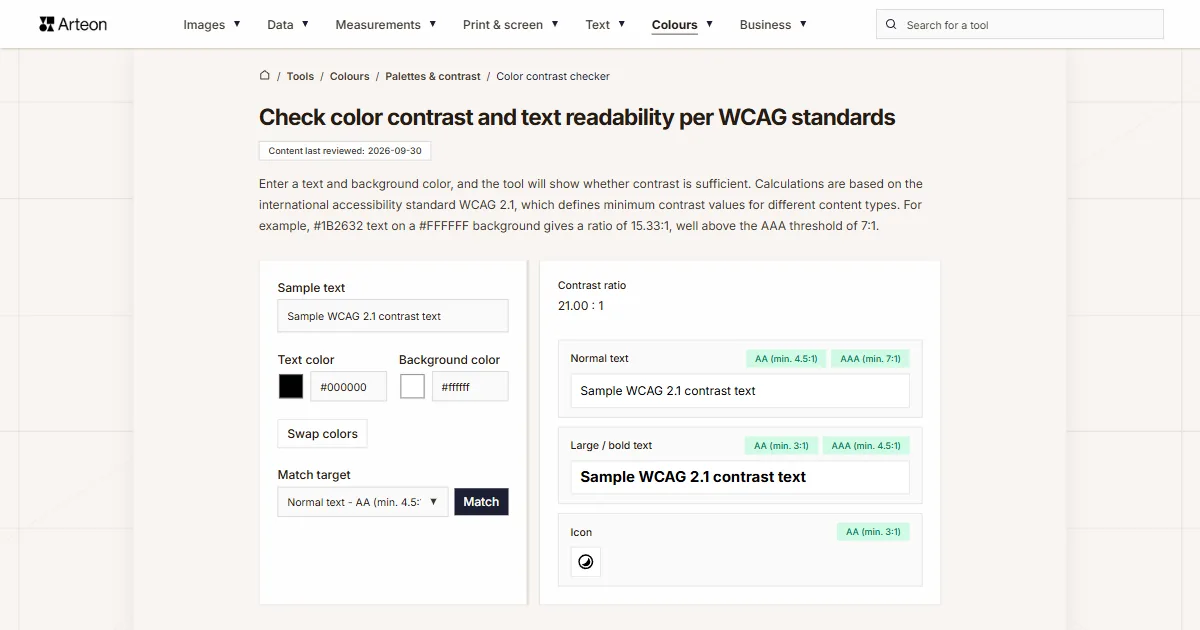
Enter a text and background color, and the tool will show whether contrast is sufficient. Calculations are based on the international accessibility standard WCAG 2.1, which defines minimum contrast values for different content types. For example, #1B2632 text on a #FFFFFF background gives a ratio of 15.33:1, well above the AAA threshold of 7:1.
Contrast ratio
21.00 : 1
Normal text
Sample WCAG 2.1 contrast text
Large / bold text
Sample WCAG 2.1 contrast text
Icon
Why does color readability matter?
Readability is the luminance difference between the text color and the background color. The greater the difference, the easier it is to read the text. Too low contrast makes content hard to read - especially for people with vision impairments, older adults, or in difficult lighting conditions (e.g., on a phone in direct sunlight).
According to the World Health Organization (WHO), approximately 2.2 billion people worldwide have some form of vision impairment. Red-green color blindness affects up to 8% of men and 0.5% of women of Northern European descent, and color vision also declines with age.
The tool calculates the contrast ratio using the formula specified in the WCAG 2.1 (Web Content Accessibility Guidelines) - international digital accessibility guidelines. The result allows an objective assessment of whether colors are readable enough, regardless of monitor settings or individual color perception.
How to use the color contrast checker
Checking readability takes just a few seconds:
1. Enter the text color
Type a color code (e.g., #333333) in HEX, RGB, or HSL format - or pick a color from the color picker.2. Enter the background color
Enter the background color on which the text will be displayed - this can be a section, block, or full page background.3. Read the result
The tool will calculate the contrast ratio and show whether the colors meet WCAG requirements for normal text, large text, and icons.4. Adjust colors
If contrast is too low, the Match feature automatically suggests a color variant that meets the selected threshold.
What color formats are supported?
HEX
Hexadecimal format - used in CSS and design programs. The code has 3 or 6 characters (digits 0-9 and letters A-F), or 4 and 8 when the last characters carry transparency. The # can be omitted, so a code copied without it, such as 1B2632, works as well.
#fff- white (shorthand)#ffffff- white (full form)#1a73e8- blue#00000080- black at 50% opacity
RGB / RGBA
Format based on three channels: Red, Green, Blue. Each channel accepts a value from 0 to 255. The RGBA variant adds a fourth parameter - transparency (alpha) from 0 to 1.
rgb(255, 255, 255)- whitergba(0, 0, 0, 0.8)- black at 80% opacity
HSL / HSLA
Format based on Hue (0-360°), Saturation (0-100%), and Lightness (0-100%). The HSLA variant adds transparency. This format is useful when you want to adjust the brightness or saturation of a color.
hsl(0, 0%, 100%)- whitehsla(217, 91%, 60%, 0.9)- blue at 90% opacity
How to interpret the readability test results
After entering colors, the tool displays results in three sections:
- Normal text - requires 4.5:1 contrast (AA) or 7:1 (AAA). Applies to text below 18pt (24px) or below 14pt bold.
- Large / bold text - requires 3:1 contrast (AA) or 4.5:1 (AAA). Applies to text of at least 18pt (24px) or 14pt (18.5px) bold, such as large headings.
- Icons - requires 3:1 contrast (AA). Applies to icons and graphical UI elements that convey information.
Green indicator means the requirement is met. Red indicator means contrast is too low and needs improvement.
What do the readability test results mean?
The tool shows the contrast ratio on a scale from 1:1 (no contrast) to 21:1 (maximum contrast - black on white). The result is compared against thresholds defined in the WCAG standard:
- Normal text - requires at least 4.5:1 for Level AA (minimum standard) or 7:1 for Level AAA (enhanced standard). Applies to text under 18pt (24px) or under 14pt (18.5px) bold.
- Large / bold text - requires at least 3:1 for Level AA or 4.5:1 for Level AAA. Applies to text from 18pt (24px) or from 14pt (18.5px) bold - for example large headings.
- Icons and UI elements - require at least 3:1 for Level AA. Applies to icons, buttons, form fields, and other interface elements that convey information.
Level AA is the level many accessibility policies of public institutions refer to, so it is a sensible starting point. Level AAA provides better readability but is not always practical to achieve for all elements.
Automatic color matching to WCAG requirements
If contrast is too low, you don't need to search for the right color by trial and error. The Match feature automatically finds a text color variant that meets the selected contrast threshold.
How matching works:
- Select the matching target from the list - e.g., AA for normal text or AAA for large text.
- Click the Match button.
- The tool will search through lightness variants of the text color and suggest the closest one that meets the requirements.
- The suggested color can be copied to the clipboard or immediately set as the new text color.
The algorithm preserves the hue and saturation of the original color, changing only the lightness. The suggested color stays consistent with the visual identity while meeting the accessibility standard.
What do AA and AAA levels mean in the WCAG standard?
| Level AA (minimum) | Level AAA (enhanced) | |
|---|---|---|
| Normal text - min. 4.5:1 | ✓ | ✓ |
| Normal text - min. 7:1 | — | ✓ |
| Large / bold text - min. 3:1 | ✓ | ✓ |
| Large / bold text - min. 4.5:1 | — | ✓ |
| Icons and UI elements - min. 3:1 | ✓ | ✓ |
| Recommended for key content | ✓ | ✓ |
Which color formats does this tool handle?
| What you type | Read as | Contrast on white | How we read it |
|---|---|---|---|
| 1B2632 | rgb(27, 38, 50) | 15.33:1 | The hash is not needed, a code without it reads the same |
| color: #1B2632; | rgb(27, 38, 50) | 15.33:1 | Paste the whole line from a style sheet or the browser tools, we will pick the color out of it |
| #00000080 | rgba(0, 0, 0, 0.502) | 4.00:1 | In an eight-character code the opacity sits in the last two characters, and we take it into account when working out the contrast |
| 0x80000000 | rgba(0, 0, 0, 0.502) | 4.00:1 | In an Android or Kotlin constant the opacity sits in the first two characters, and that is where we look for it |
| rgb(59 130 246 / 50%) | rgba(59, 130, 246, 0.5) | 1.84:1 | The newer CSS notation, with spaces and opacity after a slash, is taken as it stands |
| rgba(0, 0, 0, 0,5) | rgba(0, 0, 0, 0.5) | 3.98:1 | A decimal comma in the opacity, the way most of Europe writes it, is read the same as a point |
| rgba(0, 0, 0, .5) | rgba(0, 0, 0, 0.5) | 3.98:1 | The leading zero can be dropped — .5 means the same to us as 0.5 |
| 59, 130, 246 | rgb(59, 130, 246) | 3.68:1 | Three numbers without rgb() are enough, we fill in the rest of the notation ourselves |
| RGB(59,130,246) | rgb(59, 130, 246) | 3.68:1 | Capital letters in the function name and no spaces after the commas are no trouble |
| rgb(300, 0, 0) | rgb(255, 0, 0) | 4.00:1 | A channel above 255 is clamped to 255, just as a browser does |
| hsl(217 91% 60%) | rgb(60, 131, 246) | 3.63:1 | An HSL notation, with commas or with spaces, is converted to RGB for you |
| navy | rgb(0, 0, 128) | 16.01:1 | We know all 148 CSS color names, so the word on its own is enough |
| transparent | rgba(0, 0, 0, 0) | 1.00:1 | Fully transparent text gives a contrast of 1:1 on any background, and that is how we report it |
Troubleshooting the color contrast checker
I see a color format error message
Check the color format. A HEX code has 3, 4, 6 or 8 characters, with or without # (e.g. #fff or 1B2632). RGB and HSL values go inside rgb() or hsl(), separated by commas or spaces. CSS color names such as navy or rebeccapurple work as well.
The Match function cannot find a suitable color
When the background and text have similar lightness in the same hue, the algorithm may not find a variant that meets the requirements without changing the hue. In this case, consider changing the background color or choosing an entirely different text color.
The color picker does not match the entered code
The browser color picker only supports the HEX format without transparency. If you enter a color in RGBA or HSLA format with transparency, the picker will show only the color part (without alpha). Contrast calculations still take transparency into account.
Where should you check color readability?
Readability matters everywhere someone needs to read text or recognize a UI element:
Websites
Text on pages, buttons, links, forms. Especially important for business sites where visitors have varying ages and visual abilities.E-commerce stores
Prices, Buy Now buttons, product information. Low readability can mean lost orders.Presentations
A projector can show colors with weaker contrast than a monitor. Check colors before presenting.Posters and flyers
Printed materials viewed in various lighting conditions require high contrast.Mobile apps
Phones are used in bright sunlight, at night, and by people of all ages.Restaurant menus
Often printed on colored paper or with decorative fonts - easy to end up with too low contrast.
Color readability for color-blind users
Red-green color blindness affects up to 8% of men and 0.5% of women of Northern European descent. People with color blindness may have difficulty distinguishing certain color pairs, even if the luminance contrast is sufficient.
Types of color blindness:
- Deuteranopia - difficulty distinguishing green and red
- Protanopia - difficulty seeing red
- Tritanopia - difficulty seeing blue and yellow (rare)
This tool checks luminance contrast, which is important for all users. However, when designing, it is also worth avoiding problematic color combinations (e.g., red text on a green background) and not relying solely on color to convey information - use shapes, icons, and text as well.
How the contrast ratio is calculated
The contrast ratio uses relative luminance - how bright a color appears to the human eye. The WCAG 2.1 formula is:
(L1 + 0.05) / (L2 + 0.05)
L1 is the luminance of the lighter color, L2 of the darker. Luminance is derived by converting sRGB to linear light, then weighting channels: 0.2126 × R + 0.7152 × G + 0.0722 × B.
The result ranges from 1:1 (identical) to 21:1 (black on white). This removes subjectivity - the ratio stays the same regardless of monitor, lighting, or personal vision.
WCAG 2.2 and WCAG 3.0: will contrast thresholds change?
WCAG 2.2 (first published October 5, 2023, current edition December 12, 2024) adds criteria such as dragging movements and focus appearance and removes Success Criterion 4.1.1 Parsing. Success Criteria 1.4.3 and 1.4.6 keep the same contrast thresholds as in WCAG 2.1.
WCAG 3.0 is a working draft. In the draft of September 10, 2026, the editors note that the contrast algorithm is yet to be determined, and APCA (Advanced Perceptual Contrast Algorithm) is not named. W3C says WCAG 3 is not expected to be a completed standard for a few more years and that WCAG 2 will not be deprecated for several years after that.
Until WCAG 3 is finished, this tool calculates contrast with the WCAG 2 formula.
Common contrast mistakes to avoid
The WebAIM Million 2026 report found low-contrast text on 83.9% of the top 1,000,000 home pages, the most common issue it detected. These patterns fail WCAG checks:
Light gray text on white
Gray #999 on white #fff gives only 2.85:1 - well below 4.5:1. The lightest gray that passes AA on white is #767676.White text over photographs
Photos have varying brightness. White text may vanish on a bright region. Add a semi-transparent dark overlay or text shadow.Thin font weights under 400
Lighter weights make text harder to read at the same ratio. If using thin fonts, aim higher than the bare minimum.Low-contrast placeholder text
Form placeholders can be very faint. If the placeholder conveys instructions, it should meet 4.5:1.Untested brand colors
A brand color may look bold on its own but fail when used as text on certain backgrounds. Always test the actual pairing.Links on colored sections
Links inside colored banners or cards can fail even when they pass on the page background. Check the link against its section background.
What makes this contrast and readability checker special?
Objective evaluation based on a mathematical formula
Contrast ratio is calculated using the WCAG formula - the result does not depend on monitor settings or individual color perception.Compliance with international WCAG standard
Results follow the WCAG 2.1 thresholds, the W3C guidelines that many accessibility policies refer to.Automatic color matching to threshold
The Match feature finds a text color variant that meets the selected contrast threshold - preserves hue, changes only lightness.Five color formats
Supported formats: HEX, RGB, RGBA, HSL, and HSLA, plus CSS color names such as navy. Color code can be pasted directly from Figma, Photoshop, or a CSS stylesheet.Three content types in one test
A single check shows the result for normal text, large text (for example large headings), and icons - no need to test each type separately.
Content last reviewed: · written and checked by the Arteon team
Frequently asked questions about the color contrast checker
What is a color contrast ratio?
A contrast ratio is a measure of the luminance difference between two colors. The scale ranges from 1:1 (no difference - e.g., white text on white background) to 21:1 (maximum difference - black text on white background). The higher the ratio, the easier it is to distinguish text from the background.
What contrast is sufficient according to WCAG?
For normal text, the minimum is 4.5:1 (Level AA). For large text - headings from 18pt or bold text from 14pt - 3:1 is sufficient. For icons and UI components, 3:1 is also required. These thresholds ensure readability for most users, including those with impaired vision.
Is color contrast important for color-blind users?
The checker tests luminance contrast, which matters for all users, including those with color blindness. However, color blindness is a color perception issue, not a luminance issue - so in addition to contrast, avoid problematic color pairs (e.g., red text on green background) and don't rely solely on color to convey information.
Why doesn't my color meet the requirements even though I can see it fine?
Personal color perception depends on monitor settings, room lighting, and individual visual abilities. WCAG is based on an objective mathematical formula that accounts for various vision impairments. A color readable on one screen may be unreadable on another or for a different person.
Do I need to meet AAA contrast level?
Not always. Level AA (4.5:1 for normal text) is the level many accessibility policies of public institutions refer to. Level AAA (7:1) provides better readability but is harder to achieve. For critical content - warnings, safety instructions - consider aiming for AAA.
What is the WCAG standard?
WCAG (Web Content Accessibility Guidelines) is an international set of web accessibility guidelines developed by the W3C organization. It defines, among other things, minimum color contrast values, heading structure, keyboard support, and other requirements that make websites accessible to people with various disabilities.
Where can I find color codes from my website?
In a browser (Chrome, Firefox, Edge) you can open developer tools (right-click > Inspect). In the Styles tab, you can see the colors used on the page. Alternatively, browser extensions like ColorZilla let you pick the color of any element without digging into code.
Which color pairs on my site should I check first?
Most important: text on the main background, text on banners and colored sections, buttons (text color and button background relative to page background), links, and icons. Pay special attention to elements that appear on different backgrounds depending on the section.
What is the difference between WCAG 2.0, 2.1, and 2.2?
WCAG 2.0 (2008) established the original contrast requirements. WCAG 2.1 (2018) added criteria for mobile accessibility, cognitive disabilities, and low vision. WCAG 2.2 (2023) adds further criteria but does not change the contrast ratio thresholds. The contrast requirements (1.4.3 and 1.4.6) remain the same across all versions.
Does this tool work for dark mode designs?
Yes. The tool checks the contrast ratio between any two colors regardless of which is lighter. For dark mode, you would typically enter a light text color and a dark background color. The same WCAG thresholds apply - 4.5:1 for normal text (AA) and 7:1 (AAA).
What is a safe minimum text color on a white background?
The lightest gray that still passes WCAG AA on pure white (#ffffff) is #767676, at 4.54:1. The next lighter shade, #777777, gives 4.48:1 and fails, and #999999 gives only 2.85:1. For AAA (7:1), use #595959 or darker.
How do I test contrast for text over a gradient or image?
Pick the lightest area of the background where text appears and test against your text color. That worst-case spot determines whether the combination passes. For gradients, check both endpoints. For images, the safest approach is to add a solid or semi-transparent overlay behind the text.
What is APCA and should I use it instead of WCAG contrast?
APCA (Advanced Perceptual Contrast Algorithm) is a contrast method that takes text polarity, font size and font weight into account. It is not part of WCAG: the WCAG 3.0 working draft of September 10, 2026 says the contrast algorithm is yet to be determined and does not name APCA. This tool calculates the WCAG 2 formula.
Help us improve our tools
Have an idea for a new feature, found a bug, or want to suggest another tool that would make your work easier? Write to us.
Explore other useful tools
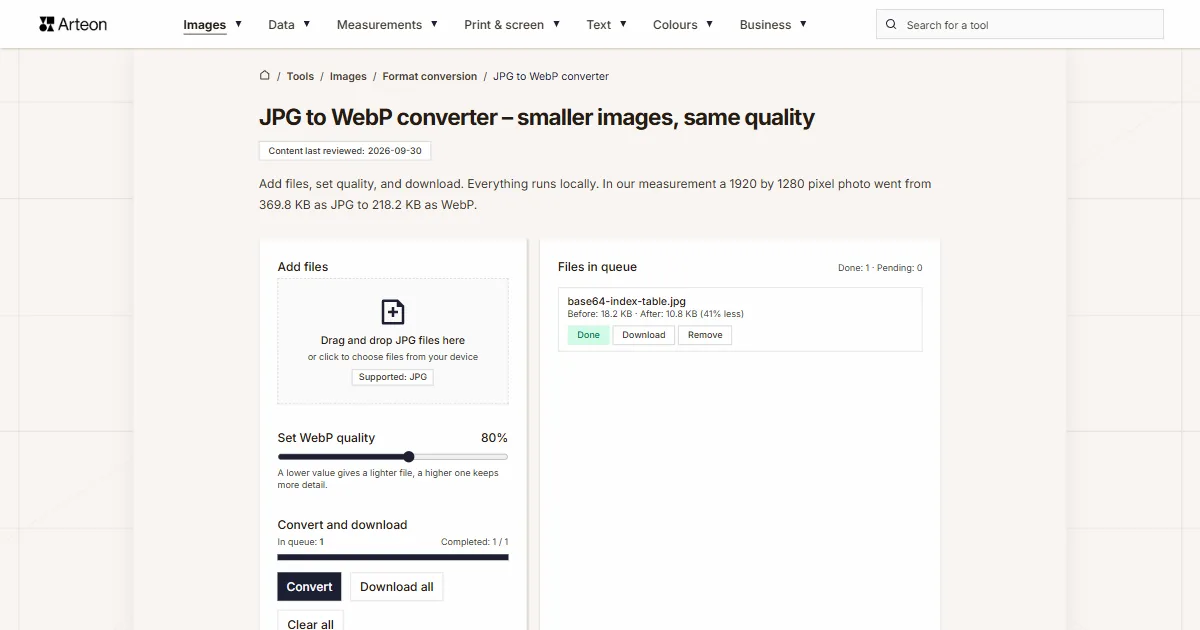

Meta title & description checker
Check title and description length in pixels. Live Google preview and optimization tips.
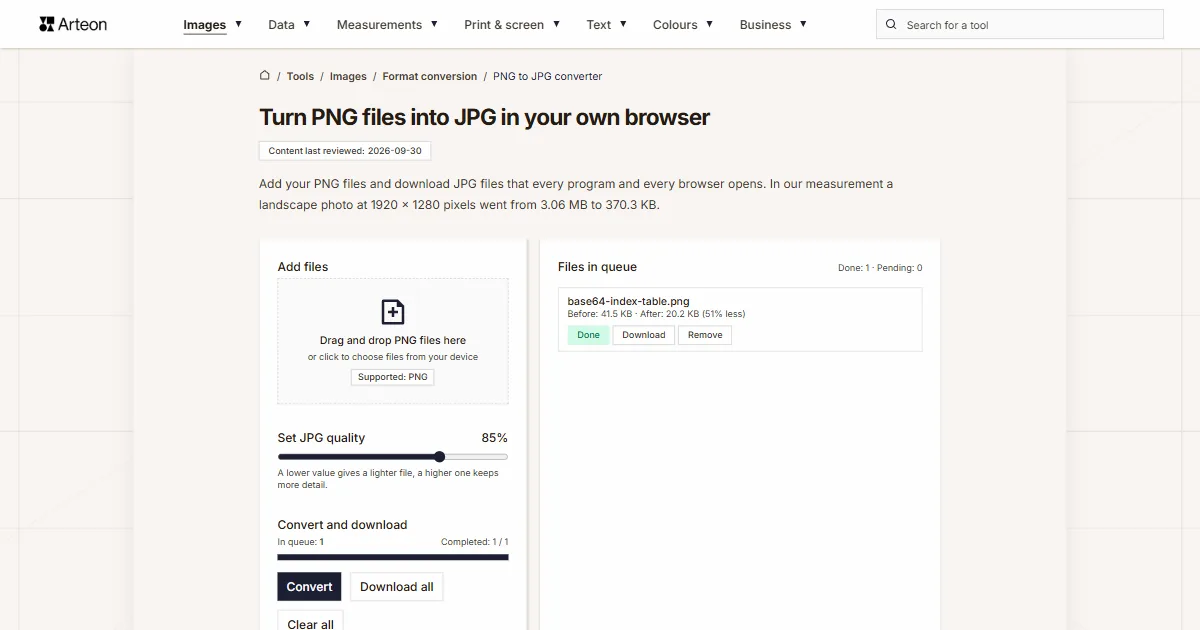
PNG to JPG
Convert PNG files to JPG in your browser. No file limits, no signup, no server uploads.

Favicon generator
Create a complete favicon.ico set for your website from one image. All required sizes, no login.
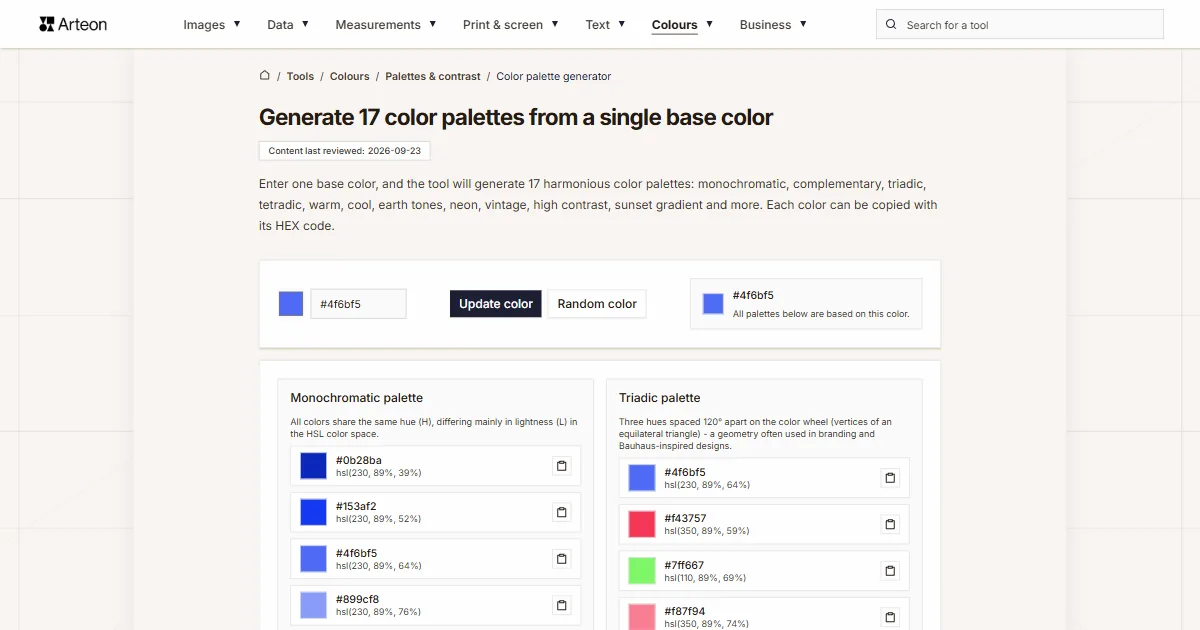
Color palette generator
Generate 17 palettes from one color: monochromatic, complementary, triadic and more. HEX codes.
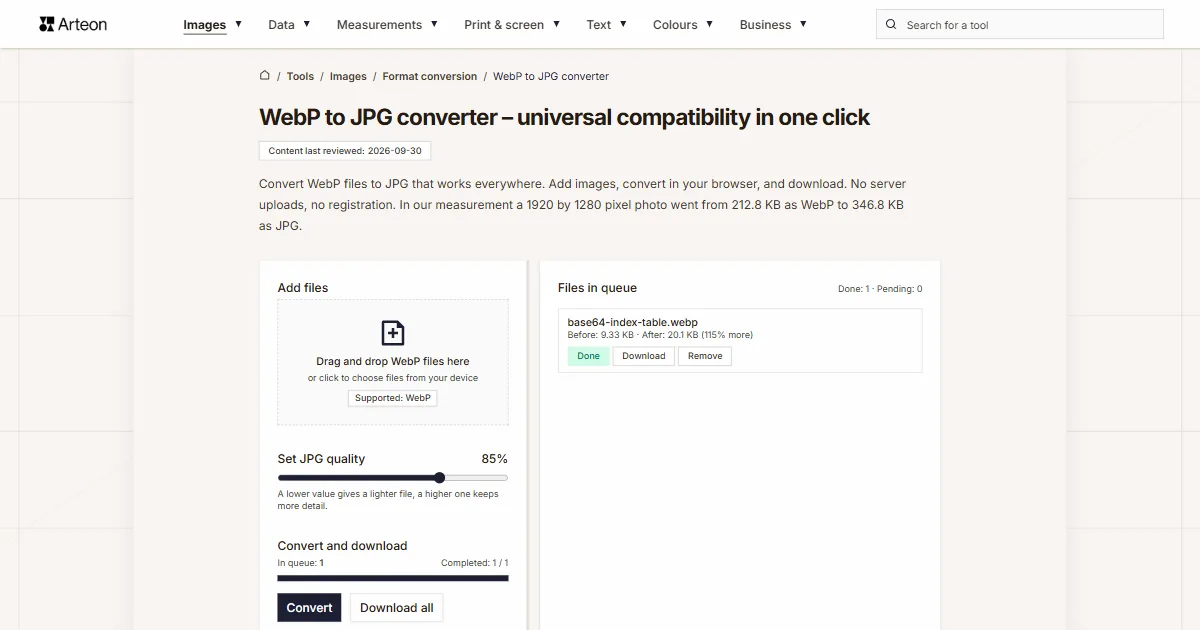
WebP to JPG
Convert WebP files to universally compatible JPG. Works in every app and platform.
Color contrast checker
Check text and background contrast per WCAG 2.1 AA and AAA. Automatic color correction.
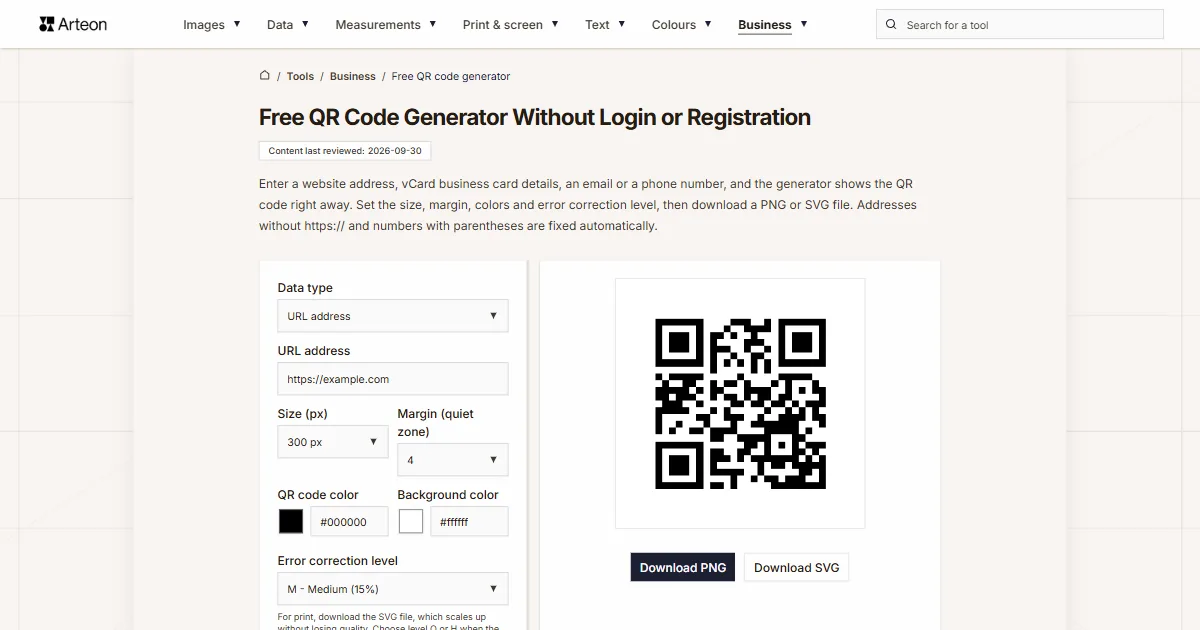
Free QR code generator
Create a QR code for a website, vCard business card or print. Export PNG and SVG, no registration.
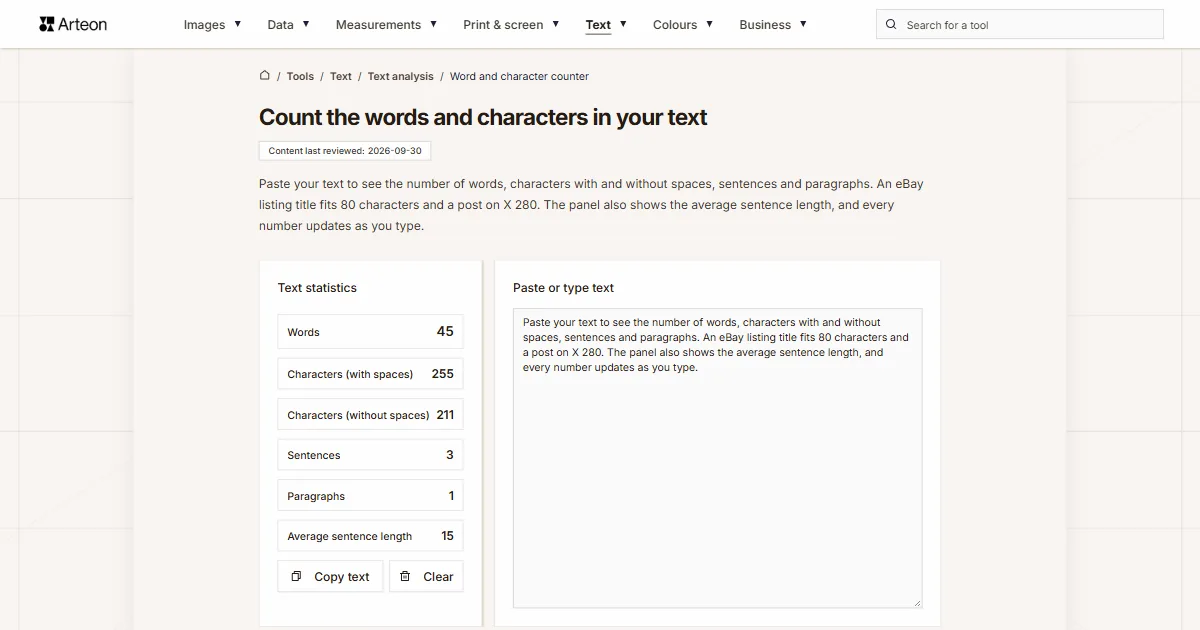
Word & character counter
Count words, characters with and without spaces, sentences, paragraphs and the average sentence length.
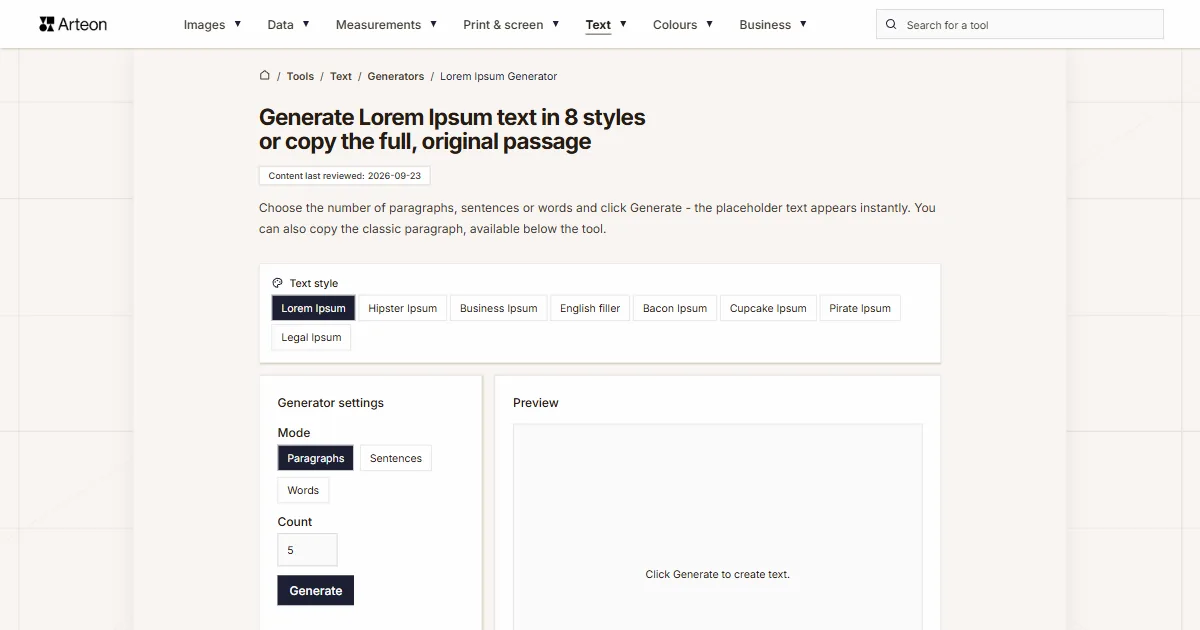
Lorem Ipsum Generator
Free Lorem Ipsum generator — 8 text styles, paragraphs, sentences or words. Copy in one click.