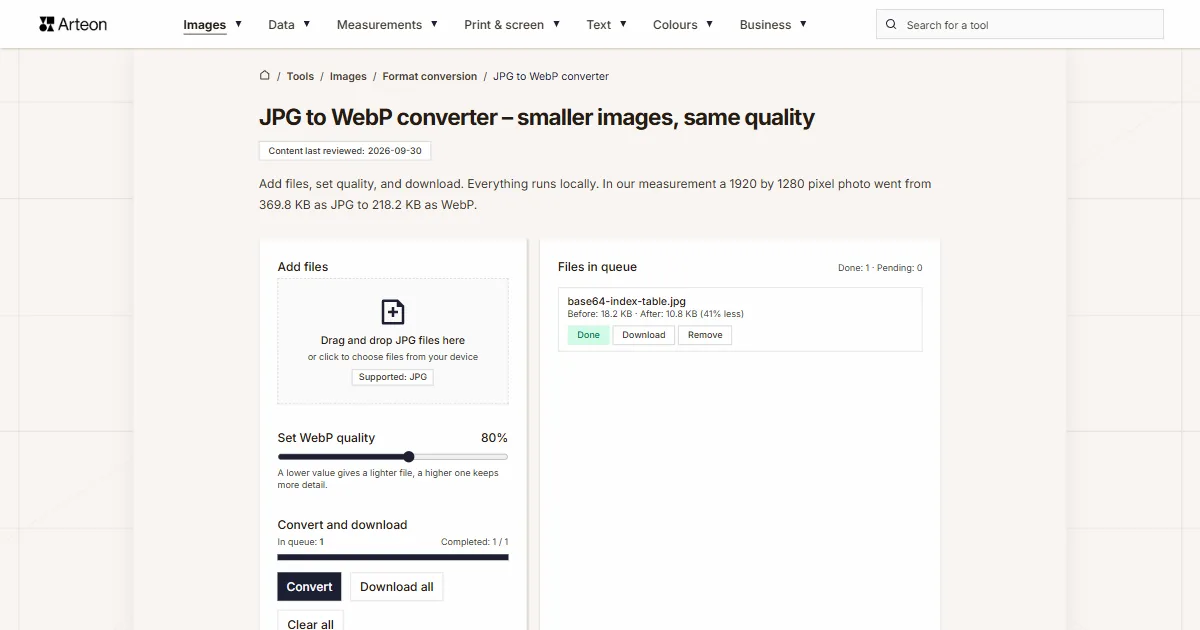
JPG to WebP converter – smaller images, same quality
Add files, set quality, and download. Everything runs locally. In our measurement a 1920 by 1280 pixel photo went from 369.8 KB as JPG to 218.2 KB as WebP.
Files in queue
Why convert JPG to WebP?
WebP is a modern image format developed by Google that delivers significantly better compression than JPG. This translates directly to faster page loads, lower bandwidth costs, and better Core Web Vitals scores.
WebP is supported by all major browsers: Chrome, Firefox, Safari 14+, and Edge. Both lossy and lossless compression modes are available.
Converting your JPG images to WebP can reduce page weight. Google PageSpeed Insights specifically recommends serving images in next-gen formats like WebP.
This tool requires a desktop browser because WebP encoding relies on the Canvas API with WebP export support. All processing happens locally — no files are uploaded to any server.
How to convert JPG to WebP
Quick steps:
Add JPG files
Drag your JPG images onto the drop area or click to select them. No limit on files.Set the quality
The Set WebP quality slider takes values from 60 to 95 percent, default 80. A lower value gives a lighter file, a higher one keeps more detail. Then click Convert.Download WebP
The Download button next to a file saves it on its own, and Download all packs all finished files into one ZIP archive. With a single finished file no archive is made, the file downloads directly.
How much does a file weigh before and after JPG to WebP conversion?
| Test file | Dimensions in pixels | JPG | WebP | Change |
|---|---|---|---|---|
| Landscape photo | 1920 × 1280 | 369.8 KB | 218.2 KB | 41 percent smaller |
| High-resolution camera photo | 4000 × 2667 | 1.22 MB | 619.0 KB | 2 times smaller |
| Product photo on a light background | 1200 × 1200 | 319.3 KB | 238.0 KB | 25 percent smaller |
| Leaf macro with fine detail | 1600 × 2015 | 1.12 MB | 936.2 KB | 18 percent smaller |
| Screenshot with text | 1440 × 900 | 89.9 KB | 45.6 KB | 49 percent smaller |
| Logo with a transparent background | 1024 × 1024 | 36.3 KB | 16.3 KB | 2.2 times smaller |
| Icon with transparency | 256 × 256 | 8.16 KB | 3.70 KB | 2.2 times smaller |
| Text page, as from a scanner | 1654 × 2339 | 287.4 KB | 155.8 KB | 46 percent smaller |
When should you convert JPG to WebP?
Common use cases:
Website performance
Serve WebP images to cut page weight. Faster loading directly improves Google Core Web Vitals scores, which are a confirmed ranking factor in search results.Core Web Vitals
Smaller images directly improve Largest Contentful Paint (LCP) — the time until the largest visible element renders. LCP under 2.5 seconds is Google's target for a 'good' score.CDN and hosting costs
Smaller files reduce bandwidth and storage consumption on your hosting or CDN. For high-traffic sites serving thousands of images daily, the savings can be significant.Mobile experience
WebP loads faster on mobile connections (3G/4G), where every kilobyte matters. Smaller images reduce data usage for your visitors and improve perceived performance.
What makes this JPG to WebP converter different?
Complete privacy
Files never leave your computer. Conversion uses the browser Canvas API - nothing is uploaded.Many files at once
Add any number of JPG files, each up to 100 MB. The converter processes them one by one and shows the status of each.Download in one archive
The Download all button packs all finished files into one ZIP archive, so you do not have to approve a dozen downloads one after another.Size before and after
Next to every file you see the input and output size, and under the list the total for the whole queue, so you know at once how much a file grew or shrank.
JPG vs WebP – format comparison
| Feature | JPG | WebP |
|---|---|---|
| Lossy compression | ✓ | ✓ |
| Lossless compression | — | ✓ |
| Transparency (alpha channel) | — | ✓ |
| Animation support | — | ✓ |
| Web browser support | All browsers | Chrome 32+, Firefox 65+, Edge 18+, Safari 14+ |
| Color depth | 8-bit (16.7M) | 8-bit (16.7M) |
| Metadata (EXIF) | ✓ | ✓ |
Quality settings - what to choose when converting JPG to WebP?
The quality slider lets you set a value from 60% to 95%. Higher values mean better image quality but larger file sizes.
- 80% (default) - a good balance for most use cases: business websites, blogs, articles. The visual difference compared to the original is virtually unnoticeable.
- 85–90% - for product photography, portfolios, and galleries where quality is the priority.
- 60–70% - when minimizing file size is the priority, e.g. thumbnails in category grids.
At 80% quality, the visual difference between the original JPG and the resulting WebP is virtually imperceptible to the naked eye, while the file is significantly smaller.
How converting JPG to WebP affects page speed
Image weight drives the LCP metric (Largest Contentful Paint), the time until the largest element on the screen appears. On many pages that element is the header photo or a product photo.
Format is one of two levers, the other is dimensions. A photo straight from the camera is 6000 pixels wide while a page column shows 800 of them, so scale it to the target width before converting. The PageSpeed Insights report, Performance section, shows which images weigh a page down.
Tips for converting JPG to WebP
A few tips to help you avoid common issues during conversion:
Very large files
Converting images above 4000×4000 pixels may be slower and strain the browser. If processing many large files, consider splitting them into batches of 10–20.Already compressed files
A JPG file saved at low quality may come out larger than the original after conversion to WebP, because the encoder re-saves the artefacts of the previous compression too. Check the size next to the file and lower the Set WebP quality slider if needed.Transparency
JPG does not store transparency, so the resulting WebP file is fully opaque, although the WebP format itself supports an alpha channel.Keep the originals
WebP compression is irreversible: detail once discarded cannot be recovered. Keep a copy of the JPG files to repeat the conversion with a different slider setting.
Convert other files to WebP
Convert JPG to other formats
Sources
- Image file type and format guide — MDN Web Docs
- Can I use: AVIF, WebP, HEIF — caniuse.com
The file sizes in the tables were measured by running finished images through this converter in a browser, and we report them the way the tool counts them. What the page says about either format rests on the sources listed above.
Content last reviewed: · written and checked by the Arteon team
Frequently asked questions about JPG to WebP conversion
How much smaller will the WebP be?
Actual savings depend on image content and compression settings.
Is quality lost?
WebP uses lossy compression like JPG. At quality 80 (the default), the visual difference compared to the original JPG is virtually imperceptible to the human eye. For maximum quality, set the slider to 90–95 — files will be larger but closer to the original.
Do all browsers support WebP?
Yes. All modern browsers support WebP: Chrome 32+, Firefox 65+, Edge 18+, Safari 14+, and Opera 19+. For the remaining users on very old browsers, you can use the HTML <picture> element to serve JPG as a fallback.
Why is this desktop-only?
WebP encoding relies on the browser's Canvas API with WebP export support. Desktop versions of Chrome, Firefox, Edge, and Safari support this reliably. Mobile browser support varies — some mobile browsers may not support Canvas-based WebP encoding.
Can I convert multiple files?
Yes. There is no limit on the number of files. You can add as many JPG images as you need — they are processed sequentially in your browser. For very large batches (100+ files), consider splitting them into groups of 20–30 to avoid memory issues.
Are files uploaded to a server?
No. The entire conversion process runs locally in your browser using the Canvas API. Your images never leave your device — nothing is uploaded to any server. This ensures complete privacy and works even without an internet connection (after the page loads).
Can I convert WebP back to JPG?
Yes. Use our WebP to JPG converter. Note that converting back from WebP to JPG is a lossy-to-lossy conversion, so some additional quality loss may occur. Always keep your original JPG files as backups.
What is the maximum file size?
Each file may be up to 100 MB; a larger one stops on the list with a message that it is too large. The number of files in the queue is not limited, and large images take longer because the browser decodes them fully into memory.
How do I download all files at once?
The Download all button packs the finished files into one ZIP archive named jpg-webp.zip. With a single finished file no archive is made and the file downloads directly.
Help us improve our tools
Have an idea, found a bug, or want to suggest a feature? Drop us a message.
Explore other useful tools

Meta title & description checker
Check title and description length in pixels. Live Google preview and optimization tips.
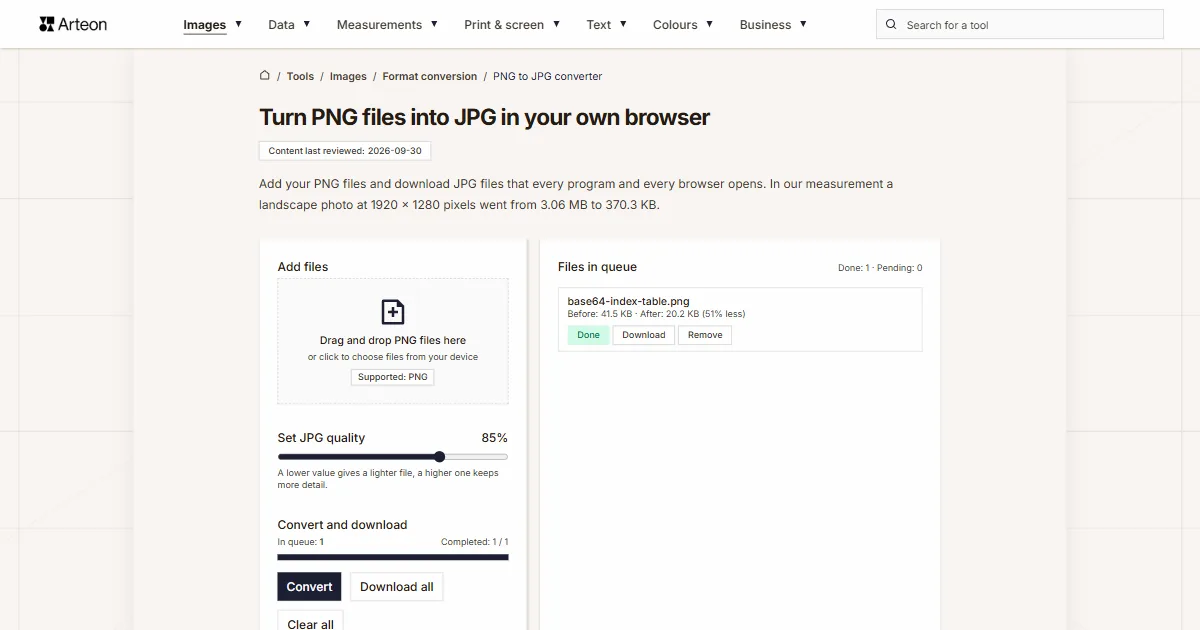
PNG to JPG
Convert PNG files to JPG in your browser. No file limits, no signup, no server uploads.

Favicon generator
Create a complete favicon.ico set for your website from one image. All required sizes, no login.
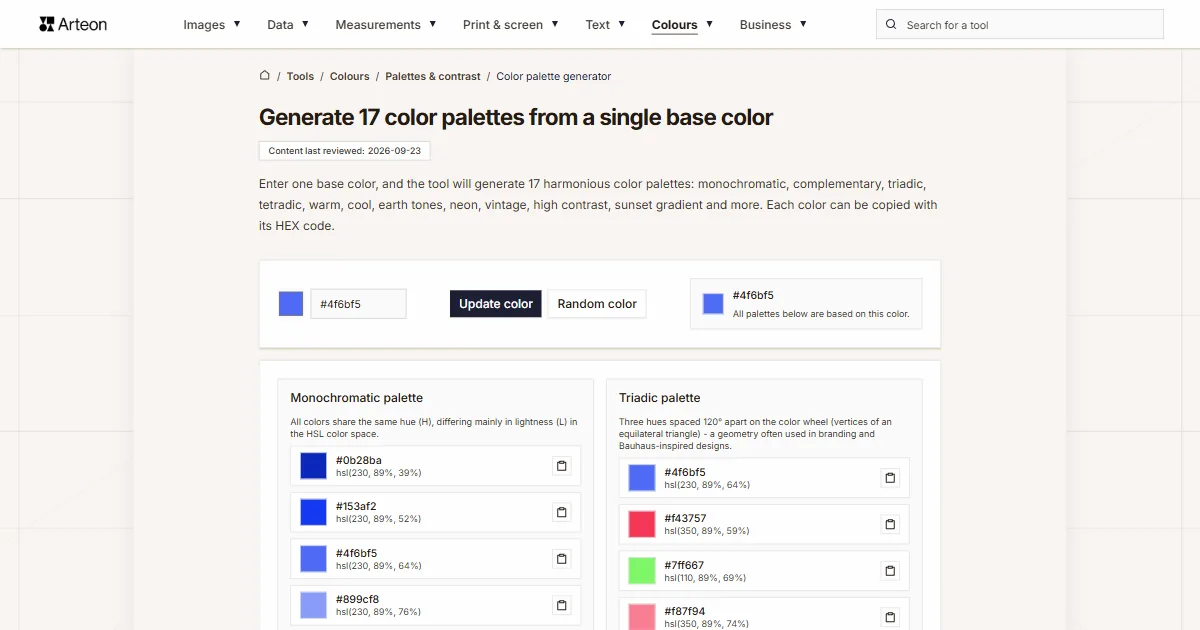
Color palette generator
Generate 17 palettes from one color: monochromatic, complementary, triadic and more. HEX codes.
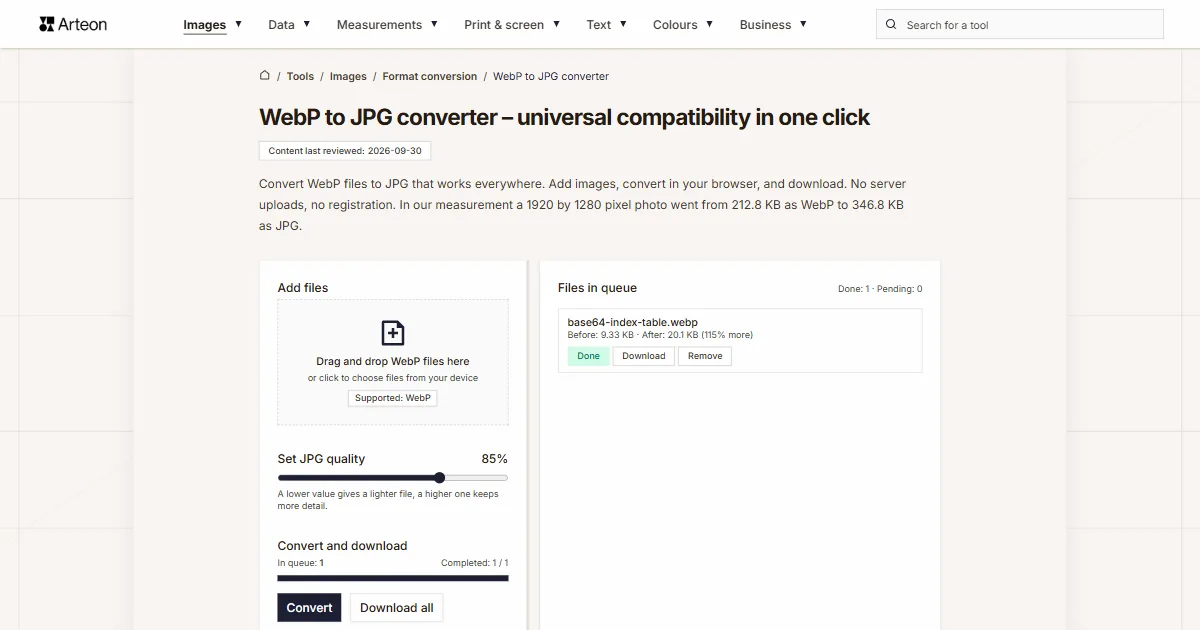
WebP to JPG
Convert WebP files to universally compatible JPG. Works in every app and platform.
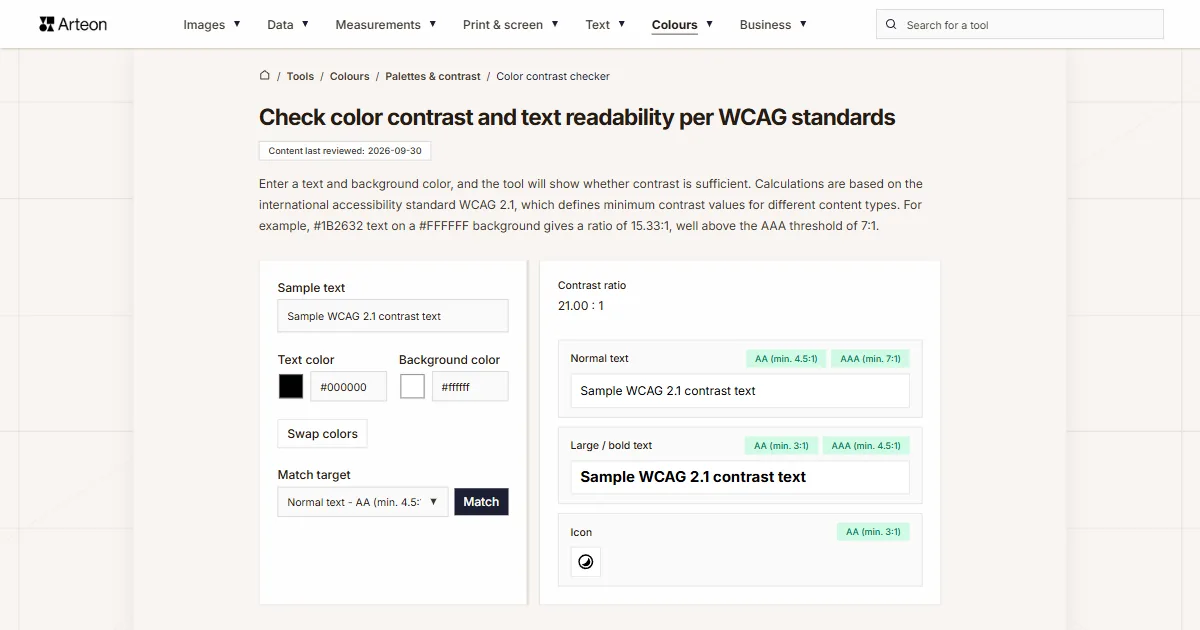
Color contrast checker
Check text and background contrast per WCAG 2.1 AA and AAA. Automatic color correction.
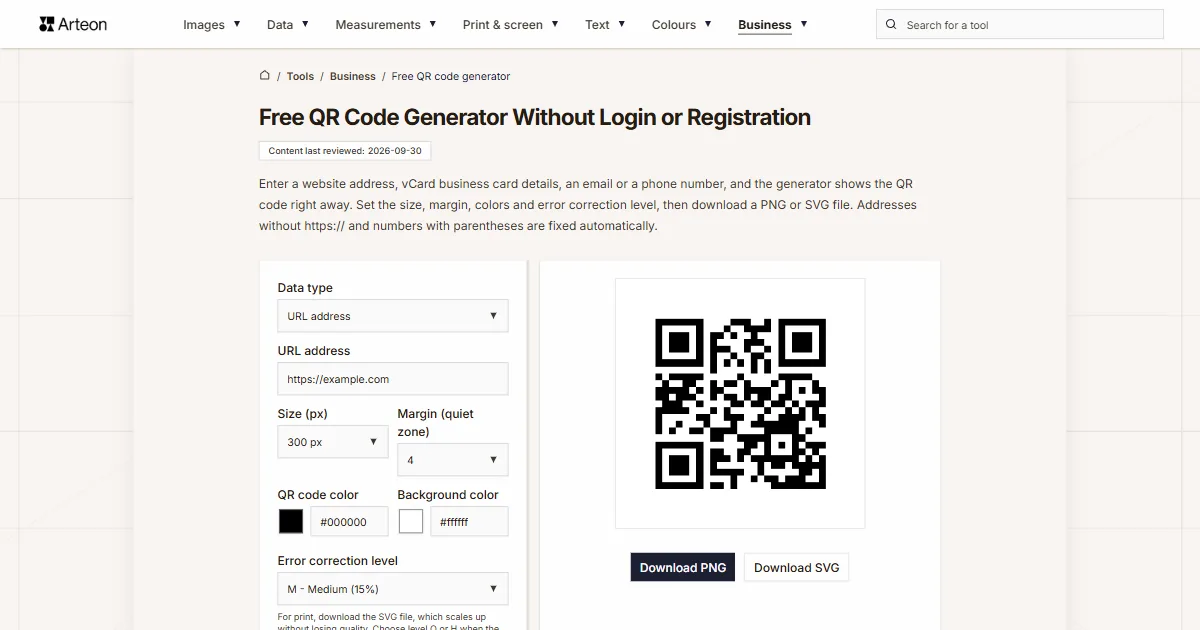
Free QR code generator
Create a QR code for a website, vCard business card or print. Export PNG and SVG, no registration.
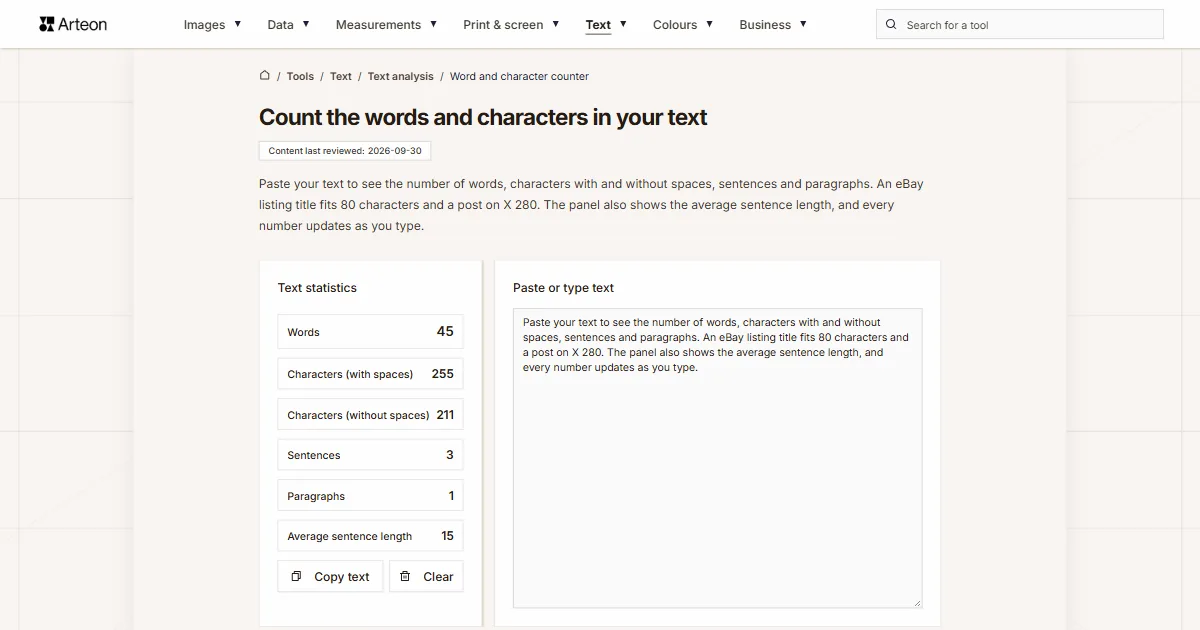
Word & character counter
Count words, characters with and without spaces, sentences, paragraphs and the average sentence length.
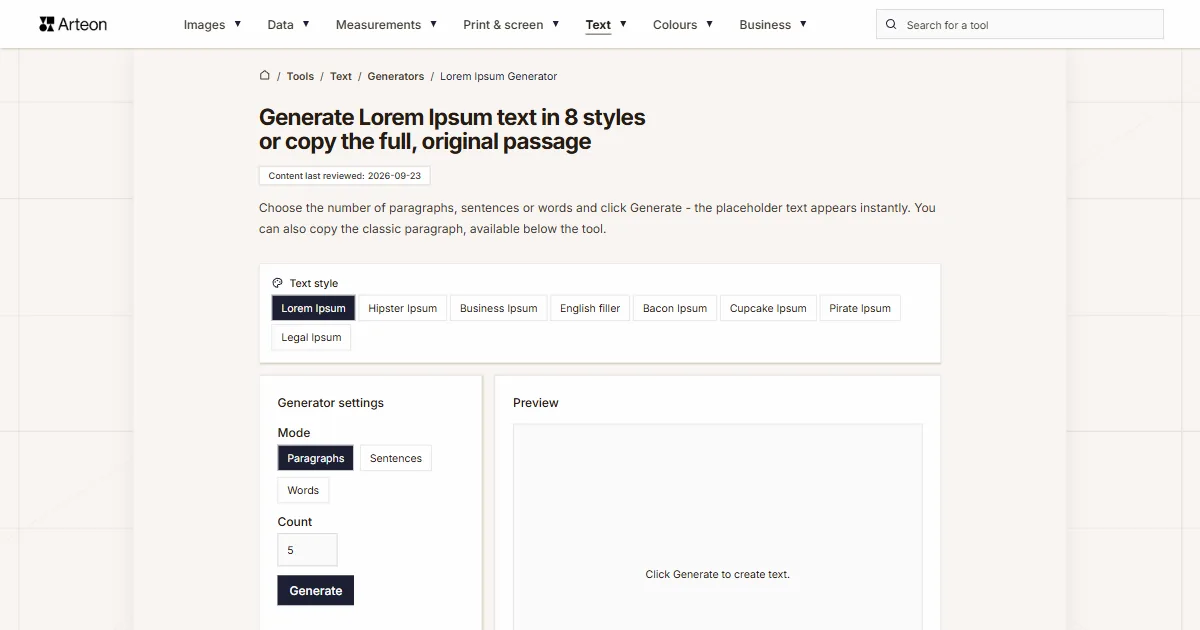
Lorem Ipsum Generator
Free Lorem Ipsum generator — 8 text styles, paragraphs, sentences or words. Copy in one click.