WebP to JPG converter – universal compatibility in one click
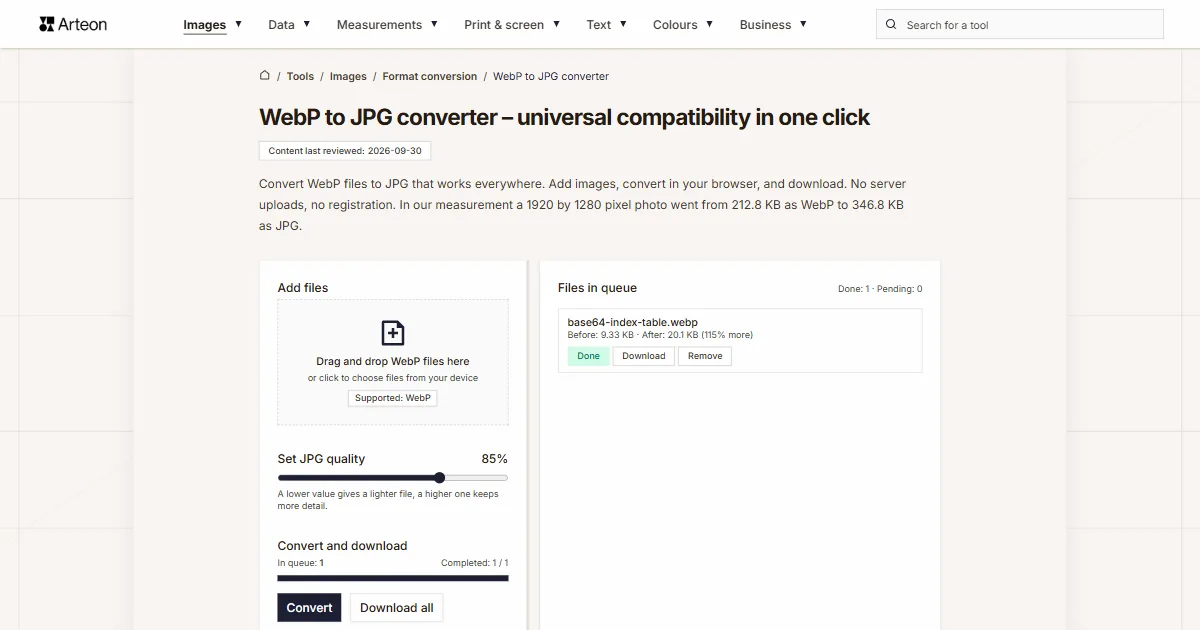
Convert WebP files to JPG that works everywhere. Add images, convert in your browser, and download. No server uploads, no registration. In our measurement a 1920 by 1280 pixel photo went from 212.8 KB as WebP to 346.8 KB as JPG.
Files in queue
Why convert WebP to JPG?
WebP is a modern image format developed by Google that offers excellent compression. However, not every application supports WebP - older image editors, some email clients, and certain document workflows still expect JPG or PNG files.
Converting WebP to JPG gives you a universally compatible image that opens in every program, browser, and operating system.
Common reasons to convert include: uploading to platforms that reject WebP, attaching images to emails, inserting photos into documents, or sharing with recipients whose software does not handle WebP.
This converter runs 100% in your browser. Files are never sent to any server.
How to convert WebP to JPG
Three quick steps:
Add WebP files
Drag your WebP images onto the drop area or click to select them. No file limit.Set the quality
The Set JPG quality slider takes values from 60 to 95 percent, default 85. A lower value gives a lighter file, a higher one keeps more detail. Then click Convert.Download JPG
The Download button next to a file saves it on its own, and Download all packs all finished files into one ZIP archive. With a single finished file no archive is made, the file downloads directly.
How much does a file weigh before and after WebP to JPG conversion?
| Test file | Dimensions in pixels | WebP | JPG | Change |
|---|---|---|---|---|
| Landscape photo | 1920 × 1280 | 212.8 KB | 346.8 KB | 63 percent larger |
| High-resolution camera photo | 4000 × 2667 | 615.4 KB | 1.09 MB | 81 percent larger |
| Product photo on a light background | 1200 × 1200 | 237.2 KB | 313.3 KB | 32 percent larger |
| Leaf macro with fine detail | 1600 × 2015 | 956.0 KB | 1.08 MB | 16 percent larger |
| Screenshot with text | 1440 × 900 | 44.9 KB | 88.5 KB | 97 percent larger |
| Logo with a transparent background | 1024 × 1024 | 19.2 KB | 37.1 KB | 93 percent larger |
| Icon with transparency | 256 × 256 | 4.39 KB | 8.62 KB | 97 percent larger |
| Text page, as from a scanner | 1654 × 2339 | 142.2 KB | 291.6 KB | 2.1 times larger |
When should you convert WebP to JPG?
Real-world scenarios where JPG is the better choice:
Email attachments
Some email clients display WebP as a generic download. Converting to JPG ensures inline previews across all email apps.Document workflows
Older versions of Word and PowerPoint do not insert WebP. JPG is universally supported in office documents.Printing
Print shops and consumer printers generally expect JPG or TIFF. Converting WebP to JPG avoids compatibility issues.Sharing with others
Recipients using older devices or software may not be able to open WebP files. JPG guarantees that everyone can view the image.
What makes this WebP to JPG converter different?
Complete privacy
Files stay on your device. Conversion uses the browser Canvas API - nothing is uploaded.Many files at once
Add any number of WebP files, each up to 100 MB. The converter processes them one by one and shows the status of each.Quality slider
The Set JPG quality slider from 60 to 95 percent, default 85. Next to every file you see the size before and after conversion, and under the list the total for the whole queue.Download in one archive
The Download all button packs all finished files into one ZIP archive, so you do not have to approve a dozen downloads one after another.
WebP vs JPG – format comparison
| Feature | WebP | JPG |
|---|---|---|
| Lossy compression | ✓ | ✓ |
| Lossless compression | ✓ | — |
| Transparency (alpha channel) | ✓ | — |
| Animation support | ✓ | — |
| Web browser support | Chrome 32+, Firefox 65+, Edge 18+, Safari 14+ | All browsers |
| Color depth | 8-bit (16.7M) | 8-bit (16.7M) |
| Metadata (EXIF) | ✓ | ✓ |
Quality settings - what to choose when converting WebP to JPG?
The quality slider lets you set a value from 60% to 95%. Higher values mean better image quality but larger file sizes.
- 85% (default) - a good balance for most use cases: business websites, blogs, articles. The visual difference compared to the original is virtually unnoticeable.
- 85–90% - for product photography, portfolios, and galleries where quality is the priority.
- 60–70% - when minimizing file size is the priority, e.g. thumbnails in category grids.
At 85% quality, the visual difference between the original WebP and the resulting JPG is virtually imperceptible to the naked eye.
How converting WebP to JPG affects page speed
Image weight drives the LCP metric (Largest Contentful Paint), the time until the largest element on the screen appears. On many pages that element is the header photo or a product photo. JPG comes out heavier than WebP, so keep the original on a web page and use JPG where WebP is not accepted.
Format is one of two levers, the other is dimensions. A photo straight from the camera is 6000 pixels wide while a page column shows 800 of them, so scale it to the target width before converting. The PageSpeed Insights report, Performance section, shows which images weigh a page down.
Tips for converting WebP to JPG
A few tips to help you avoid common issues during conversion:
Very large files
Converting images above 4000×4000 pixels may be slower and strain the browser. If processing many large files, consider splitting them into batches of 10–20.Already compressed files
A WebP file saved at low quality may come out larger than the original after conversion to JPG, because the encoder re-saves the artefacts of the previous compression too. Check the size next to the file and lower the Set JPG quality slider if needed.Transparency
JPG does not store transparency. The converter fills transparent areas of the WebP file with white. If the background has to stay transparent, choose PNG or WebP.Keep the originals
JPG compression is irreversible: detail once discarded cannot be recovered. Keep a copy of the WebP files to repeat the conversion with a different slider setting.
Convert other files to JPG
Convert WebP to other formats
Sources
- Image file type and format guide — MDN Web Docs
- Can I use: AVIF, WebP, HEIF — caniuse.com
The file sizes in the tables were measured by running finished images through this converter in a browser, and we report them the way the tool counts them. What the page says about either format rests on the sources listed above.
Content last reviewed: · written and checked by the Arteon team
Frequently asked questions about WebP to JPG conversion
Will I lose quality when converting WebP to JPG?
Yes, JPG from this converter is saved lossy, at the quality set by the Set JPG quality slider (default 85 percent). At that value the difference is invisible on screen, while at 60 percent fine detail starts to blur. The encoder has no lossless mode.
Why not keep images in WebP?
WebP offers better compression, but some apps, email clients, and print workflows do not support it. JPG is the safest choice for universal compatibility.
Can I convert multiple files at once?
Yes. Add as many files as you like - there is no limit. All images are converted in sequence.
Are my files uploaded to a server?
No. Everything happens locally in your browser. Files never leave your device.
What about WebP animations?
This tool converts the first frame of an animated WebP to a static JPG. For animated images, consider converting to GIF instead.
What is the maximum file size?
Each file may be up to 100 MB; a larger one stops on the list with a message that it is too large. The number of files in the queue is not limited, and large images take longer because the browser decodes them fully into memory.
Can I convert JPG back to WebP?
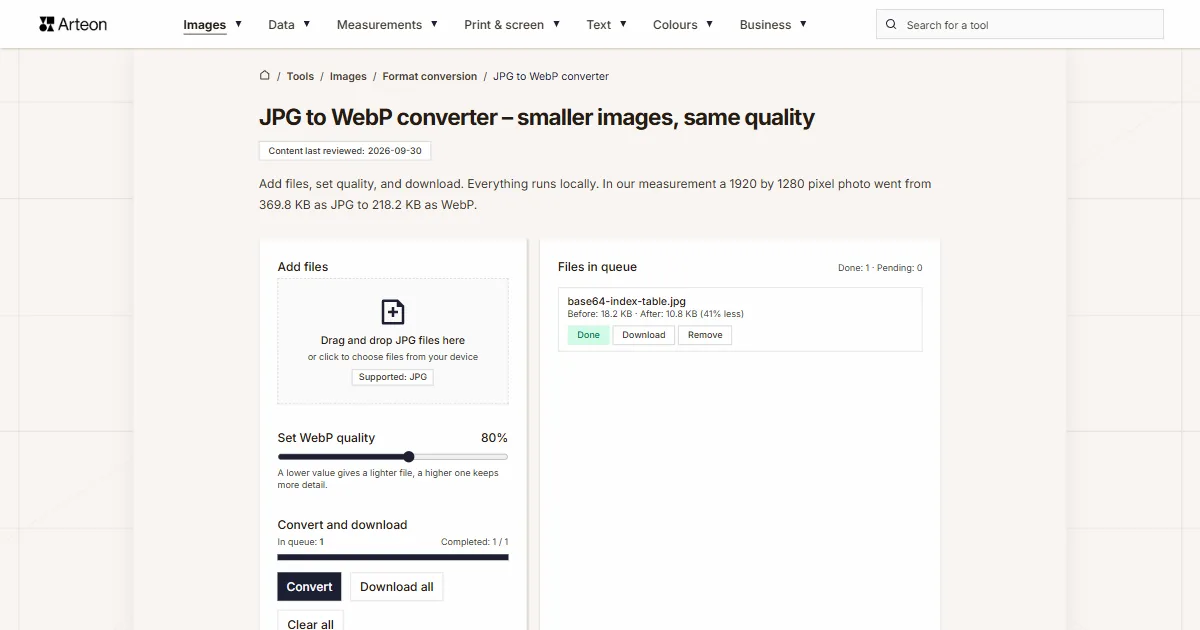
Yes. Use our JPG to WebP converter to switch back.
Does this work on mobile?
Yes, though we recommend a desktop or laptop for the best experience.
How do I download all files at once?
The Download all button packs the finished files into one ZIP archive named webp-jpg.zip. With a single finished file no archive is made and the file downloads directly.
Help us improve our tools
Have an idea, found a bug, or want to suggest a feature? Drop us a message.
Explore other useful tools

Meta title & description checker
Check title and description length in pixels. Live Google preview and optimization tips.
PNG to JPG
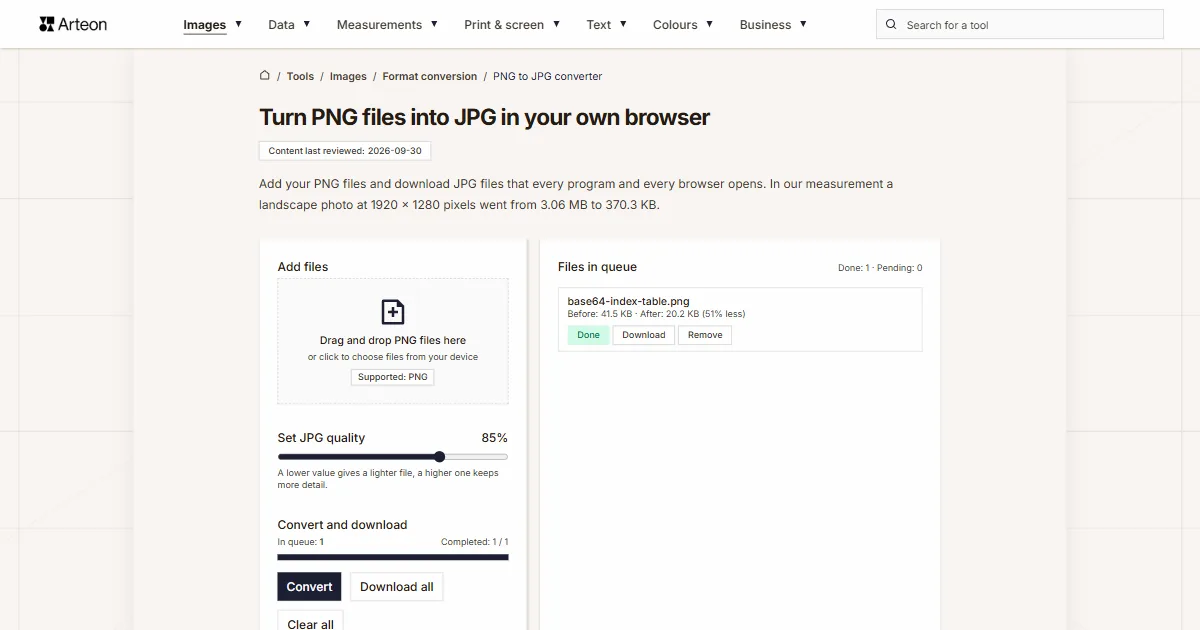
Convert PNG files to JPG in your browser. No file limits, no signup, no server uploads.

Favicon generator
Create a complete favicon.ico set for your website from one image. All required sizes, no login.
Color palette generator
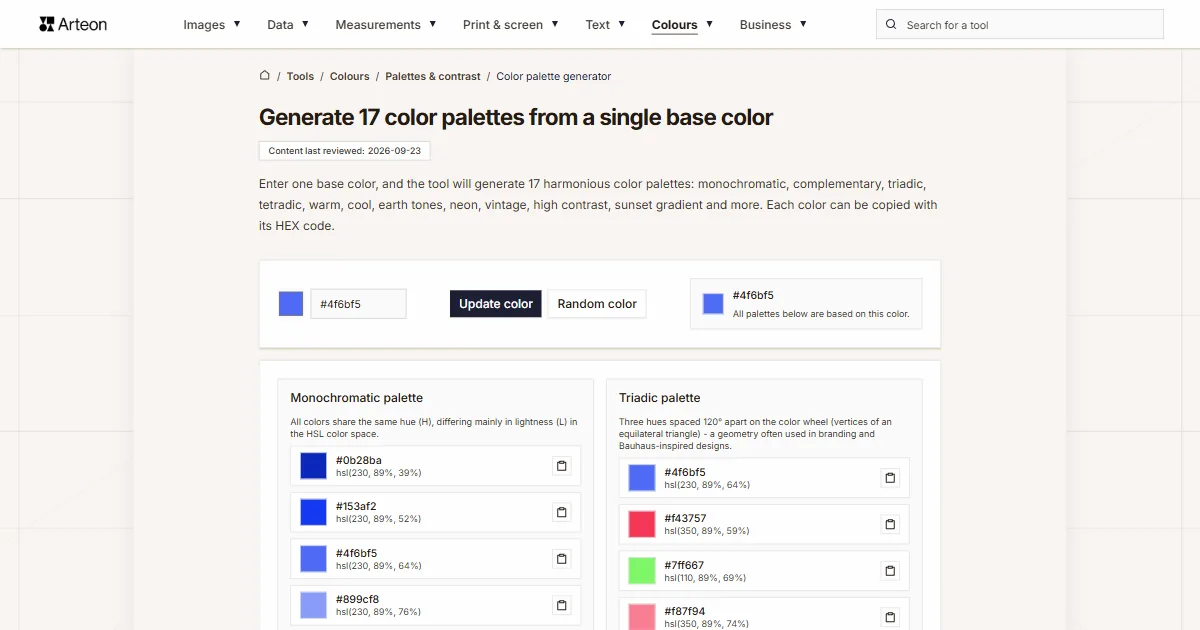
Generate 17 palettes from one color: monochromatic, complementary, triadic and more. HEX codes.
WebP to JPG
Convert WebP files to universally compatible JPG. Works in every app and platform.
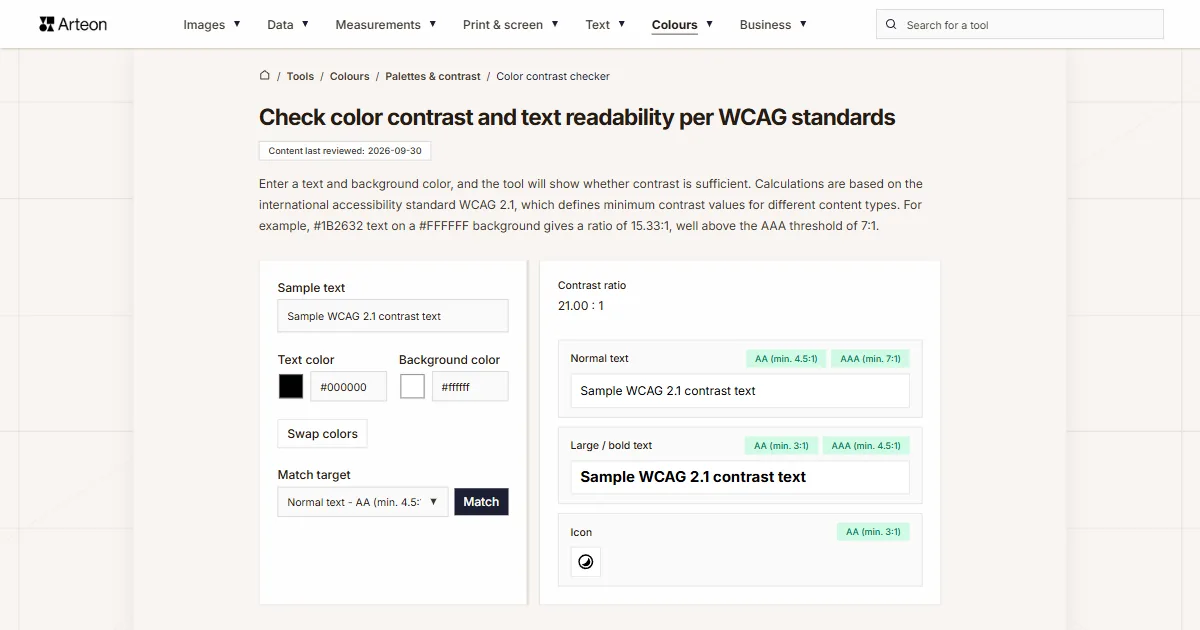
Color contrast checker
Check text and background contrast per WCAG 2.1 AA and AAA. Automatic color correction.
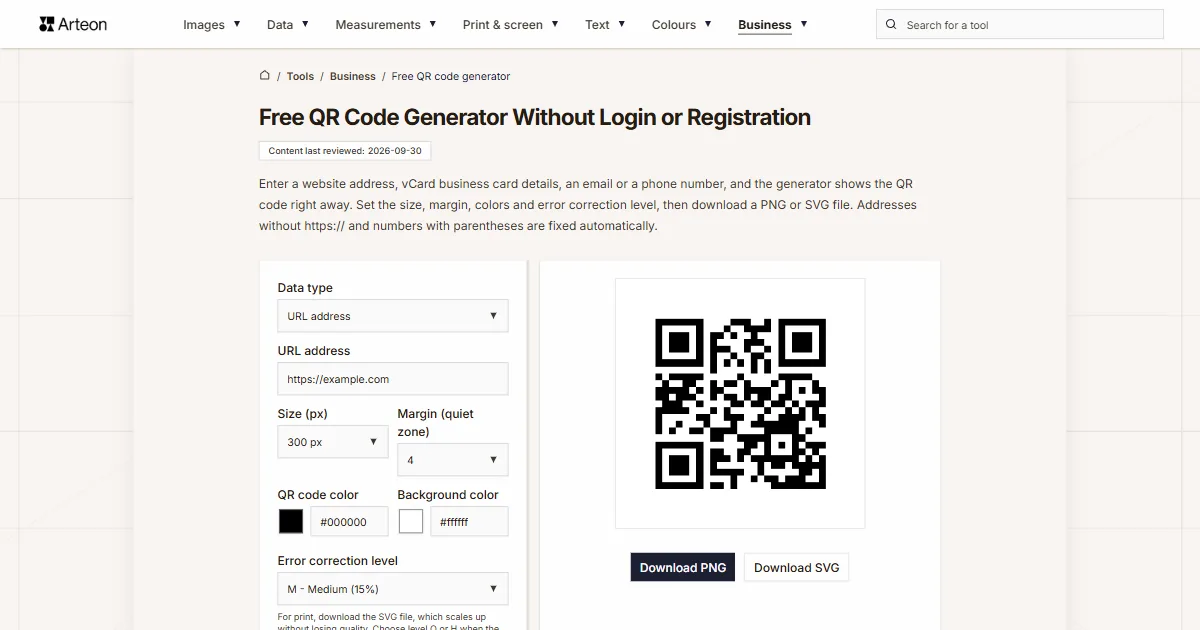
Free QR code generator
Create a QR code for a website, vCard business card or print. Export PNG and SVG, no registration.
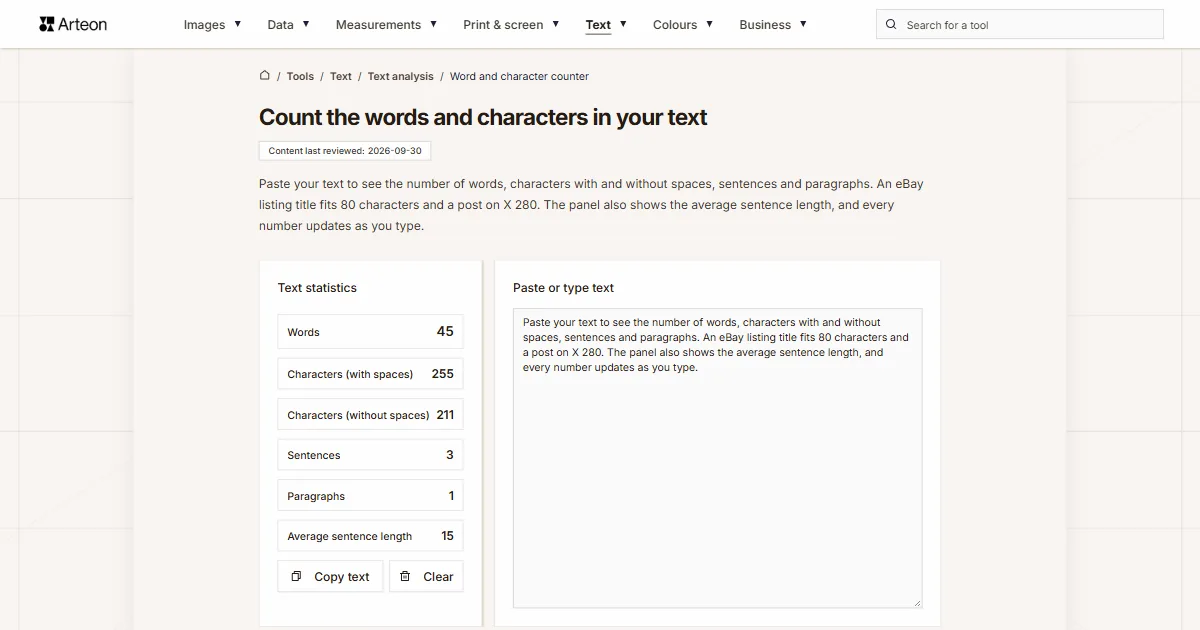
Word & character counter
Count words, characters with and without spaces, sentences, paragraphs and the average sentence length.
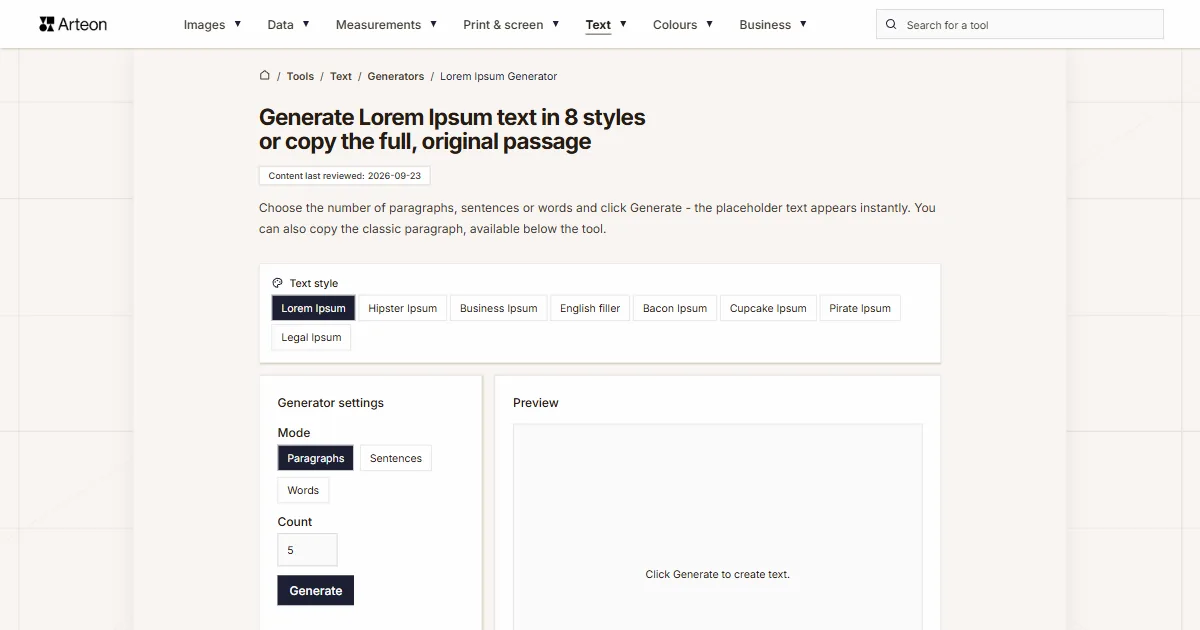
Lorem Ipsum Generator
Free Lorem Ipsum generator — 8 text styles, paragraphs, sentences or words. Copy in one click.