Turn an AVIF file into a JPG in your browser
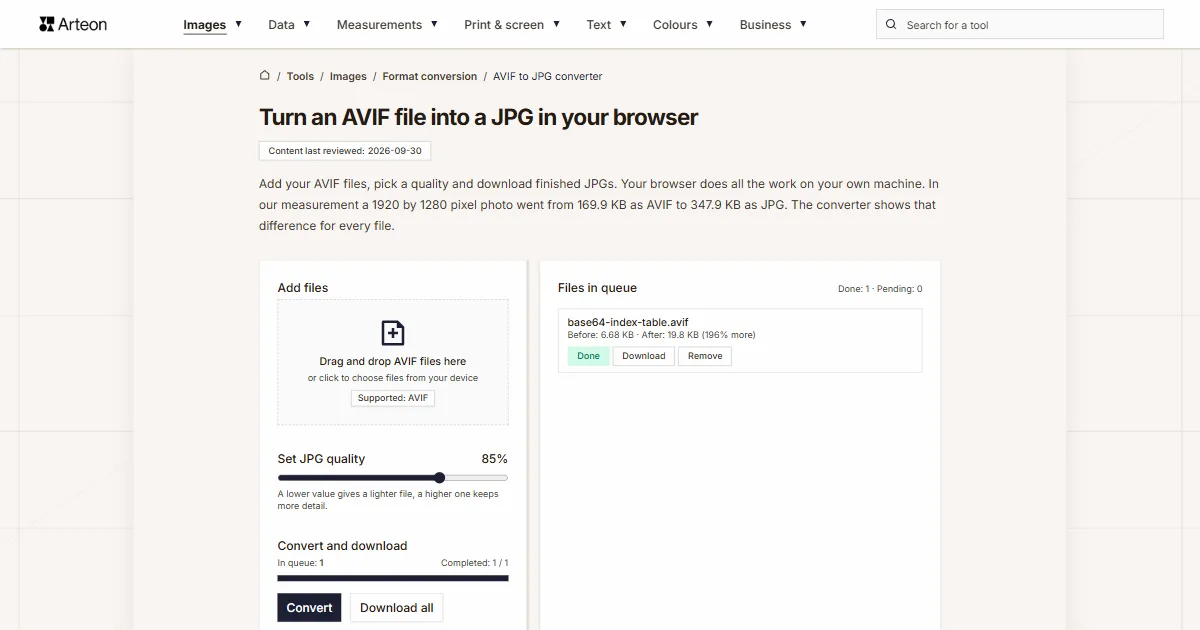
Add your AVIF files, pick a quality and download finished JPGs. Your browser does all the work on your own machine. In our measurement a 1920 by 1280 pixel photo went from 169.9 KB as AVIF to 347.9 KB as JPG. The converter shows that difference for every file.
Files in queue
What is AVIF, and what is JPG?
AVIF is an image format built on the AV1 video codec. It was published in February 2019 by the Alliance for Open Media, the same group that had created the codec itself. An AVIF file holds a single AV1 frame inside a HEIF container, the same box for data that an iPhone uses for HEIC photos[1]. That is where its strength comes from: at comparable image quality an AVIF file is roughly half the size of the same picture stored as JPG[2]. AVIF also stores transparency, animation, 10- and 12-bit colour and HDR, meaning an extended range of brightness[1].
JPG, also written JPEG, is twenty-seven years older. The Joint Photographic Experts Group published it in September 1992 under two designations at once: ISO/IEC 10918 and ITU-T T.81[3]. JPG divides the picture into square blocks and describes each of them with a discrete cosine transform, DCT for short, dropping some of the finest detail along the way. Each of the three colour channels gets eight bits, and the format stores no transparency at all[2].
What separates them day to day is availability. Every browser, every operating system and every graphics program opens JPG, and the JPEG committee still calls it the most dominant still image format around[3]. AVIF needs software from the last few years, and on Windows a separate add-on[4]. That is why an AVIF file often has to become a JPG before the program you work in will open it.
How do you convert an AVIF file to JPG?
Drag your AVIF files onto the Add files field, or click it and pick them from your device. Use the Set JPG quality slider to choose a value between 60 and 95 per cent; it sits at 85 by default. Click Convert and every item in the queue on the right turns to a green Done badge.
There are two ways to collect the results. The Download button next to an item saves that one file, while Download all saves the whole queue. The name stays the same and only the extension changes to .jpg. Clear all empties the queue when you want to start over.
Under the buttons the converter reports Total input size and Total output size, with the difference between them below. You see the same figures per file, in the Before and After lines.
How much does a file weigh before and after AVIF to JPG conversion?
| Test file | Dimensions in pixels | AVIF | JPG | Change |
|---|---|---|---|---|
| Landscape photo | 1920 × 1280 | 169.9 KB | 347.9 KB | 2 times larger |
| High-resolution camera photo | 4000 × 2667 | 496.5 KB | 1.10 MB | 2.3 times larger |
| Product photo on a light background | 1200 × 1200 | 165.0 KB | 303.3 KB | 84 percent larger |
| Leaf macro with fine detail | 1600 × 2015 | 516.2 KB | 1.08 MB | 2.1 times larger |
| Screenshot with text | 1440 × 900 | 41.4 KB | 90.2 KB | 2.2 times larger |
| Logo with a transparent background | 1024 × 1024 | 12.8 KB | 37.0 KB | 2.9 times larger |
| Icon with transparency | 256 × 256 | 3.56 KB | 8.62 KB | 2.4 times larger |
| Text page, as from a scanner | 1654 × 2339 | 82.2 KB | 290.4 KB | 3.5 times larger |
Why does the JPG come out heavier than the AVIF?
Both formats store pictures lossily, throwing away part of the information so the file takes up less room. They go about it differently. JPG uses a method described in 1992[3], while AVIF uses the tools of the AV1 codec, which arrived more than a quarter of a century later and describes the same picture in fewer bytes. MDN states the gap plainly: at similar visual quality an AVIF file is around half the size of a JPG[2].
So the weight goes up. Your file is already stored by the thriftier method, and the converter unpacks the picture into a full grid of pixels and writes it again with the older one. At the default 85% quality we measured growth of 1.8 to 3.5 times. The exact figure depends on the picture: the more large, even areas it holds, the bigger the gap, because those areas are precisely what the AV1 codec stores most efficiently.
The quality slider is what gives you control. Setting it to 60% brings the result down to 1.1–2.5 times the weight of the source, and the difference then shows up mostly on flat surfaces such as a clear sky. If you want the lightest possible file and the person receiving it accepts other formats, the same picture ends up smaller with the AVIF to WebP converter.
How does AVIF differ from JPG?
The table lines up eleven properties that show what each format can store and where it opens. The browser row gives the first version in which the format works with no extra settings.
| Property | AVIF | JPG |
|---|---|---|
| Year the standard was published | 2019 | 1992 |
| Lossy storage | yes | yes |
| Lossless storage | yes | only in a mode nobody uses day to day |
| Transparency, the alpha channel | yes | no |
| Animation in a single file | yes | no |
| Bits per colour channel | 8, 10 or 12 | 8 |
| HDR and wide colour gamut | yes | no |
| Picture appears gradually while downloading | no | yes, in progressive mode |
| File weight at comparable image quality | about half | about double |
| First browser version with support | Chrome 85+, Firefox 93+, Edge 121+, Safari 16.4+ | every version of every browser |
| Support built into Windows | no, a free add-on is needed | yes |
Which quality should you set on the slider?
The Set JPG quality slider accepts values from 60 to 95 per cent and recalculates the files after every change. The last two columns give the weight of the same screenshot and the same landscape photo from the table above, saved at each setting.
| Slider setting | What it suits | Screenshot from 41.4 KB AVIF | Landscape from 169.9 KB AVIF |
|---|---|---|---|
| 60% | An email attachment or a form with a size limit | 59.0 KB | 199.5 KB |
| 65% | A thumbnail in a product grid or a preview in a list | 62.6 KB | 217.6 KB |
| 70% | An illustration inside a blog post | 67.6 KB | 238.9 KB |
| 75% | A gallery photo viewed at modest magnification | 73.0 KB | 263.2 KB |
| 80% | A product photo in an online shop | 80.3 KB | 299.7 KB |
| 85% | The default setting, sound for most photographs | 90.2 KB | 347.9 KB |
| 90% | A photography portfolio or a file heading for further editing | 106.0 KB | 428.6 KB |
| 95% | Print material and an archive of working files | 134.3 KB | 593.1 KB |
What opens an AVIF file on your computer?
There are a few places where you can look at an AVIF file before turning it into a JPG.
A web browser
Drag the .avif file onto an empty browser tab and the picture fills the screen. This works in Chrome from version 85, Firefox from 93, Edge from 121 and Safari from 16.4[5]. The converter on this page rests on the same ability, because it is your browser that reads the AVIF.Windows, the Photos app and File Explorer
The image codecs built into Windows cover JPEG, PNG, TIFF, GIF, BMP and JPEG XR, and AVIF is not on that list[4]. That is why an .avif file gets a plain file icon in File Explorer, with no preview of its contents. The free AV1 Video Extension from the Microsoft Store adds the support; once it is installed, thumbnails and the Photos app start reading .avif files.A picture saved from a website
The site serves the picture in that format, and Save image as writes down exactly what the browser downloaded, extension included. The file is perfectly valid; it just needs a program that knows the format.A change to a format everything opens
The converter on this page writes JPG, and that opens in every graphics program and every operating system. If the picture has a transparent background and you want to keep it, reach for the AVIF to PNG converter, because PNG stores the alpha channel.
What happens to transparency, EXIF data and a very large photo?
Transparent areas are filled with white. JPG has no alpha channel, so every pixel has to be given a definite colour, and white suits most uses. We checked this on a graphic with a transparent background: a pixel described in the AVIF as fully transparent comes out of the JPG as clean white. When the background has to stay transparent, use the AVIF to PNG converter.
EXIF data does not carry over to the output file. EXIF is the record that a camera or phone attaches to a photograph: the device model, the exposure time, the date and, with location switched on, the coordinates of the place the picture was taken. We measured this on an AVIF file with a record deliberately written into it, and the resulting JPG holds no trace of it. What remains is the picture itself with an sRGB colour space description, so a photo you pass on no longer carries information about where and with what it was taken.
A single file can weigh up to 100 MB. Pictures wider or taller than 16,384 pixels, and those holding more than 268 million pixels in total, are scaled down proportionally to that limit before they are saved. This affects panoramas and large-format scans; an ordinary photograph from a camera or a phone sits well inside the range.
Convert other files to JPG
Convert AVIF to other formats
Sources
- AV1 Image File Format (AVIF), version 1.2.0 — Alliance for Open Media
- Image file type and format guide — MDN Web Docs
- JPEG 1 – ISO/IEC 10918 and ITU-T T.81 — JPEG Committee
- Windows Imaging Component – codecs built into Windows — Microsoft Learn
- AVIF image format – browser support — Can I use
The file sizes in the tables were measured by running finished images through this converter in a browser, and we report them the way the tool counts them. What the page says about either format rests on the sources listed above.
Content last reviewed: · written and checked by the Arteon team
Common questions about converting AVIF to JPG
Will the JPG be heavier than the AVIF?
Yes, at the default slider setting almost always. Across eight measured pictures a JPG saved at 85% quality came out 1.8 to 3.5 times heavier than the AVIF. It follows from the difference between the formats: AVIF describes the same picture with fewer bytes. Setting the slider to 60% brings the result down to 1.1–2.5 times the weight of the source.
Why does the picture I downloaded have an .avif extension?
Because the site you saved it from serves its pictures in that format, and the browser wrote to disk exactly what it downloaded. Sites are moving to AVIF so that pages load faster. The file is fine; it just needs a program that knows the format.
What opens an AVIF file on Windows?
A browser is quickest: drag the file onto an empty tab in Chrome, Edge or Firefox. To get thumbnails in File Explorer and have the picture open in the Photos app, install the free AV1 Video Extension from the Microsoft Store. The codecs built into Windows cover JPEG, PNG, TIFF, GIF and BMP, and AVIF is not among them.
Does converting to JPG make the photo look worse?
Both formats are lossy, so saving to JPG is a second compression of the same picture and some detail goes. At 85% quality the difference only shows at heavy magnification, mostly on even surfaces. Keep your original AVIF files, because the detail dropped on the way to JPG cannot be recovered from the JPG.
What happens to a transparent background?
Transparent areas get a white fill, because the JPG format stores no alpha channel. If the background has to stay transparent, run the file through the AVIF to PNG converter.
Do my photos reach your server?
No. The whole conversion runs in your browser, on a canvas element, and the output file is created in your own device's memory. Closing the tab releases that memory.
How many files can I convert at once?
You can drag in a whole folder and click Convert once, because we set no limit on the number of files. The limit applies to a single file, which may weigh up to 100 MB. Files are processed one after another, and the progress bar shows how many are already done.
Does EXIF data stay in the JPG?
No. The camera model, exposure time, date and location coordinates do not carry over to the output file. What remains is the picture with an sRGB colour space description. For a photo you are passing on that works in your favour, because the information about where it was taken goes with the record.
What is the difference between JPG and JPEG?
They are the same format written with two extensions. This converter saves files ending in .jpg, and a program that opens JPEG will open them with no difference at all.
Can I go back from JPG to AVIF?
Yes, the JPG to AVIF converter does that. The file will be light again, though the detail dropped on the way to JPG is dropped for good, so converting from the original always gives the best result.
How do I set the slider for the lightest possible file?
Move it to 60%, the bottom of the range. With photographs that hold large even surfaces, check the result magnified, because that is where the square blocks appear first.
What happens to a very large panoramic photo?
Pictures wider or taller than 16,384 pixels, and those holding more than 268 million pixels, are scaled down proportionally to that limit and saved at that size. This comes from the limits of the canvas element in the browser. Photographs from cameras and phones sit below those values.
Help us improve our tools
Got an idea for a feature, found a bug, or want to suggest another tool? Write to us.
Try our other tools

Meta title & description checker
Check title and description length in pixels. Live Google preview and optimization tips.
PNG to JPG
Convert PNG files to JPG in your browser. No file limits, no signup, no server uploads.

Favicon generator
Create a complete favicon.ico set for your website from one image. All required sizes, no login.
Color palette generator
Generate 17 palettes from one color: monochromatic, complementary, triadic and more. HEX codes.
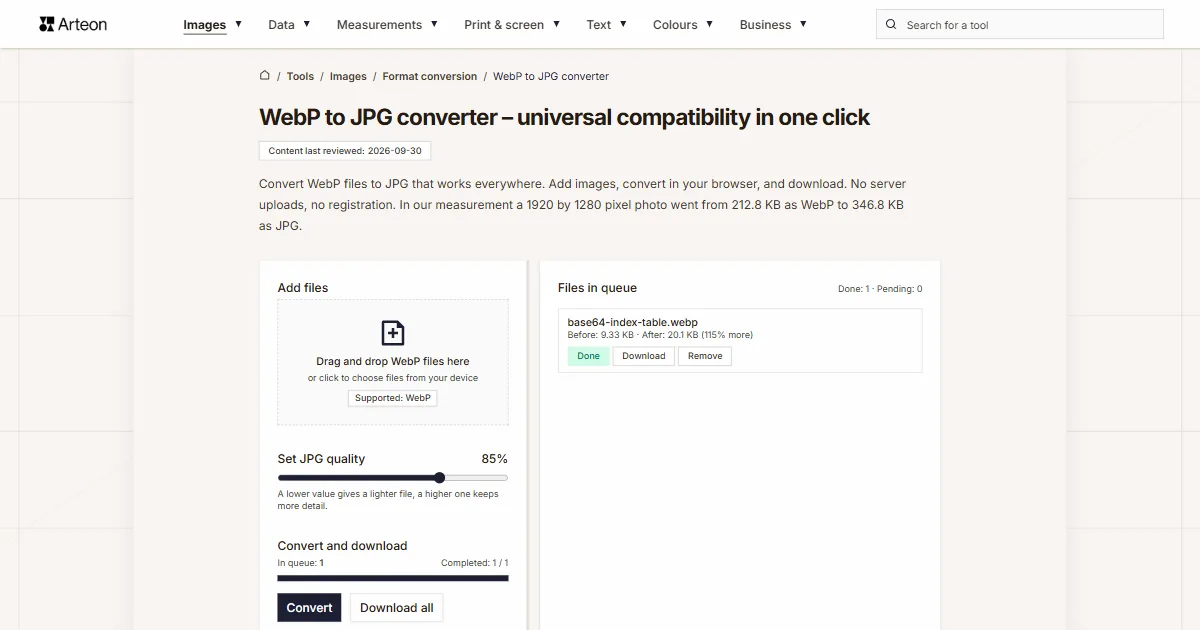
WebP to JPG
Convert WebP files to universally compatible JPG. Works in every app and platform.
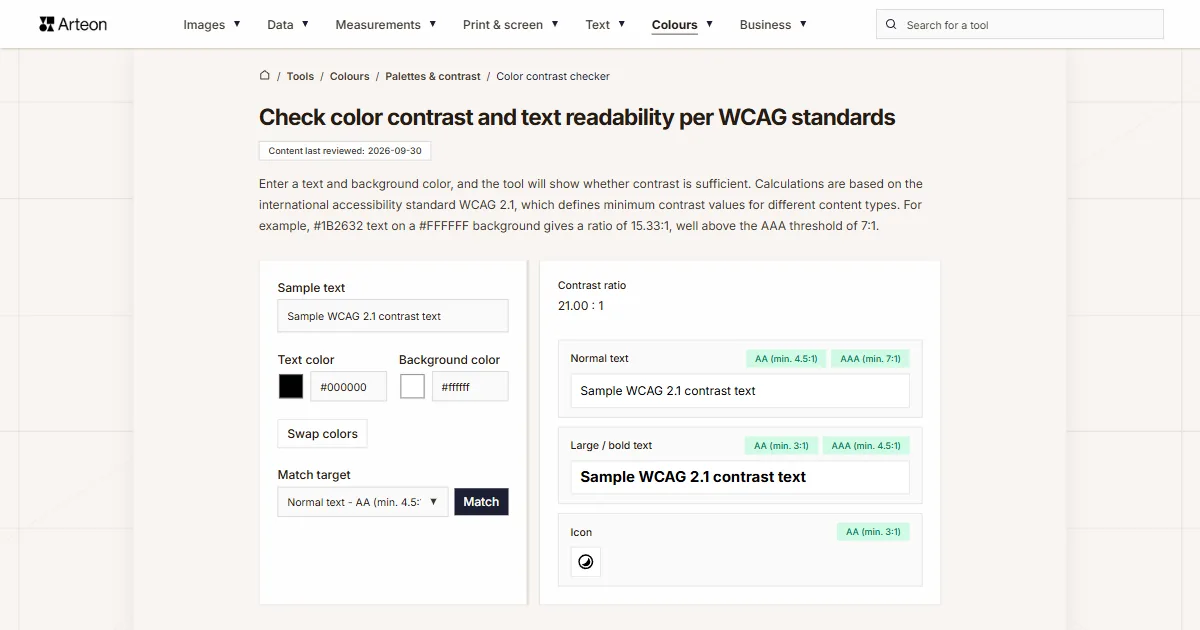
Color contrast checker
Check text and background contrast per WCAG 2.1 AA and AAA. Automatic color correction.
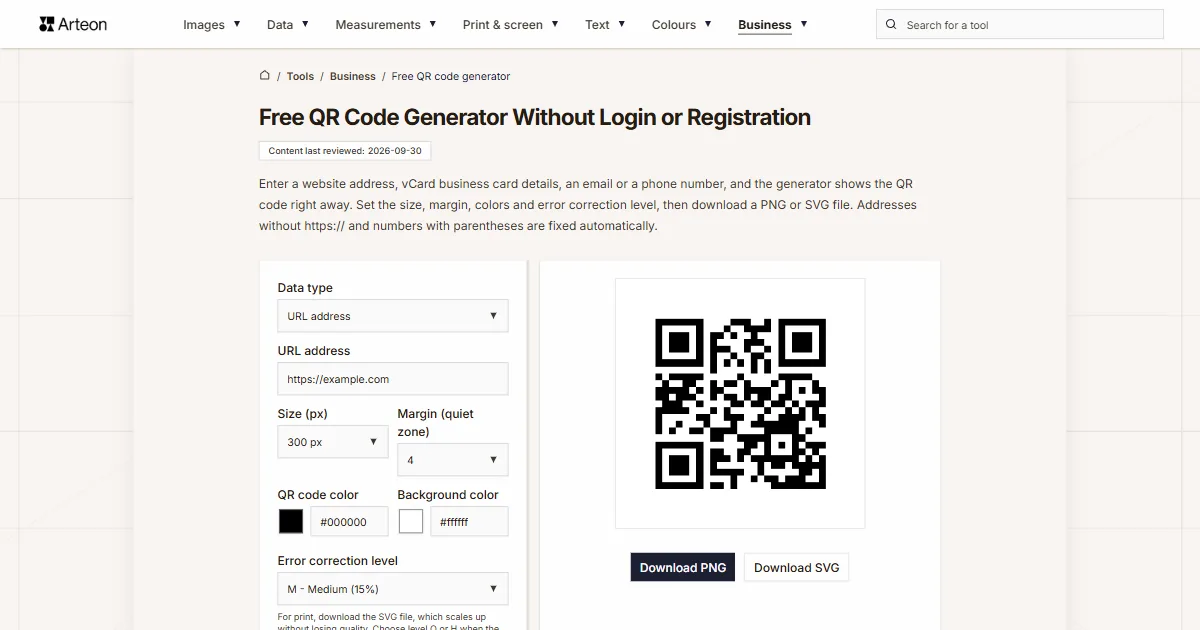
Free QR code generator
Create a QR code for a website, vCard business card or print. Export PNG and SVG, no registration.
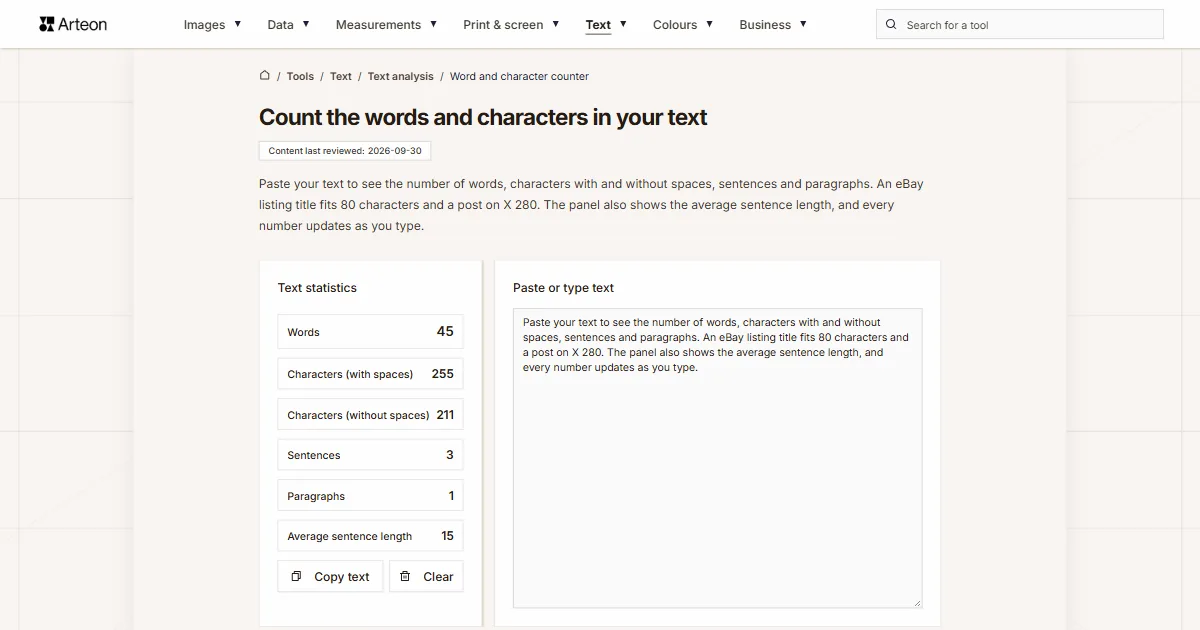
Word & character counter
Count words, characters with and without spaces, sentences, paragraphs and the average sentence length.
Lorem Ipsum Generator
Free Lorem Ipsum generator — 8 text styles, paragraphs, sentences or words. Copy in one click.