Free HTML email signature generator for Gmail and Outlook
Enter your details, pick one of eight layouts and copy the finished signature into Gmail or Outlook. The generator builds working links for you: +44 (0)20 7946 0000 becomes tel:+442079460000, and a number typed in the WhatsApp field becomes a wa.me link.
Signature layout
Accent color
Text color
Background color
Font size
Text direction
Signature border
Full name
Job title
Company
Contact details
Social media
Disclaimer
Signature inner padding
Spacing between elements
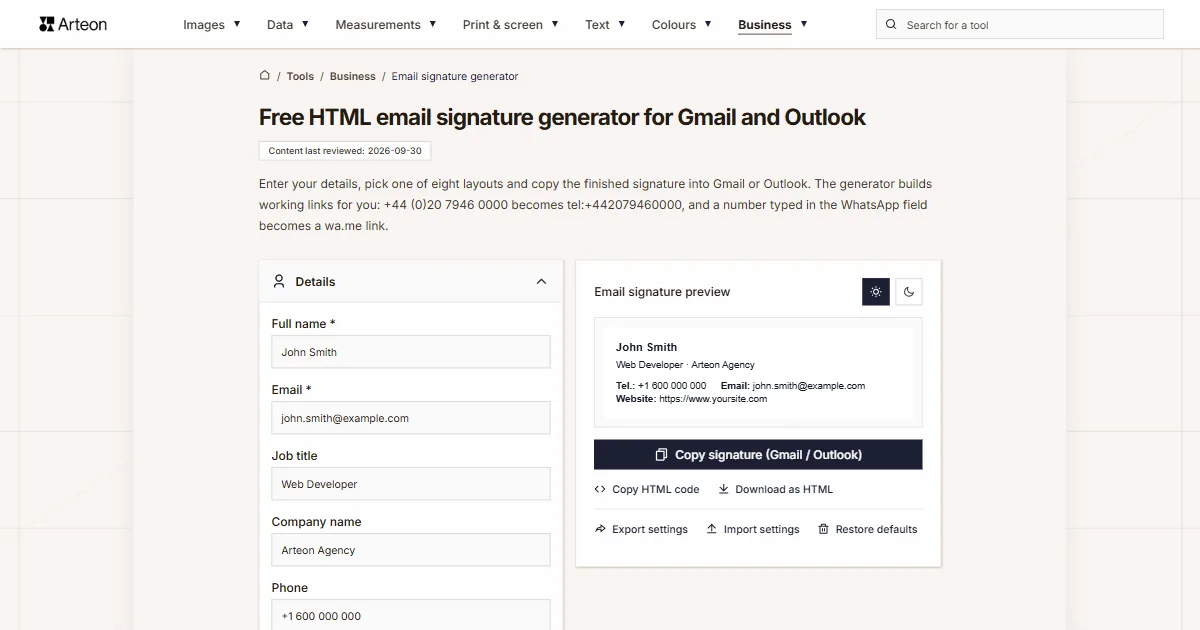
Email signature preview
Enter your details and your signature preview will appear here.
This tool works on a larger screen
To use this tool comfortably, open it on a laptop, desktop computer, or tablet in landscape mode.
Tip
If you are using a tablet, switch it to landscape mode - when the window width is large enough, the tool will load automatically.
What should an email signature include?
An email signature is the block with your name, job title, company and contact details that your email app adds to the end of every message you send. The generator builds it as an HTML table with styles written directly on each element, so the pasted signature keeps its colors, spacing and links.
Only two fields are required: Full name and Email. Add the rest when it helps the reader: a phone number, website, address, a button linking to your calendar or your social media profiles.
The international standard ITU-T E.123 describes how contact details are written on letterheads and business cards. It recommends writing phone numbers with a plus sign and the country code and without brackets, placing the email address with its label below the phone number, and printing the website without the http:// prefix[1]. The Label column layout follows exactly this order: phone, then email and website below it, each with its label in a separate column.
How to create an email signature in three steps
A finished signature takes a few minutes:
1. Enter your details
In the Details section, fill in your full name and email, then any other fields you want to show. The preview next to the form changes with every letter you type.2. Pick a layout and style
In the Appearance section, click the thumbnail of one of the eight layouts, then set the colors and font.3. Copy and paste
Click Copy signature (Gmail / Outlook). Three steps for pasting the signature into Gmail or Outlook appear below the preview.
How to fill in the fields in the Details section
A field left empty does not appear in the signature. The names below are the field labels from the editor, and the gray text in each empty field shows a sample entry.
- Job title and Company name share one line, separated by a dot.
- The Phone field accepts a number written any way you like. The signature shows it exactly as typed, while the call link uses only the digits and the plus sign. A
tel:link cannot contain spaces or words inside the number[2]. - The Website address appears in the signature as you type it, for example www.company.com. If https:// is missing, the generator adds it to the link only.
- The Avatar / logo (image URL) field takes the address of an image published on a website. Once you paste it, you can choose the shape (Circle, Rounded, Square) and the size: 40, 56 or 72 px. An image at least 144 px wide stays sharp on high-density screens.
- The Line above name holds a short text in capital letters, such as a company name or a tagline.
- The Name tag is a short note in a rounded frame next to your name, such as MBA or your pronouns.
- The Extra line holds one sentence about what you do.
- Address and Formal details are multi-line fields: pressing Enter starts a new line in the signature too. Formal details, such as a company number, VAT number or license number, appear in small print above the disclaimer.
What can you type in a field, and what link does it create?
| What you type | Field | Link in the signature | What the generator does |
|---|---|---|---|
| +44 20 7946 0000 | Phone | tel:+442079460000 | Spaces are removed from the link and kept in the signature for readability. |
| +1 (555) 123-4567 ext. 89 | Phone | tel:+15551234567 | The extension stays in the signature text, and the link calls the main number. |
| 0044 20 7946 0000 | Phone | tel:00442079460000 | The link keeps 00 as typed. |
| +44 (0)20 7946 0000 | Phone | tel:+442079460000 | The (0) is dropped from the link, because it is dialed only within the country. |
| ask for reception | Phone | no link | An entry without digits stays plain text. |
| www.company.com | Website | https://www.company.com | The signature shows www.company.com, and the link gets https://. |
| mailto:hello@company.com | Website | mailto:hello@company.com | A click opens a new email to this address. |
| tel:+442079460000 | CTA link | tel:+442079460000 | The button starts a phone call. |
| +44 7700 900000 | https://wa.me/447700900000 | The number becomes a link to a WhatsApp chat. | |
| @company | https://www.instagram.com/company | The username alone is enough. | |
| @company | TikTok | https://www.tiktok.com/@company | TikTok keeps the @ in the profile address. |
| linkedin.com/in/john-smith | https://linkedin.com/in/john-smith | LinkedIn needs the address, and the generator adds a missing https://. |
Which signature layout should you choose?
The generator has eight layouts. In the Appearance section, each one appears as a thumbnail showing the signature with your details and colors. Switching layouts does not clear any field:
- Standard: details stacked one below another, with phone, email and website in one row with labels.
- Top banner: name, job title and avatar on a bar in the accent color, the other details below the bar.
- Label column: phone, email and website stacked, with their labels in a separate column.
- Centered: everything aligned to the center, with the avatar above the name.
- Compact: name, job title, company and contact details in one line, with social media and the disclaimer below.
- Two columns: avatar, name and job title on one side, contact details, social media and buttons on the other, split by a vertical line.
- Minimalist: name, job title, company, email and phone, without website, avatar or buttons.
- Bottom bar: details at the top, with the buttons and company name on an accent-colored bar underneath.
If you fill in a field that the selected layout does not show, a warning with the name of that field appears below the preview.
Which fields does each layout show?
| Layout | Fields left out of the signature |
|---|---|
| Standard | all fields are shown |
| Top banner | all fields are shown |
| Label column | all fields are shown |
| Centered | all fields are shown |
| Compact | Line above name, Name tag, Extra line, Address, Primary button, Secondary button, Formal details |
| Two columns | all fields are shown |
| Minimalist | Line above name, Name tag, Extra line, Address, Website, Social media, Primary button, Secondary button, Avatar / logo, Formal details, Disclaimer |
| Bottom bar | all fields are shown |
How to add buttons with links
The Buttons section sets up two buttons. The first has an accent-colored background, and you type its text and address in the Button text and CTA link fields. The second has an outline only and uses the Second button text and Second button link fields. Each button needs text and a link. If either field is empty, the button does not appear in the signature.
A link can open a web page, a new email (mailto:hello@company.com) or a phone call (tel:+442079460000). You do not have to start a web address with https://, because the generator adds it. Addresses beginning with javascript:, data:, vbscript: or file: are rejected, so a button with such a link does not show up.
The Button rounding setting has three options: None, Slight and Full. Outlook for Windows does not support rounded corners in CSS[3], so buttons always have square corners there. The Compact and Minimalist layouts do not show buttons. The same link, for example to your booking calendar, can go on a business card as a code from the QR code generator.
How to add social media links and icons
In the Social media section, click a service name under Add a profile and the editor adds a field for the profile address. There are 12 services to choose from: LinkedIn, Instagram, Facebook, TikTok, YouTube, X (Twitter), GitHub, Dribbble, Behance, WhatsApp, Telegram and Pinterest. Only services with an address appear in the signature, and the button with a cross next to a field removes the profile. Profiles appear in the signature in the same order as in the editor. A new one goes to the end of the list, and you change the order by dragging a profile by the handle next to its field. With a keyboard, select the handle and move the profile with the up and down arrow keys.
You do not need the full profile address. In the Instagram, Facebook, TikTok, YouTube, X, GitHub, Dribbble, Behance, Telegram and Pinterest fields, @username is enough, and the generator builds the profile address from it. LinkedIn needs the address, because personal and company profiles use different paths (/in/ and /company/). In the WhatsApp field, type your phone number with the country code: the generator turns it into a link that starts with https://wa.me/ and contains digits only, the format described in the WhatsApp Help Center[4].
Icons instead of service names
The Show icons instead of service names option replaces the names with 16, 20 or 24 px icons in three colors: Platform colors, Dark or White, the last one for a dark signature background. The icons are PNG images hosted on arteontools.com. An SVG icon written directly into the code does not display in Gmail, Outlook or Yahoo Mail[5], and Gmail removes images stored as base64[6]. Every icon carries the service name as alternative text, so when an email app blocks images, the recipient sees that name instead.
How to change the look and the text direction
Colors
You pick the Accent color from five ready-made swatches or from the browser color picker, which opens when you click the colored square. You can also type a HEX code in the field next to the square, for example one copied from your brand guidelines. The field accepts the code with or without the # sign, in six or three characters, such as #1d4ed8 or 14c. The Text color and Background color work the same way, only without the swatches. The accent color is used for the name, links, buttons, the border and the bars in the Top banner and Bottom bar layouts. The background color fills the whole signature. You can check light text on a colored background in the color contrast checker and convert a brand color code in the HEX to RGB converter. If your brand guidelines list colors in RGB, get the HEX code from the RGB to HEX converter, and turn print colors given in CMYK into RGB first with the CMYK to RGB converter. You can pick the accent color from your logo with the image color extractor and find matching shades in the color palette generator.
Font and font size
You can choose Arial, Verdana, Tahoma, Trebuchet MS or Georgia, fonts that Microsoft ships with Windows[7]. If the recipient's device does not have the selected font, the email app uses its own sans-serif font, or a serif font for Georgia, because that is how the generator writes it.
The Font size setting has three steps: Small 12 px, Standard 13 px and Larger 14 px. The name is 2 px larger than the rest of the text and the disclaimer 2 px smaller. Outlook gives font sizes in points, and 13 px equals 9.75 pt, which you can check in the px to pt converter.
Text direction
The Text direction option set to Right to left lays out the signature the way an Arabic or Hebrew signature needs. The generator then adds the dir="rtl" attribute, which Gmail, Outlook and Apple Mail support[8]. Phone numbers, email addresses and websites stay left to right, so the digits do not get reversed. Arial and Tahoma contain Arabic letters[9], while Verdana, Georgia and Trebuchet MS do not[10].
Signature border
Under Signature border you tick the sides where an accent-colored border should appear: Left, Right, Top and Bottom. A single side is 4 px wide, and ticking all four draws a full 2 px frame.
How to set text style and spacing
The Text style section shows a separate row for every element of the signature: Full name, Job title, Company, Contact details, Social media and Disclaimer. You pick a color from the browser color picker by clicking the colored square. Once a text has its own color, a Restore the default color button appears next to the square. The minus and plus buttons change the size by 2 px per click, and the size in pixels is shown between them. You can change it by up to 4 px down or up from the base size.
The Spacing section sets the Signature inner padding (8, 16 or 24 px) and the gaps between elements in 2 px steps, from 0 to 32 px. You only see the gaps for elements that are in the signature and in the selected layout:
- Below the name
- Below the job title
- Below the extra line
- Above the contact details
- Above the social media
- Above the button
- Above the disclaimer
Disclaimer and divider line
The Disclaimer section has a field for text that appears at the end of the signature in a smaller font, for example a confidentiality notice. The field starts empty, and the Insert a sample disclaimer button adds a ready-made confidentiality notice you can edit. An empty field adds nothing to the signature.
The Show divider between contact details and disclaimer option appears when the signature has a disclaimer or formal details, and it adds a horizontal line above them. The Line style can be solid, dashed or dotted, the width is 1, 2 or 3 px, and the Line color can be any color, with a Default button that restores light gray #e5e7eb. The line is drawn in the Standard, Top banner, Label column and Centered layouts. In the Two columns layout, a thin line of its own separates the disclaimer from the rest.
How to paste the signature into Gmail and Outlook
Click Copy signature (Gmail / Outlook). The button copies the signature with its formatting, so colors, links and images remain after pasting. Three pasting steps then appear below the preview, the same ones listed here, with a Gmail and Outlook switch. If you change anything in the signature after copying it, the editor reminds you to copy it again.
Gmail in the browser
- Click the settings icon at the top right and choose See all settings.
- In the Signature section, paste the signature into the box with Ctrl + V, or Cmd + V on a Mac.
- At the bottom of the page, click Save Changes.
A Gmail signature can have up to 10,000 characters, and an image in the signature counts toward that limit too[11].
New Outlook for Windows and Outlook on the web
- Select Settings, then Accounts and Signatures.
- Add a new signature, give it a name and paste the signature into the edit box.
- Select Save.
In classic Outlook for Windows, open a new message and on the Message menu select Signature, then Signatures[12].
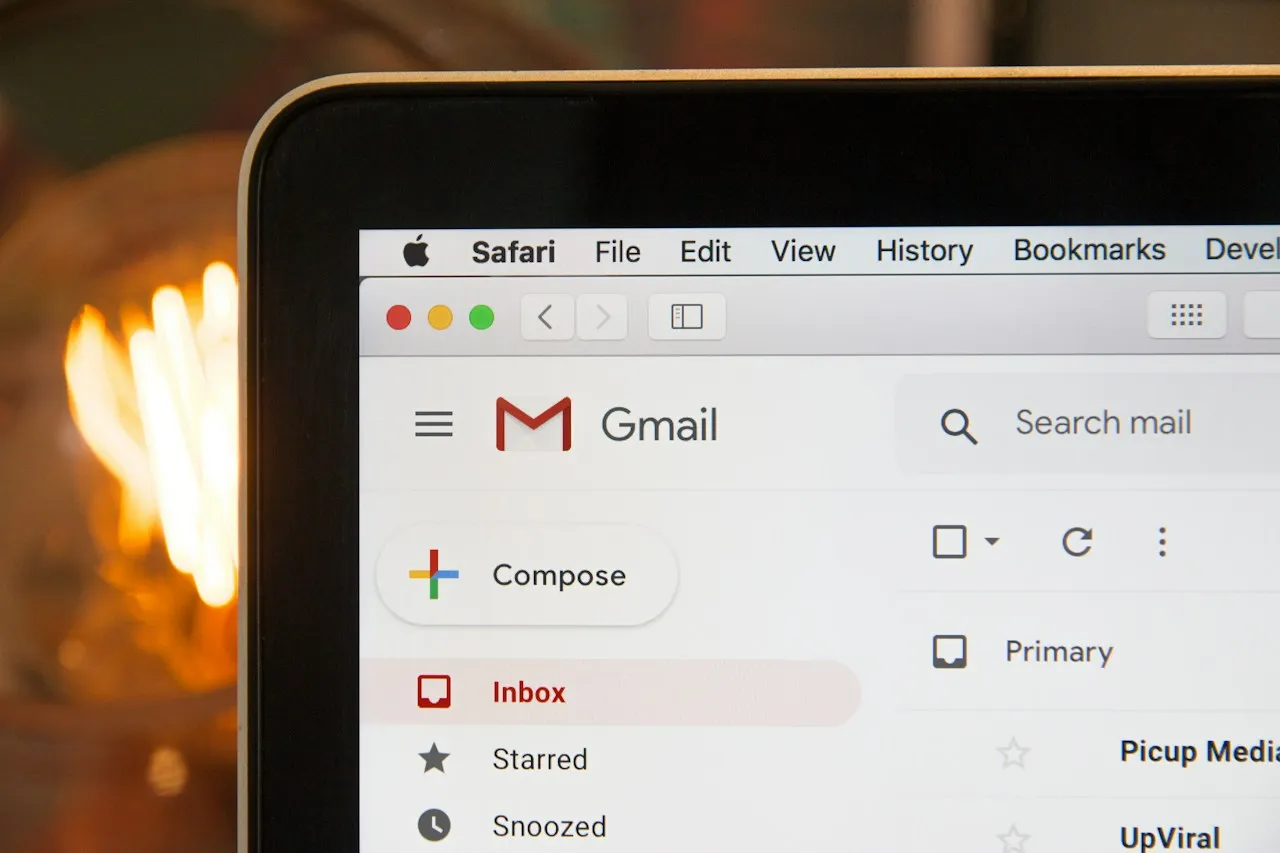
Why does the signature look different for the recipient?
The preview shows the signature the way a browser draws it. Email apps support less HTML, and each one differs a little, so the generator avoids elements they do not display. Some differences, however, depend on what you enter:
- An image stored inside the address itself (
data:image/png;base64,…) does not appear in Gmail[6]. Base64 code is useful in HTML and CSS files, as the image to Base64 converter shows, but the avatar field needs a file address, so the editor shows a warning when you paste base64 code. You can turn that code back into an image file with the Base64 to image converter and publish it on your website. - Gmail does not display SVG images for Google accounts[13], so convert a logo saved as SVG to PNG first, for example with the SVG to PNG converter.
- Outlook for Windows does not display WebP images[14], so save your logo and photo as PNG or JPG, for example with the WebP to PNG converter.
- Outlook for Windows blocks automatic picture downloads from the internet by default[15]. Until the recipient allows the download, they see service names instead of icons and no avatar at all.
- The image address has to point directly to the file. A Google Drive or Dropbox sharing link opens a preview page, so the image does not display.
Saved settings, export and reset
The generator saves your details and settings in the browser (localStorage) with every change, separately for each language version of the page. When you come back in the same browser, the signature is waiting in its last saved state. The signature data is not sent to our server.
The Export settings button saves your details, colors, layout, spacing and text styles to a .json file, and Import settings loads that file on another computer or for a coworker who only changes their own details. The import checks every value: a color not written as HEX and a font outside the list keep the settings from before the import.
The Restore defaults button clears all fields and restores the starting look of the signature after you confirm. This cannot be undone, so export your settings first.
All these buttons sit in the preview card, below the copy button. You will also find Copy HTML code (raw code for an HTML editor) and Download as HTML (the file email-signature.html) there. The switch above the preview with a sun (Light) or a moon (Dark) shows the signature on a light or a dark background.
Who is this email signature generator for?
It works for anyone who sends business emails:
Companies and teams
One person sets the design and clicks Export settings, and every employee loads the file with Import settings and enters their own details.Freelancers
A button linking to your calendar or portfolio, and a WhatsApp link built from your phone number alone.Law firms, accountants and clinics
The Formal details field for a company or registration number, and the Disclaimer section for a confidentiality notice.Businesses writing in Arabic or Hebrew
A right-to-left signature in which phone numbers and addresses keep their left-to-right order.
What makes this signature generator different?
Links that work
A tel: link from digits only, a wa.me link from a phone number and a profile address from a bare @username.Icons that show in Gmail
Service icons are PNG images, because Gmail and Outlook remove SVG icons.Eight layouts
Thumbnails show your signature in every layout, and a warning below the preview lists the fields the selected layout does not show.Right-to-left signatures
Text direction for Arabic and Hebrew, with phone numbers and addresses in the correct order.Safe import
A settings file cannot inject foreign code into the signature, because the import accepts only HEX colors and fonts from the list.Privacy
Your signature data stays in your browser and is not sent to a server.
Sources
- ITU-T E.123: Notation for national and international telephone numbers, e-mail addresses and web addresses — International Telecommunication Union (ITU)
- RFC 3966: The tel URI for Telephone Numbers — IETF
- border-radius — Can I email
- How to use click to chat — WhatsApp Help Center
- SVG element — Can I email
- Base64 encoded images — Can I email
- Arial font family — Microsoft Typography
- dir attribute — Can I email
- Tahoma font family — Microsoft Typography
- Verdana font family — Microsoft Typography
- Create a Gmail signature — Gmail Help
- Create and add an email signature in Outlook — Microsoft Support
- SVG image format — Can I email
- WebP image format — Can I email
- Block or unblock automatic picture downloads in email messages — Microsoft Support
Every figure in the tables was computed from the unit definitions and checked arithmetically before publication. Historical values and the names of local units come from the sources listed above.
Content last reviewed: · written and checked by the Arteon team
Frequently asked questions about the email signature generator
How do I add the signature to Gmail?
Click Copy signature (Gmail / Outlook). In Gmail, click the settings icon, choose See all settings, paste the signature in the Signature section with Ctrl + V (Cmd + V on a Mac) and click Save Changes at the bottom of the page. A signature can have up to 10,000 characters.
Does the signature work in Outlook?
Yes. In new Outlook for Windows and Outlook on the web, select Settings, then Accounts and Signatures. Outlook for Windows shows buttons and the avatar with square corners and does not display WebP images, so save your logo as PNG or JPG.
Why is the signature not copying?
The signature copies only after two fields are filled in: Full name and Email. If one is missing, clicking Copy signature (Gmail / Outlook) opens the Details section, moves the cursor to the empty field and shows below the button what to fill in. If the browser blocks copying, click Download as HTML and copy the signature from the downloaded file.
Why is my logo or photo not showing?
The address has to point directly to an image file published on a website. A Google Drive or Dropbox sharing link will not work, and neither will an image stored as data:base64 in Gmail or a WebP file in Outlook for Windows. Outlook for Windows shows the image only after the recipient allows pictures to download.
Can I type just a phone number in the WhatsApp field?
Yes. Type the number with the country code, for example +44 7700 900000, and the generator builds the link https://wa.me/447700900000. A full wa.me address pasted as it is works too.
How do I add an extension?
Type it after the main number, for example +1 (555) 123-4567 ext. 89. The signature shows the whole entry, and the call link dials the main number, because a phone cannot dial digits that come after the word ext. on its own.
Can I make a signature in Arabic or Hebrew?
Yes. In the Appearance section, set Text direction to Right to left and choose Arial or Tahoma, the only two fonts on the list with Arabic letters. Phone numbers and addresses keep their left-to-right order.
Why did some details disappear when I changed the layout?
The Compact layout leaves out the line above the name, the address and the buttons, among others, and Minimalist keeps only the name, job title, company, email and phone. Your entries stay in the fields, and a warning below the preview lists the fields that are left out.
Is my data sent anywhere?
No. Your signature data stays in your browser. If you turn on service icons, the recipient's email app downloads those images from arteontools.com, just as it downloads any image placed in an email.
How do I create matching signatures for a whole team?
Set the layout, colors and font, click Export settings and share the .json file. Each person clicks Import settings, enters their own details and copies the signature.
How do I change the order of social media links in the signature?
In the Social media section, drag a profile by the handle next to its field to a new place, or select the handle and move the profile with the up and down arrow keys. The signature shows the services in the same order as the editor.
Help us improve our tools
Have an idea for a new feature, found a bug, or want to suggest another tool that would make your work easier? Write to us.
Explore other useful tools

Meta title & description checker
Check title and description length in pixels. Live Google preview and optimization tips.
PNG to JPG
Convert PNG files to JPG in your browser. No file limits, no signup, no server uploads.

Favicon generator
Create a complete favicon.ico set for your website from one image. All required sizes, no login.
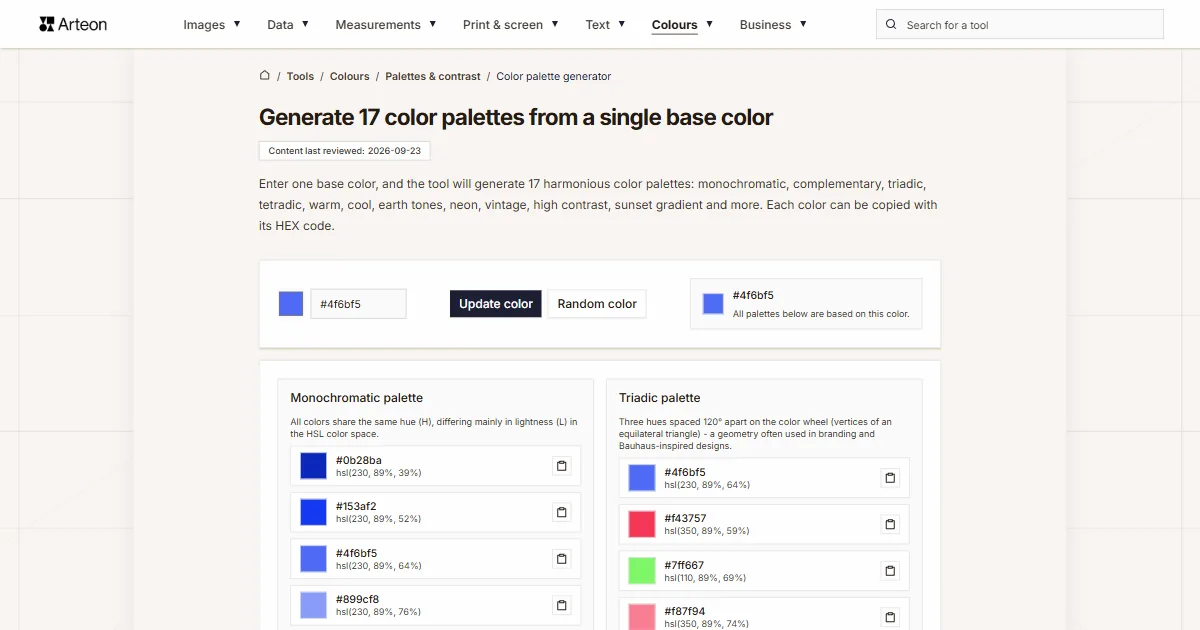
Color palette generator
Generate 17 palettes from one color: monochromatic, complementary, triadic and more. HEX codes.
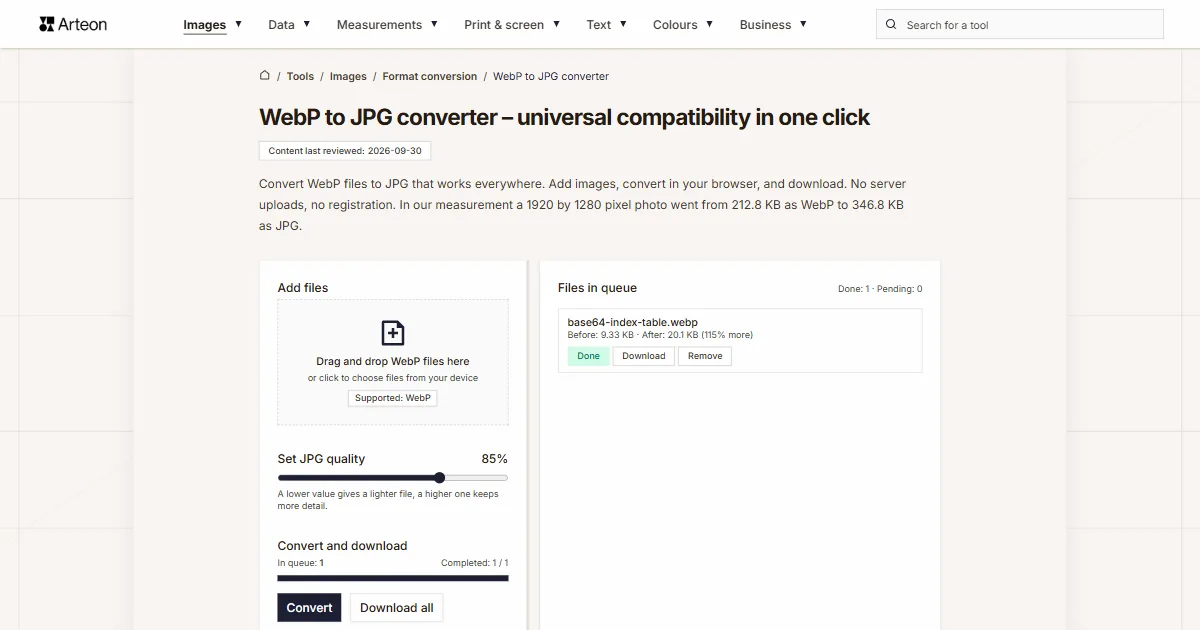
WebP to JPG
Convert WebP files to universally compatible JPG. Works in every app and platform.
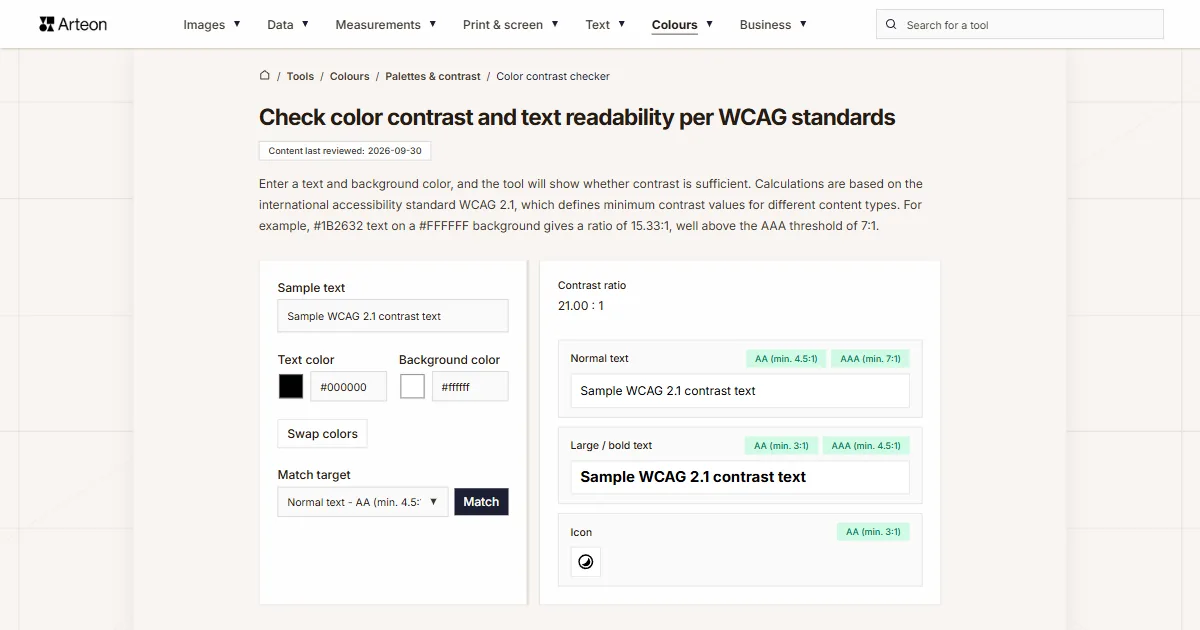
Color contrast checker
Check text and background contrast per WCAG 2.1 AA and AAA. Automatic color correction.
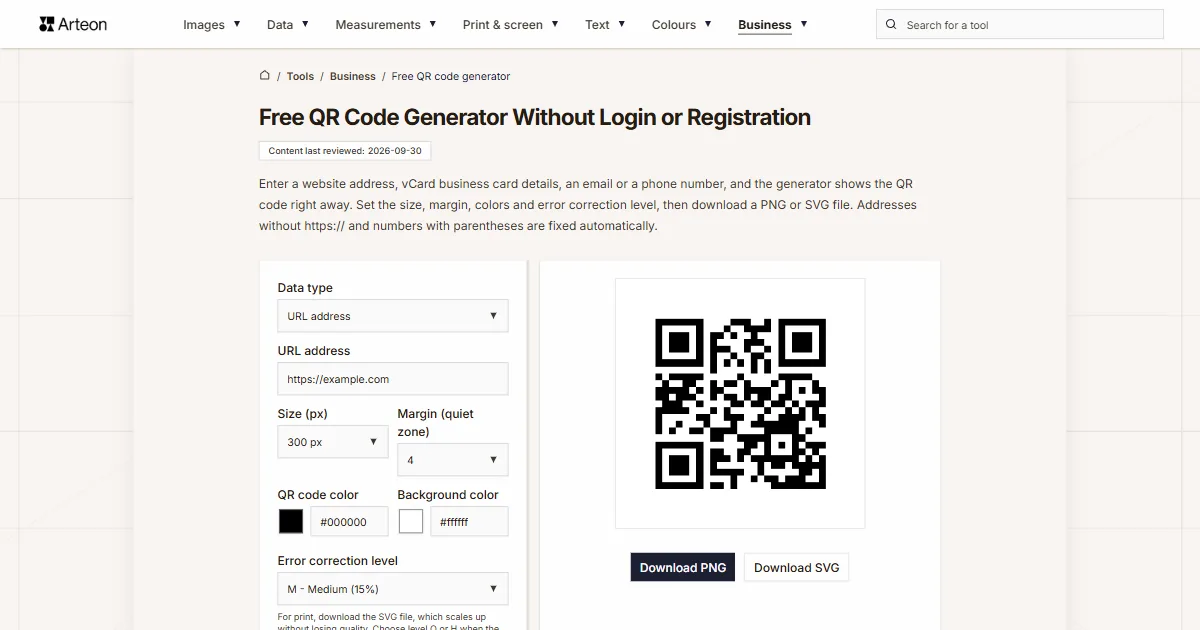
Free QR code generator
Create a QR code for a website, vCard business card or print. Export PNG and SVG, no registration.
Word & character counter
Count words, characters with and without spaces, sentences, paragraphs and the average sentence length.
Lorem Ipsum Generator
Free Lorem Ipsum generator — 8 text styles, paragraphs, sentences or words. Copy in one click.