PDF to WebP converter
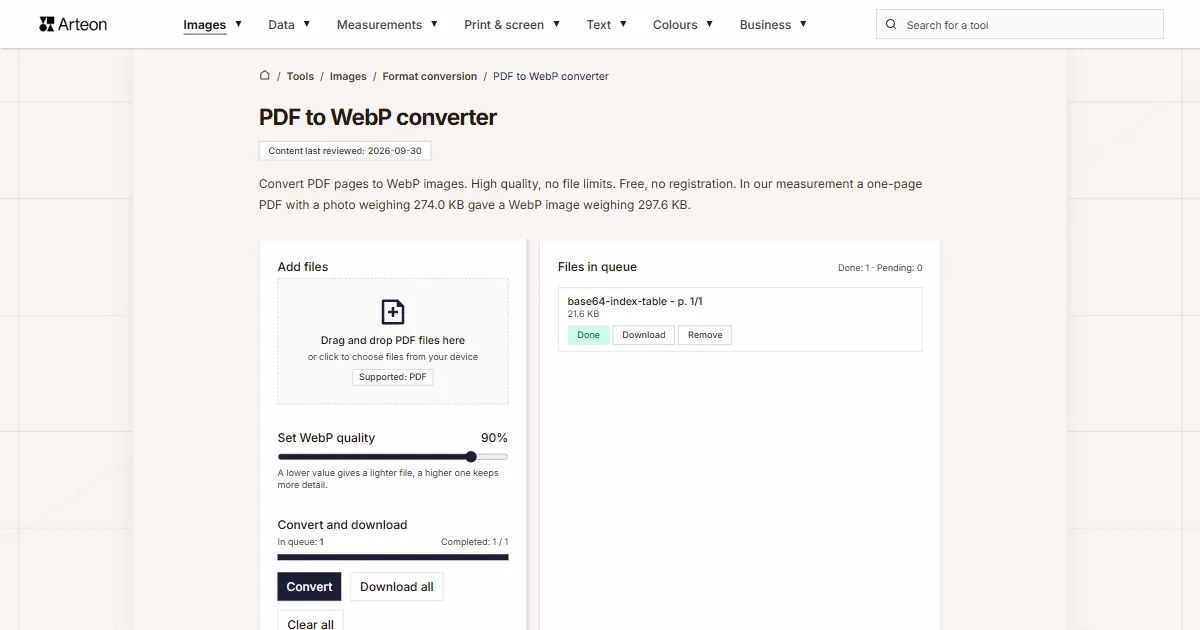
Convert PDF pages to WebP images. High quality, no file limits. Free, no registration. In our measurement a one-page PDF with a photo weighing 274.0 KB gave a WebP image weighing 297.6 KB.
Files in queue
Why convert PDF to WebP?
PDF is the standard for documents, but web pages load faster with optimized image formats.
Each PDF page becomes a separate WebP file. WebP supports both lossy and lossless compression. It is supported by all modern browsers (Chrome, Firefox, Safari 14+, Edge). For maximum compatibility with older browsers, consider converting to JPG or PNG instead.
This converter processes files locally in your browser — nothing is sent to any server. No registration, no limits, no watermarks.
How to convert PDF to WebP
Add your PDF file
Drag and drop your PDF file onto the converter or click to browse.Set the quality
The Set WebP quality slider takes values from 60 to 95 percent, default 90. Every page is rendered at 144 DPI. Then click Convert.Download the images
The Download button next to a page saves it on its own, and Download all packs all pages into one ZIP archive.
How much does a file weigh before and after PDF to WebP conversion?
| Test document | Pages | PDF weight | Combined weight of WebP images |
|---|---|---|---|
| Photo, 1 page | 1 | 274.0 KB | 297.6 KB |
| Two scanned text pages and a screenshot, 3 pages | 3 | 613.3 KB | 297.6 KB |
| Screenshot and photo, 2 pages | 2 | 354.8 KB | 406.5 KB |
| Vector text, 2 pages | 2 | 12.5 KB | 291.7 KB |
What makes this converter different?
Complete privacy
Your files are processed entirely in your browser. Nothing is uploaded to any server.Many files at once
Add any number of PDF files, each up to 100 MB. The converter processes them one by one and shows the status of each.All pages at 144 DPI
The converter renders every page of the document at double scale, that is 144 DPI, and shows the size of the result next to it.Download in one archive
The Download all button packs all finished files into one ZIP archive, so you do not have to approve a dozen downloads one after another.
PDF vs WebP – format comparison
| Feature | WebP | |
|---|---|---|
| Lossy compression | ✓ (JPEG inside the document) | ✓ |
| Lossless compression | ✓ | ✓ |
| Transparency (alpha channel) | ✓ | ✓ |
| Animation support | — | ✓ |
| Web browser support | Built-in PDF viewer | Chrome 32+, Firefox 65+, Edge 18+, Safari 14+ |
| Metadata (EXIF) | — | ✓ |
The quality slider when converting PDF to WebP
The Set WebP quality slider takes values from 60 to 95 percent and sits at 90 by default. Every page is first rendered at 144 DPI and then saved at that quality.
- 90 percent (default): presentations and documents where the text has to stay readable.
- 80 percent: web publishing and email attachments.
- 60 to 70 percent: thumbnails and page previews.
Save text-only pages as PNG: no artefacts around the letters, though in a larger file.
Resolution and weight of images from PDF pages
The converter renders every page at double scale, that is 144 DPI: an A4 page gives an image of about 1190 × 1684 pixels, enough for a screen and a presentation but not for offset print.
The Set WebP quality slider, 60 to 95 percent (default 90), changes weight and sharpness: go down to 80 for the web. At the same quality WebP comes out lighter than JPG and keeps sharp text better.
Tips for converting PDF to WebP
A few tips to help you avoid common issues during conversion:
Very large files
The converter renders every page separately and keeps the finished images in the browser’s memory until you download them. Convert a document with several hundred pages, or with high-resolution scans, in a few rounds: download the finished pages with Download all and only then add the next file. The limit is 100 MB per file.Pages with text
At 144 DPI the text is readable on screen, but small print loses sharpness when enlarged. To publish part of a page in print, export the image from the program that created the PDF. Scans from a multifunction printer or a fax, black-and-white ones included, come out as complete page images, but their text stays part of the picture, so you cannot select or copy it.Transparency
WebP stores an alpha channel, so transparent and semi-transparent areas of the PDF file stay unchanged in the result.The document stays untouched
The page images are new renders and the PDF file does not change in any way. To cut one page out as a separate PDF use a document program; this converter saves images only.
When to choose WebP vs JPG vs PNG for PDF page extraction
WebP offers the best balance of quality and file size for web use.
Choose WebP when the images will be displayed on websites or shared digitally. Choose JPG when you need maximum compatibility (older devices, email clients). Choose PNG when you need lossless quality (documents with text, technical drawings).
WebP is supported by all modern browsers (Chrome, Firefox, Safari 14+, Edge). For the few remaining users on very old browsers, serve JPG as a fallback using the HTML <picture> element.
Convert other files to WebP
Convert PDF to other formats
Sources
- Image file type and format guide — MDN Web Docs
- Can I use: AVIF, WebP, HEIF — caniuse.com
The file sizes in the tables were measured by running finished images through this converter in a browser, and we report them the way the tool counts them. What the page says about either format rests on the sources listed above.
Content last reviewed: · written and checked by the Arteon team
Frequently asked questions about PDF to WebP conversion
Is converting PDF to WebP free?
Yes, this converter is completely free with no limits. No registration, no watermarks.
Does the converter upload my files?
No. All processing happens locally in your browser. Your files never leave your device.
Can I convert multiple files at once?
Yes. Add several documents at once, each up to 100 MB; the pages of all of them go onto one list, and Download all packs them into one ZIP archive.
Does the converter work on mobile?
Yes, the converter works on any device with a modern web browser, including smartphones and tablets.
Is converting PDF to WebP safe for my files?
Yes. All conversion happens locally in your browser using the Canvas API. Files are never sent to any external server. When you close the page, data is automatically cleared.
What is the resolution of the images?
Every page is rendered at double scale, that is 144 DPI: an A4 page gives an image of about 1190 × 1684 pixels. That is enough for a screen, a presentation and an email preview; for print, export the image from the program that created the document.
Is WebP supported by all browsers?
Yes. Chrome, Firefox, Edge and Opera have displayed WebP for years, and Safari since version 14 on macOS Big Sur (2020) and iOS 14.
How do I download all files at once?
The Download all button packs the finished files into one ZIP archive named pdf-webp.zip. With a single finished file no archive is made and the file downloads directly.
Help us improve our tools
Have an idea, found a bug, or want to suggest a feature? Drop us a message.
Explore other useful tools

Meta title & description checker
Check title and description length in pixels. Live Google preview and optimization tips.
PNG to JPG
Convert PNG files to JPG in your browser. No file limits, no signup, no server uploads.

Favicon generator
Create a complete favicon.ico set for your website from one image. All required sizes, no login.
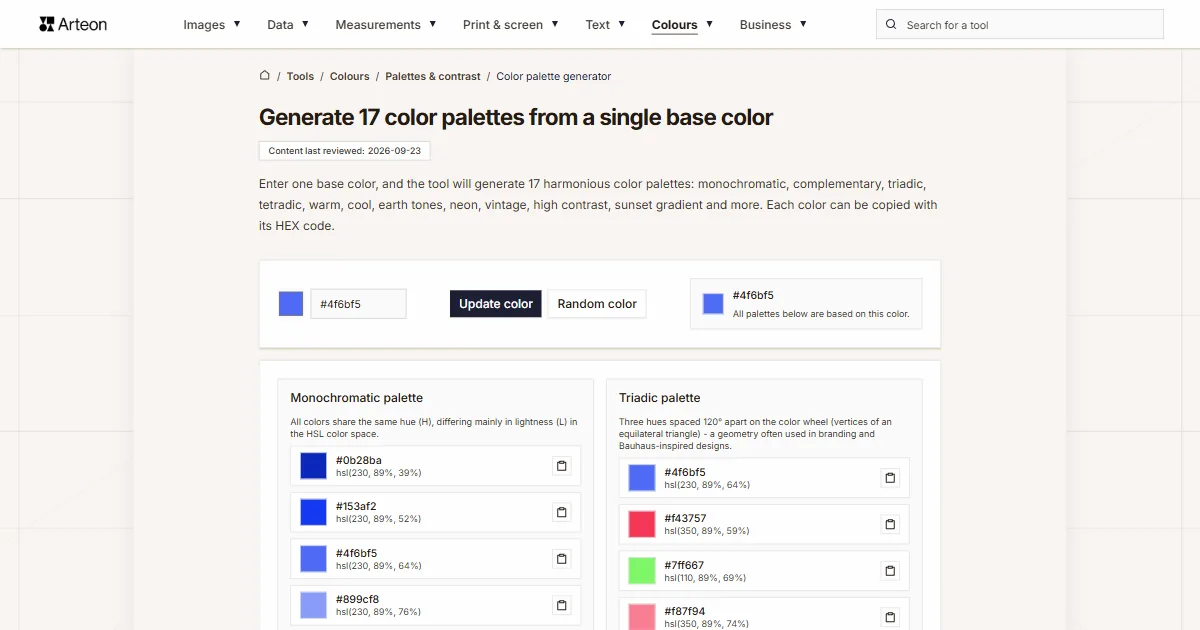
Color palette generator
Generate 17 palettes from one color: monochromatic, complementary, triadic and more. HEX codes.
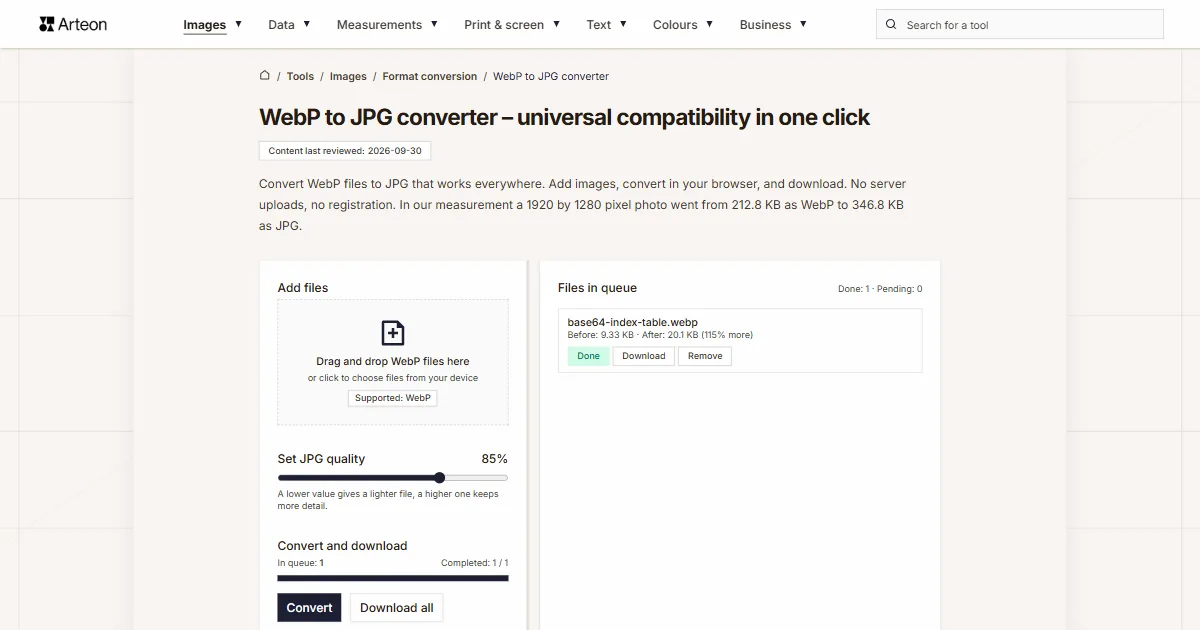
WebP to JPG
Convert WebP files to universally compatible JPG. Works in every app and platform.
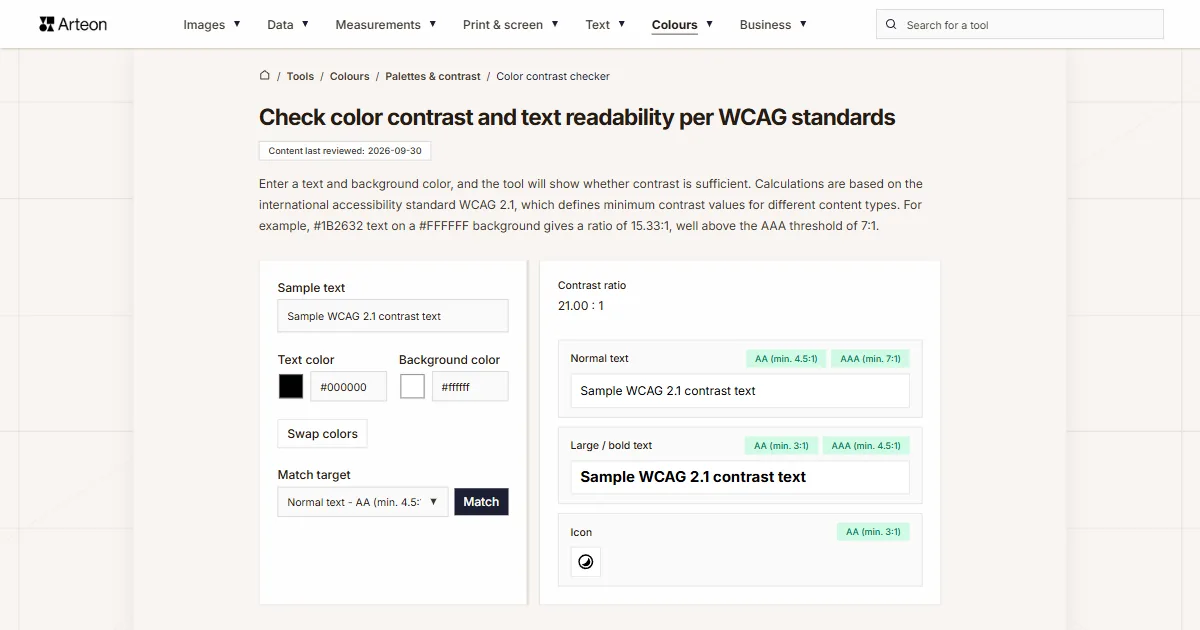
Color contrast checker
Check text and background contrast per WCAG 2.1 AA and AAA. Automatic color correction.
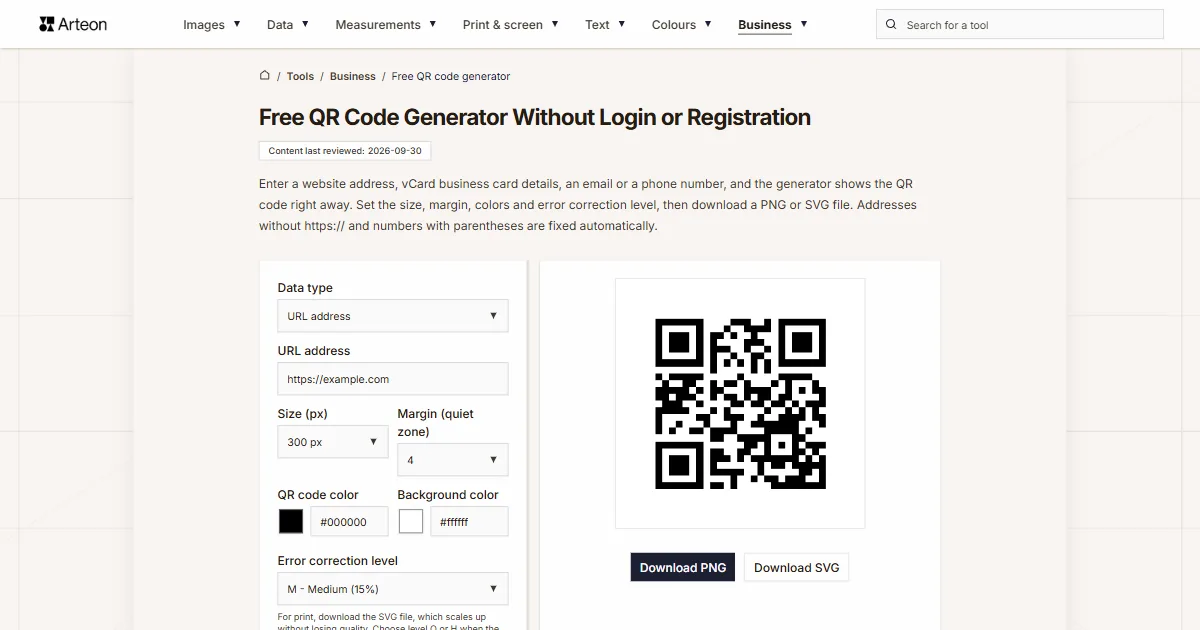
Free QR code generator
Create a QR code for a website, vCard business card or print. Export PNG and SVG, no registration.
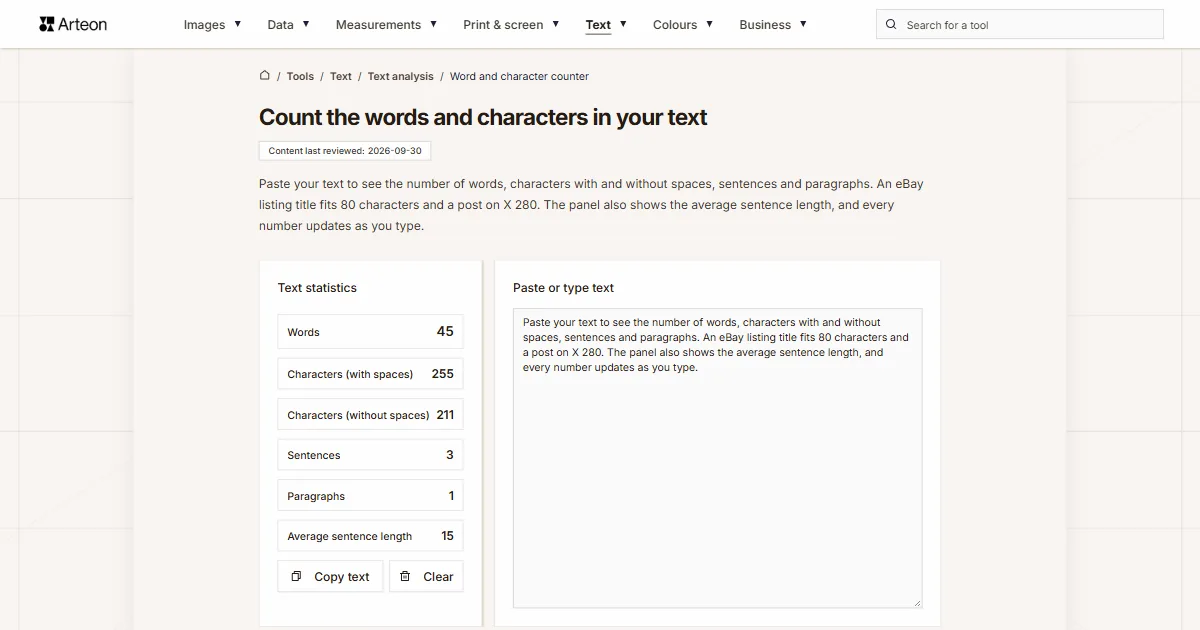
Word & character counter
Count words, characters with and without spaces, sentences, paragraphs and the average sentence length.
Lorem Ipsum Generator
Free Lorem Ipsum generator — 8 text styles, paragraphs, sentences or words. Copy in one click.