How to check whether a photo editor uploads your photos
An editor can say that your photos stay private, but you don’t have to take its word for it. Every browser has a built-in list of everything a web page sends and receives, and a second test needs nothing more than switching off your Wi-Fi. Together they take five minutes and work with any editor that runs in a browser, including ours.
Why check at all?
Some photo editors that open in a browser upload your photo and edit it on a server, and the page itself doesn’t show whether it does. That isn’t wrong in itself, but it matters for a scan of your ID, photos of your children or anything you wouldn’t post publicly. In our reading of 400 low-rated reviews of photo apps, 4% of the reviews complained about privacy and access to the photo library. A simple test tells you which kind of editor you have in front of you.
How do you see what an editor sends in Chrome or Edge?
The Network panel lists every request the page makes. You’ll only look at it, so nothing changes on the page.
1. Open the developer tools
With the editor open, press F12 or Ctrl+Shift+I on Windows, or Cmd+Option+I on a Mac (Chrome for Developers). Click the Network tab.2. Show only uploads
Type method:POST in the Filter box. This shows only requests that send data to a server (Chrome for Developers). Repeat with method:PUT afterwards.3. Use the editor as usual
Open a photo, move a few sliders and save the result, with the developer tools still open. An upload can happen at any of these moments, including the save.4. Look at the size
If a request appears, click it and open the Payload tab to see what was sent. A request whose size is close to the size of your photo file is the photo itself.
How do you check in Firefox and Safari?
In Firefox, press Ctrl+Shift+E on Windows or Cmd+Option+E on a Mac to open the Network Monitor directly (Firefox Source Docs). It shows every request with its method, so look for POST and PUT in the Method column.
In Safari on a Mac, the developer tools are hidden at first. Choose Safari, then Settings, click Advanced and select Show features for web developers (Apple Support). Then open the Develop menu, choose Show Web Inspector and go to the Network tab, which lists every resource the page requested, including fetch and XHR requests (WebKit).
What do the entries in the Network panel mean?
| What you see | What it means | Is it your photo? |
|---|---|---|
| GET requests for .js, .css, .wasm, fonts and images | The page downloads its own code and graphics. | Almost never. GET requests download files, and a photo is far too large to fit into their address. |
| Entries that start with blob: or data: | Data the page made inside your browser, such as a preview of your photo. | No. These never leave your device, even though they appear in the list. |
| Requests to ad or statistics services | Ads and visit statistics load their own files and send small reports. | Usually not. Check their size: a report takes a few kilobytes, a photo several megabytes. |
| POST or PUT requests with a size of several megabytes | The page sends a large amount of data to a server. | Very likely. Open the request and look at the Payload tab. |
What is the Wi-Fi test?
The second test is even simpler. Open the editor and one photo while you’re connected, so that the page has loaded everything it needs. Then switch off Wi-Fi or unplug the network cable, open another photo, edit it and save it. An editor that works on a server stops at this point, shows an error or waits forever. An editor that works in your browser carries on as if nothing had happened.
The test has one limit: some editors download parts of themselves only when you first need them, for example a decoder for RAW files. Open one file of each type you want to test before going offline.
What did we find when we tested Helios?
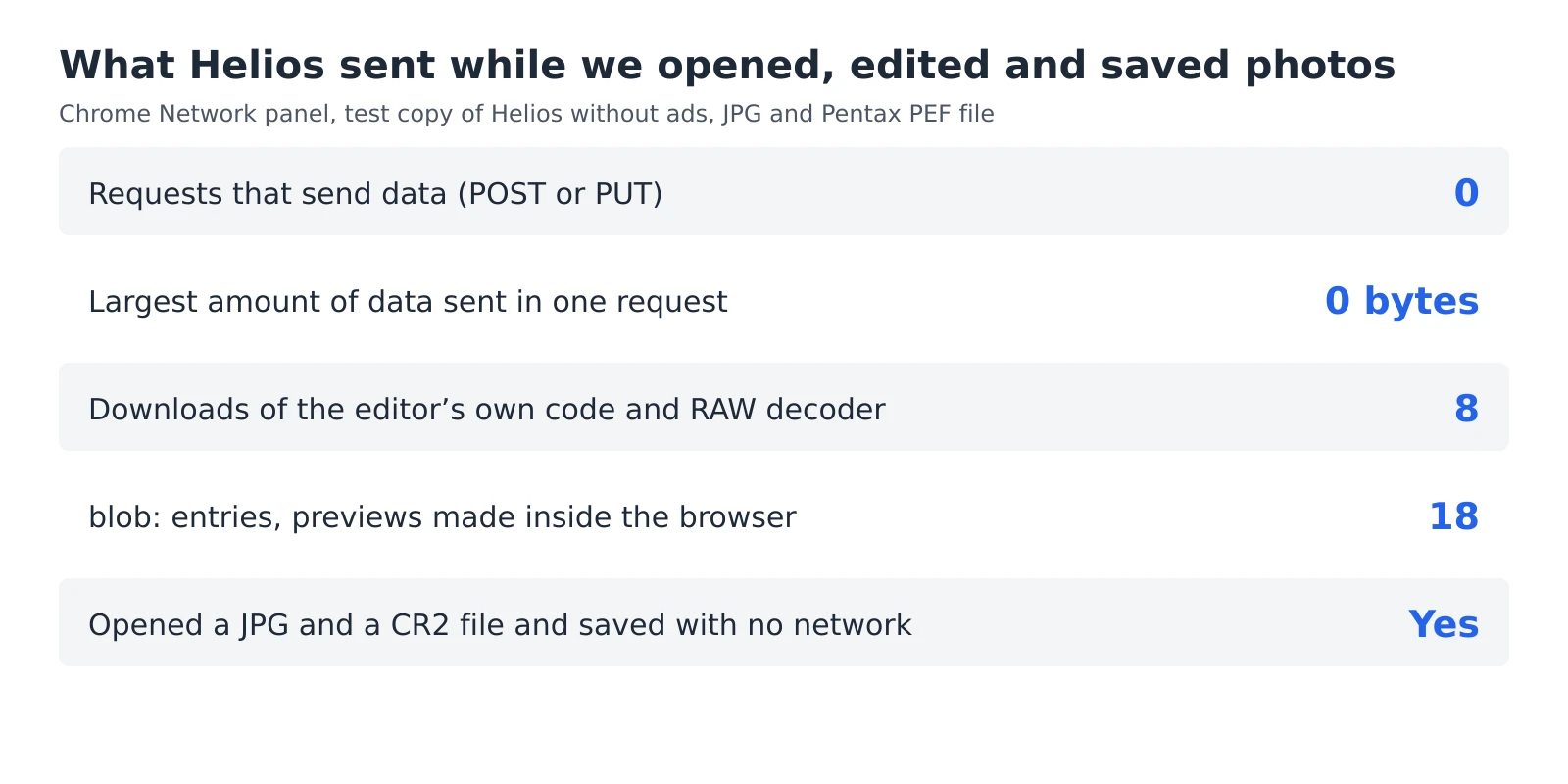
We ran both tests on Helios, our free photo editor, in Chrome, on a test copy of the website without ads. From opening a JPG and a RAW file from a Pentax camera, through moving the Exposure slider, to saving the photo, the page sent no POST or PUT request, and the largest amount of data it sent in any request was 0 bytes. The list did show 8 downloads: parts of the editor’s code and, when the first RAW file opened, the RAW decoder. It also showed 18 blob: entries, which are data the editor made in the browser, such as previews of the photos.
Then we cut the connection. In the same tab, Helios opened a JPG and a CR2 file from a Canon camera and saved a photo to disk, with no network at all. On our public website, the Network panel also shows requests from the ads in the side column and from visit statistics, and you can check their sizes in the same way.
Sources
- Open Chrome DevTools, Chrome for Developers
- Network features reference, Chrome for Developers
- Network Monitor, Firefox Source Docs
- Use the developer tools in the Develop menu in Safari on Mac, Apple Support
- Network Tab, WebKit
Frequently asked questions about checking uploads
Does every upload show up in the Network panel?
Uploads made the usual ways appear there: the panel lists fetch and XHR requests, WebSocket connections and beacons (WebKit). Keep it open the whole time, from opening the photo to saving it. The Wi-Fi test then covers anything a page might send in a less common way.
Does an editor that works offline never send anything?
Not necessarily. Some apps keep working offline and send data later, when the connection comes back. Keep the Network panel open after you reconnect to see whether anything is sent then.
What about apps on a phone?
A phone app has no Network panel you can open. Check which permissions it asks for, and give access to selected photos only when the app offers that option.
More guides
 6 min read
Can you fix an overexposed photo? What RAW gets back and JPG doesn’t
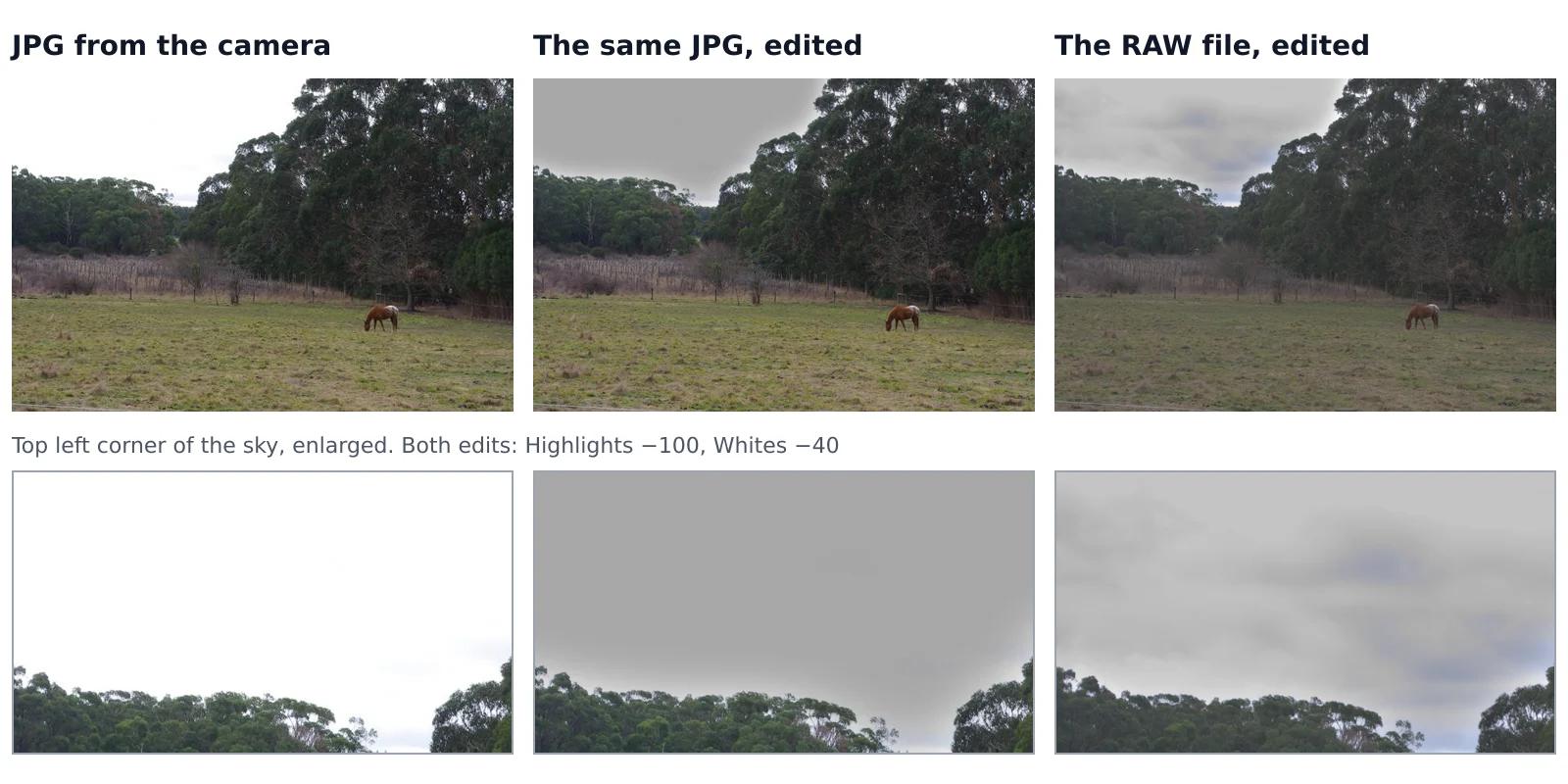
A sky that came out pure white looks the same whether you shot JPG or RAW, but it isn’t the same. In a JPG, the camera has already thrown away everything brighter than white. A RAW file often keeps some of it, and an editor can bring it back. We tested this on one shot that the camera saved both as a RAW file and as a JPG, with the same sliders on both.Read the guide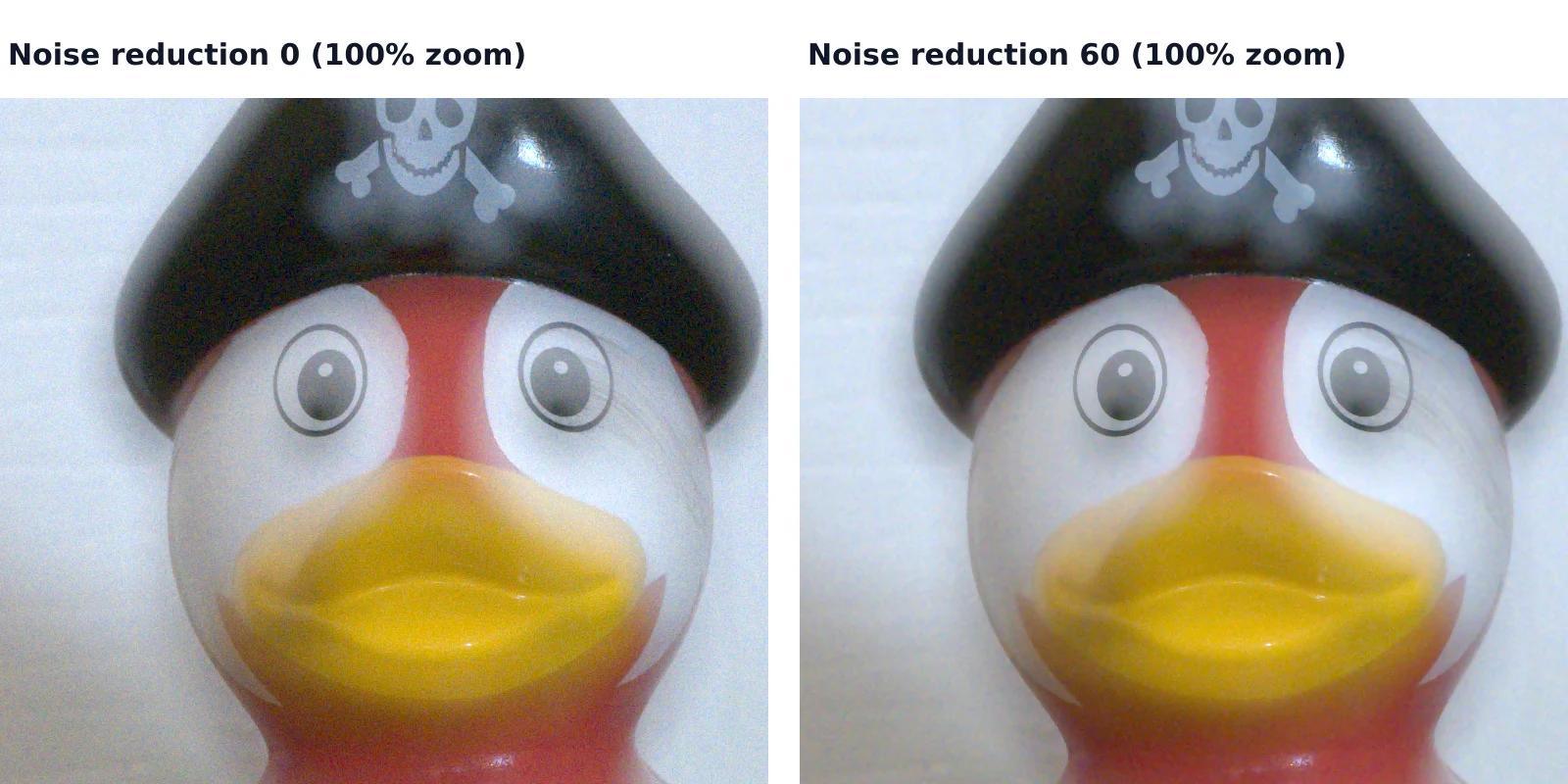 7 min read
How to reduce noise in a photo without AI
A photo taken indoors or at dusk often looks fine on the phone screen and grainy on a computer. That grain is noise, and you can reduce it without any AI tool or subscription, with filters that photo editors have used for years. They work well up to a point, and we measured that point on a real photo taken at ISO 6400.Read the guide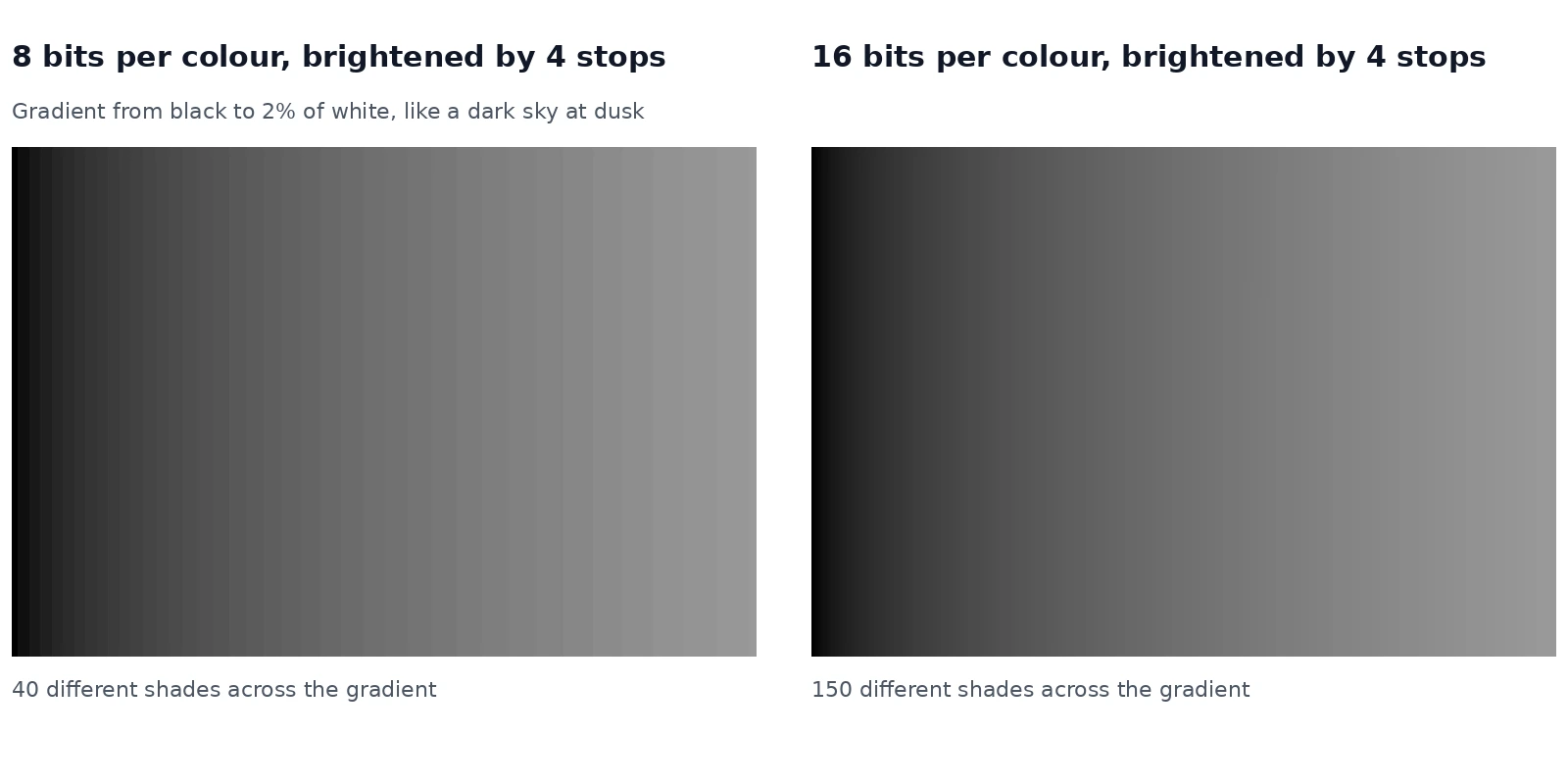 6 min read
Why brightening a photo causes stripes, and when RAW prevents them
When you brighten a dark photo a lot, a smooth sky or shadow can break into visible steps. This is called banding. Whether you get it depends on how many shades the file holds, and on something easy to overlook: the natural noise in a real photo often hides it. We measured both.Read the guide