Why your work in a browser editor can disappear, and how to keep it
A photo editor or design tool that runs in your browser often saves your work by itself, without a Save button. That work stays in your browser on your device, and the browser can delete it: when you clear its data, when you close a private window, when the disk runs low and, in Safari, after 7 days of browsing without a visit to that website. Here’s when each of these happens and how to make sure your edits survive.
Where does a browser tool keep your unsaved work?
A tool that edits your files in the browser, without sending them to a server, has only one place to keep your work between visits: the storage of your own browser. Websites use databases such as IndexedDB and localStorage for this (MDN). The data belongs to one browser on one device. If you start an edit in Chrome on your laptop, Safari on the same laptop won’t see it, and neither will Chrome on your phone.
By default this storage is “best effort”. The data stays as long as the website is below its storage limit, the device has enough free space and you don’t delete it yourself (MDN). In practice, that means your edits are safe from day to day, but they aren’t a backup.
When does the browser delete a website’s saved work?
| Situation | What happens | What to do |
|---|---|---|
| You clear your browsing data | The website’s saved work goes with the cookies and site data. | Before cleaning, save your project or settings to a file, or remove the data of other websites only. |
| You work in a private window | Browsers usually delete the data of a private window when you close it. | Edit in a normal window, or save the result before you close the private one. |
| Safari, 7 days of browsing without visiting the website | Safari deletes the data the website saved, including its databases. | Open the website within a week, or save your work to a file. |
| Your disk is almost full | The browser deletes the data of the websites you haven’t used for the longest time first. | Free up space on the disk, and keep your own copy of important work. |
| You open the tool in another browser or on another device | Nothing is lost, but the work isn’t there, because each browser keeps its own data. | Go back to the first browser, or move the work with a project or settings file. |
How does Safari’s 7-day rule work?
Since March 2020, Safari’s Intelligent Tracking Prevention deletes all of a website’s script-writable storage after seven days of Safari use without interaction with that website. That includes IndexedDB, localStorage and service worker caches (WebKit). Apple added the rule to stop tracking scripts from storing user IDs there, but it also removes the unfinished work of ordinary tools.
Two details make the rule less strict than it sounds. The seven days count days on which you used Safari, not calendar days, so a week of holiday without opening Safari doesn’t use them up. And any click or tap on the website starts the count again (MDN). Websites added to the Home Screen of an iPhone or iPad keep their own count of days, based only on how often you open them, and WebKit says it doesn’t expect their data to be deleted (WebKit).
Can a website ask the browser not to delete its data?
Yes, but the browser decides. A website can ask for persistent storage, and data in that mode is deleted only when you remove it yourself (MDN). Firefox shows a small window asking for your permission. Safari decides on its own, based on signals such as whether you opened the website from the Home Screen (WebKit). So when Firefox asks whether a tool may store data in persistent storage, allowing it protects your edits when the disk fills up.
How do you keep your work in a browser editor?
These four habits protect your edits in any tool that saves your work in the browser.
1. Save the work to a file
Look for a button that saves the project, the settings or the edit to a file on your disk. That file survives clearing the browser and moves to another computer.2. Save the finished result
When a photo is done, save it as a JPG or PNG. A finished file doesn’t depend on the browser at all.3. Come back within a week in Safari
Opening the tool and clicking anywhere on it resets Safari’s count of seven days. On an iPhone or iPad, adding the tool to the Home Screen gives it its own count.4. Clear data per website
In Safari on a Mac, choose Safari, Settings, Privacy and Manage Website Data, then remove only the websites you want to clean (Apple Support). Your editor’s data stays untouched.
How does Helios protect your edits?
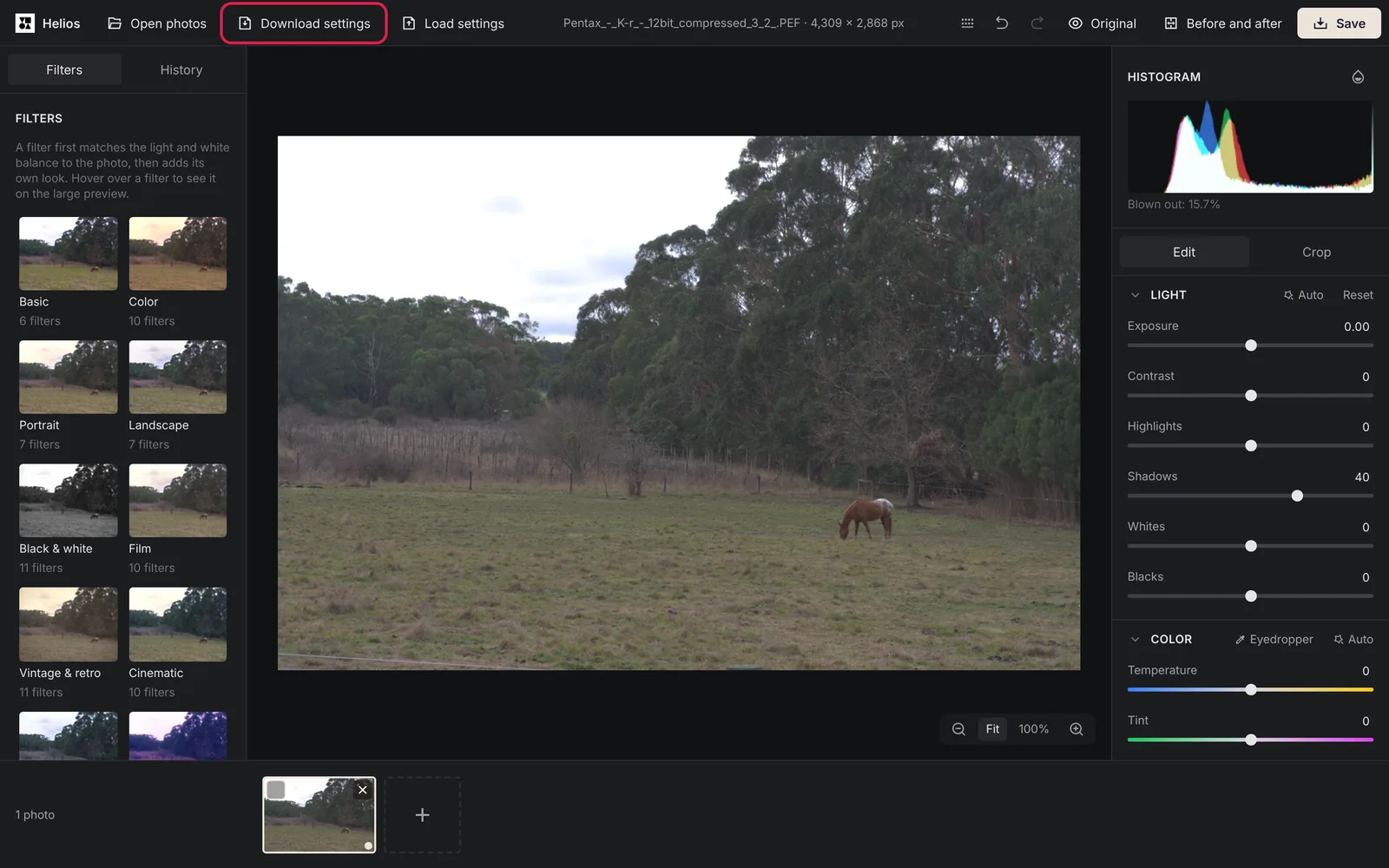
In Helios, our free photo editor, every change goes into the browser’s database a fraction of a second after you make it. When you open Helios again in the same browser, the Pick up where you left off screen offers Continue editing. With your first photo, Helios asks the browser for persistent storage, so Firefox shows its permission window then. In Safari, Helios warns you once that the browser deletes the data of websites you haven’t visited in 7 days of browser use.
In every situation in the table, one button keeps your edits safe: Download settings on the top bar. It saves the settings and history of all open photos in a small file, without the photos themselves. Load settings puts them back on open photos with the same name and file size, in any browser and on any computer. Your own filters have a separate file, saved with Download my filters in the Filters panel.
Sources
- Storage quotas and eviction criteria, MDN
- Full Third-Party Cookie Blocking and More, WebKit
- Updates to Storage Policy, WebKit
- Clear your cache and cookies in Safari on Mac, Apple Support
- Delete your Safari history, cache, and cookies on iPhone, Apple Support
Frequently asked questions about saved work in the browser
Does closing the tab delete my work?
No. Closing a normal tab or the whole browser keeps the website’s data. Only a private window deletes it when you close it.
Does clearing the cache delete my saved edits?
It depends on what you tick. The cache holds copies of pages and images, while your edits are in the site data, which browsers usually list together with cookies. Clearing only the cache leaves them in place, but clearing cookies and site data removes them. On an iPhone, Safari’s Clear History and Website Data removes them as well (Apple Support).
Is my work safe in Chrome and Edge?
Chrome and Edge don’t delete a website’s data after a week without a visit. The work stays until you clear the site data or the disk runs low. A website can use up to 60% of the disk in both of them (MDN).
More guides
 6 min read
Can you fix an overexposed photo? What RAW gets back and JPG doesn’t
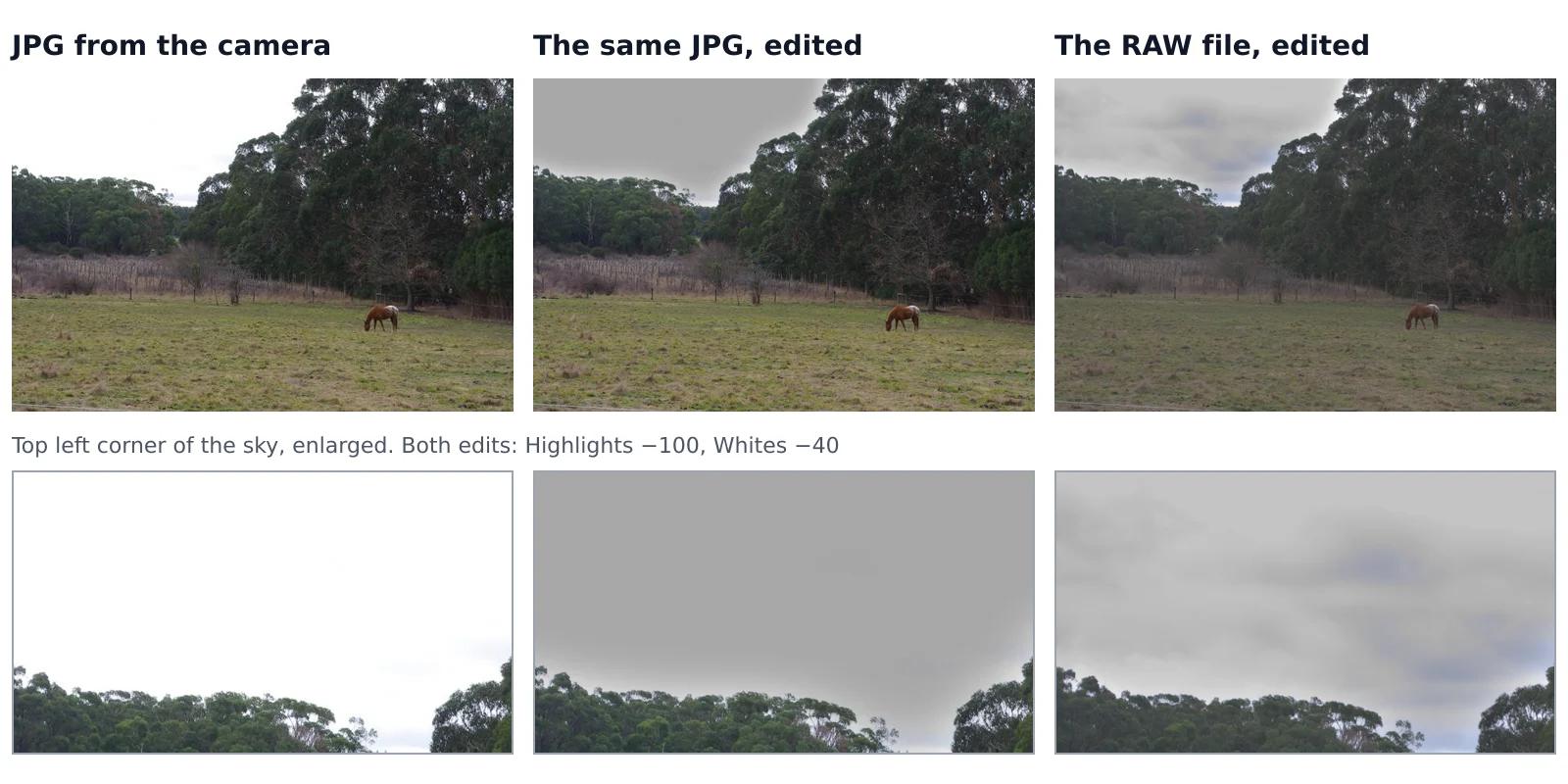
A sky that came out pure white looks the same whether you shot JPG or RAW, but it isn’t the same. In a JPG, the camera has already thrown away everything brighter than white. A RAW file often keeps some of it, and an editor can bring it back. We tested this on one shot that the camera saved both as a RAW file and as a JPG, with the same sliders on both.Read the guide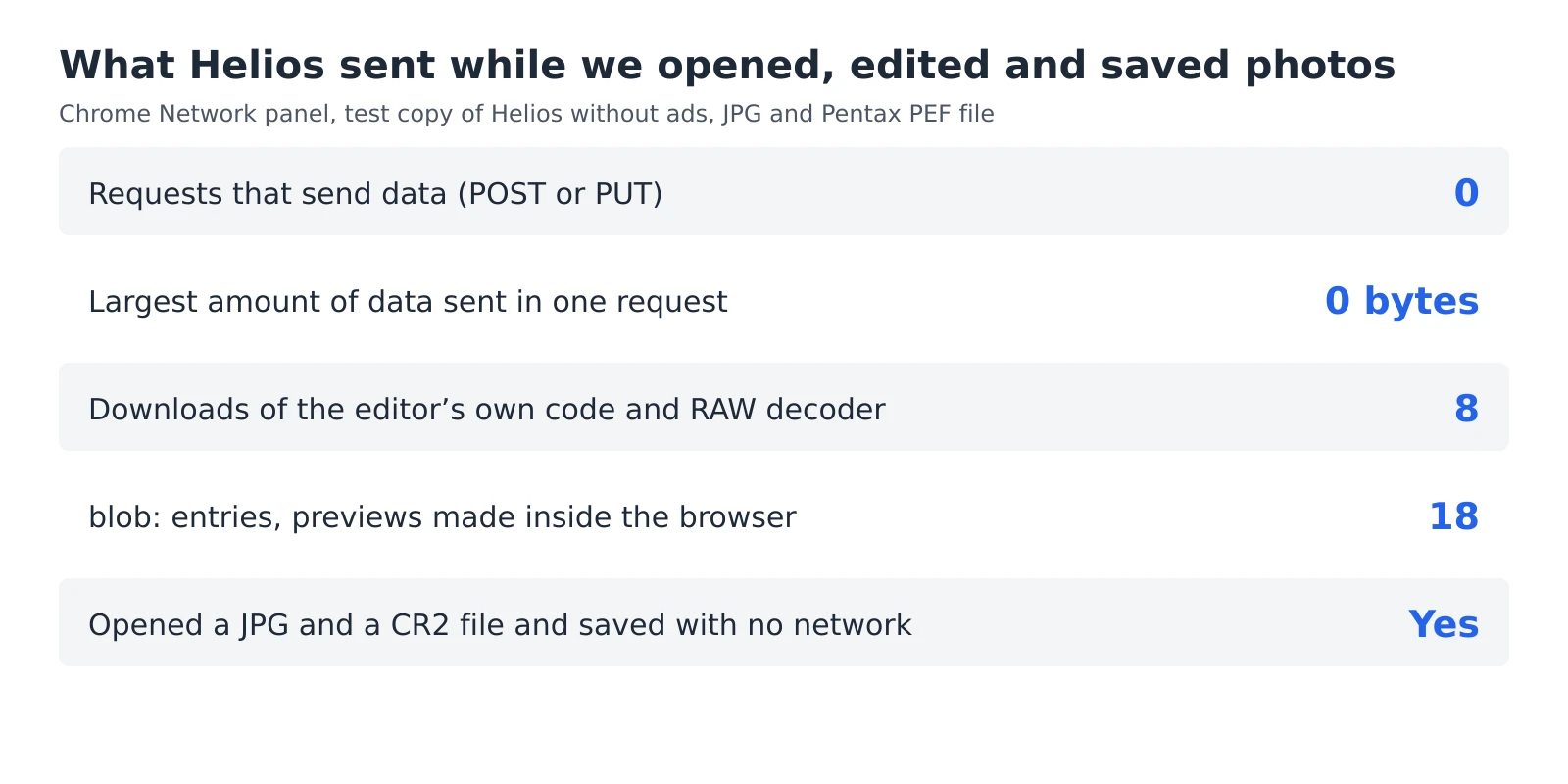 6 min read
How to check whether a photo editor uploads your photos
An editor can say that your photos stay private, but you don’t have to take its word for it. Every browser has a built-in list of everything a web page sends and receives, and a second test needs nothing more than switching off your Wi-Fi. Together they take five minutes and work with any editor that runs in a browser, including ours.Read the guide 7 min read
How to reduce noise in a photo without AI
A photo taken indoors or at dusk often looks fine on the phone screen and grainy on a computer. That grain is noise, and you can reduce it without any AI tool or subscription, with filters that photo editors have used for years. They work well up to a point, and we measured that point on a real photo taken at ISO 6400.Read the guide