Why RAW files from a new camera won’t open or look wrong
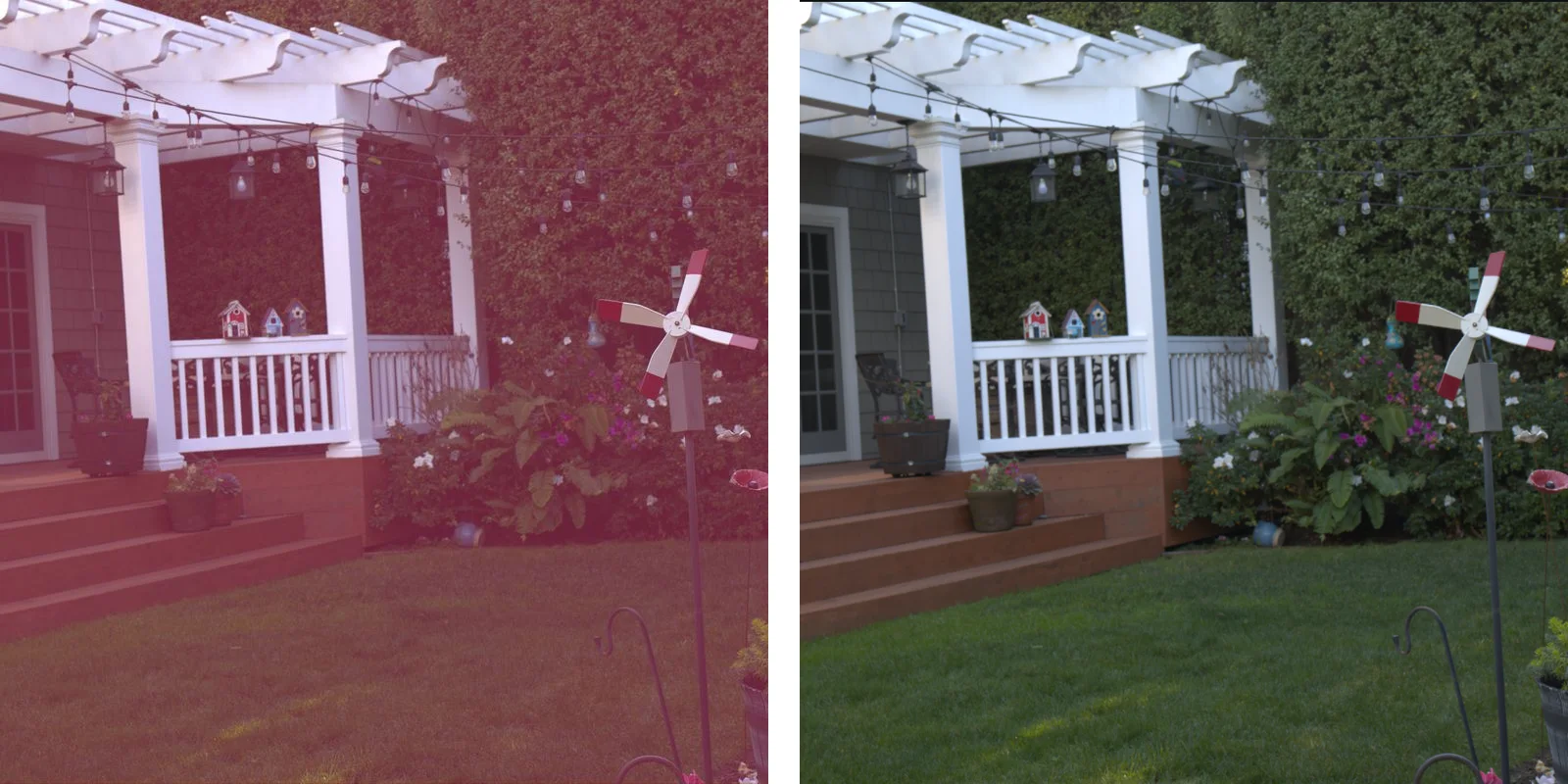
You buy a new camera, shoot in RAW, and your editor refuses the files or shows them with strange colours. The camera isn’t broken and neither are the files. Every new model needs its own support in the program that develops RAW files, and that support arrives some time after the camera goes on sale. We ran into this ourselves in November 2026, when files from several new cameras opened wrongly in our own editor.
Why can’t a program open RAW files from a new camera?
A RAW file holds the data straight from the camera’s sensor, and every manufacturer stores it in its own format: Canon in CR2 and CR3, Nikon in NEF, Sony in ARW and Fujifilm in RAF (Wikipedia). The extension stays the same from model to model, but the details inside change: new compression, a new sensor with its own colour response, a different area of the sensor that holds the picture. A program that develops RAW files keeps data for each camera it knows, and a camera it doesn’t know yet gets no data or the data of a similar model.
Many programs don’t decode RAW files on their own but use a shared library. One such library is LibRaw, which Helios uses too. Its authors write that they can’t say when a program will support a camera, because they have no control over which version of LibRaw independent developers, including Microsoft, put in their software (LibRaw). So support for a new camera reaches you in two steps: first the library learns the model, then the program you use updates to that version of the library.
What goes wrong when a camera is too new?
| What you see | Why it happens | Example from our tests |
|---|---|---|
| The whole photo has a pink or magenta cast | The program uses colour data that doesn’t fit this sensor. | Canon EOS R6 Mark III: grass and leaves came out pink. |
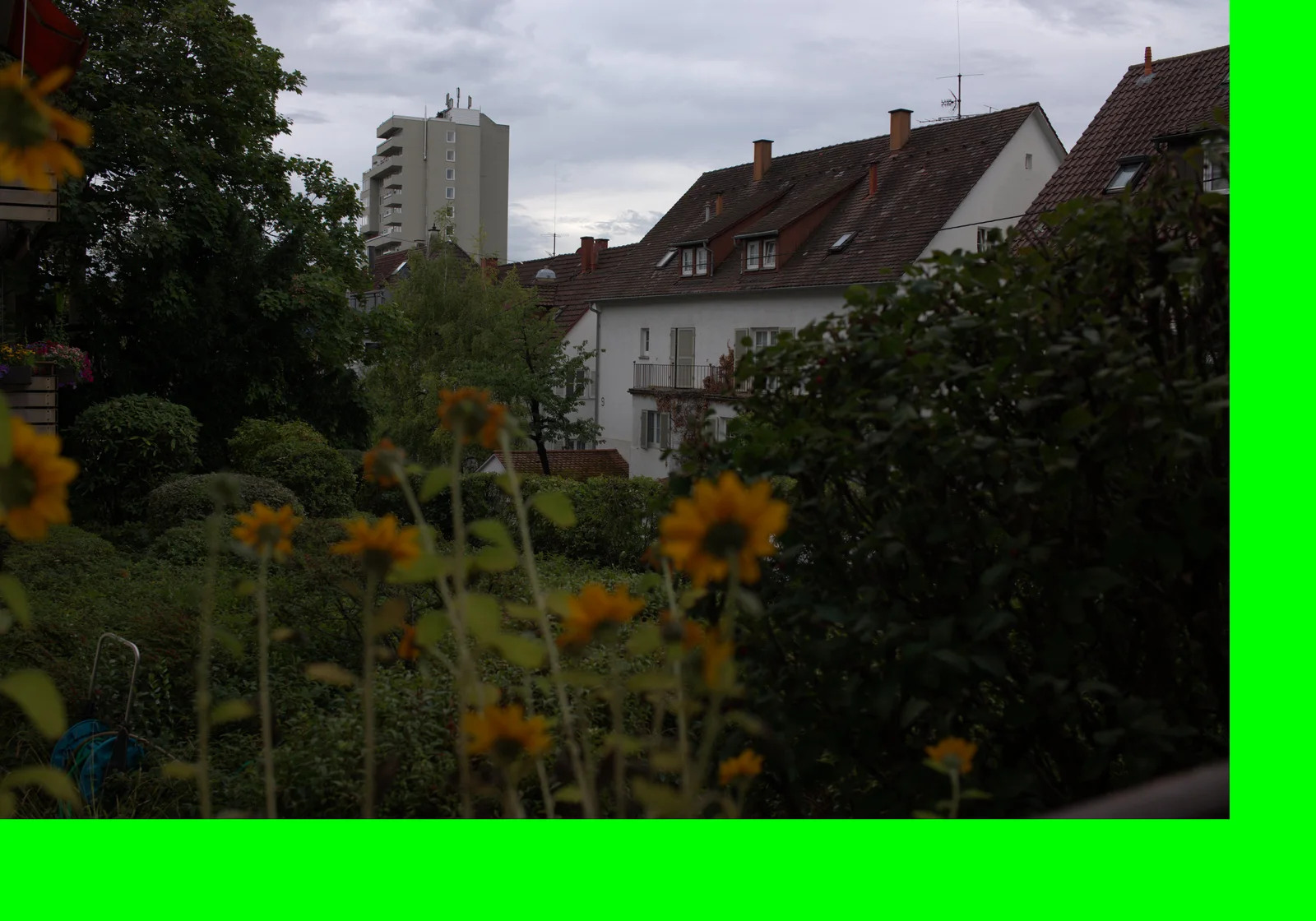
| Green or black stripes along the edges | The program is missing data for this camera, and edges of the sensor data that hold no picture show up in the photo. | Sony RX1R III and Sony α1 II: a green bar along the bottom and right edge. |
| Washed-out or pinkish colours in a dull scene | The program has no colour data for the camera at all and develops the sensor’s colours without correction. | Canon PowerShot V1: a grey sky with a pink tint. |
| The file doesn’t open, or the program says it’s damaged | The program doesn’t recognise a new way of storing the data, even though the camera wrote it correctly. | Sony RX1R III and α1 II in a smaller RAW size: our editor called them damaged. |
What did we find when we tested new cameras in Helios?
In November 2026 we developed sample RAW files from 34 cameras with LibRaw 0.22.2, the version Helios, our free photo and RAW editor, used at the time. The newest official release, 0.22.3, only fixes bugs and adds no cameras (LibRaw). The files come from raw.pixls.us, an open database of sample photos. The list of supported cameras in LibRaw 0.22.2 has 1,276 entries, and it doesn’t include the Canon EOS R6 Mark III, the Sony α7 V, the Sony RX1R III, the Sony α1 II, the Fujifilm X-E5 or the Canon PowerShot V1. Files from these cameras still developed, but the R6 Mark III came out pink, the RX1R III and α1 II had green stripes, and the PowerShot V1 had a pink sky. In Helios, the R6 Mark III file opened just as pink, with no warning.
The newest code of LibRaw, from 18 November 2026, adds 30 cameras to the list, including all of these. It also removes the note that the HE and HE* formats of the Nikon Z 6 III, Z 8, Z 9 and Z f aren’t supported yet, although we had no such files to test. On 19 November 2026 we moved Helios to that code. The R6 Mark III now opens with natural colours, and the PowerShot V1, X-E5 and α7 V look like the photos their cameras saved.
The test also found a fault of our own. Both Sony files were taken in one of Sony’s smaller RAW sizes, which store the picture as YCbCr colour data instead of the usual raw sensor pattern, and the file check in Helios took them for broken TIFF images before the decoder even saw them. We fixed the check the same day, so these files now reach the decoder like any other ARW.
What can you do when your camera is too new?
Start with the first step and go on only if it doesn’t help.
1. Update your editor
Support for new cameras arrives in updates. Check which version you have and whether the maker of the program lists your camera.2. Use the camera maker’s own software
Camera makers offer free programs for developing RAW files from their own cameras, and these usually know a new model before other programs do. Look for it on your camera maker’s website.3. Shoot RAW and JPG together for now
Until your editor supports the camera, set it to save RAW+JPG. You’ll have a photo you can use straight away, and the RAW file waits for the update.4. Tell the maker of your editor
Write which camera and which file setting you use, and attach a sample file if you can. A sample from a real camera helps the developers more than a description.
Why does a browser editor get new cameras sooner?
A program you install updates only when you install the update. Helios loads its RAW decoder from our website each time you open it, so when we move to a newer version of LibRaw, everyone gets it on their next visit, with nothing to download. You can check which cameras we have tested ourselves in the table on the Helios page. If a RAW file from your camera opens with the wrong colours or doesn’t open at all, send us a note through the form at the bottom of that page.
Sources
- Raw image format, Wikipedia
- LibRaw 0.22 supported cameras, LibRaw
- Download LibRaw, LibRaw
- Digital Negative, Wikipedia
Frequently asked questions about RAW files from new cameras
Will converting to DNG help?
Yes, if the converter knows your camera. DNG is an open format that describes the sensor inside the file itself (Wikipedia), so a program that reads DNG doesn’t need to know your camera model. The conversion itself still needs a program that supports the camera.
Is something wrong with my camera if the RAW files look pink?
No. The camera’s own preview on its screen and the JPG it saves are developed inside the camera with the right data. A pink RAW file means that the program on your computer doesn’t have that data yet.
Why does a RAW file from my phone open everywhere?
Phones that shoot RAW usually save it as DNG (Wikipedia), which describes the sensor in the file, so programs don’t need to know the phone model.
More guides
 6 min read
Can you fix an overexposed photo? What RAW gets back and JPG doesn’t
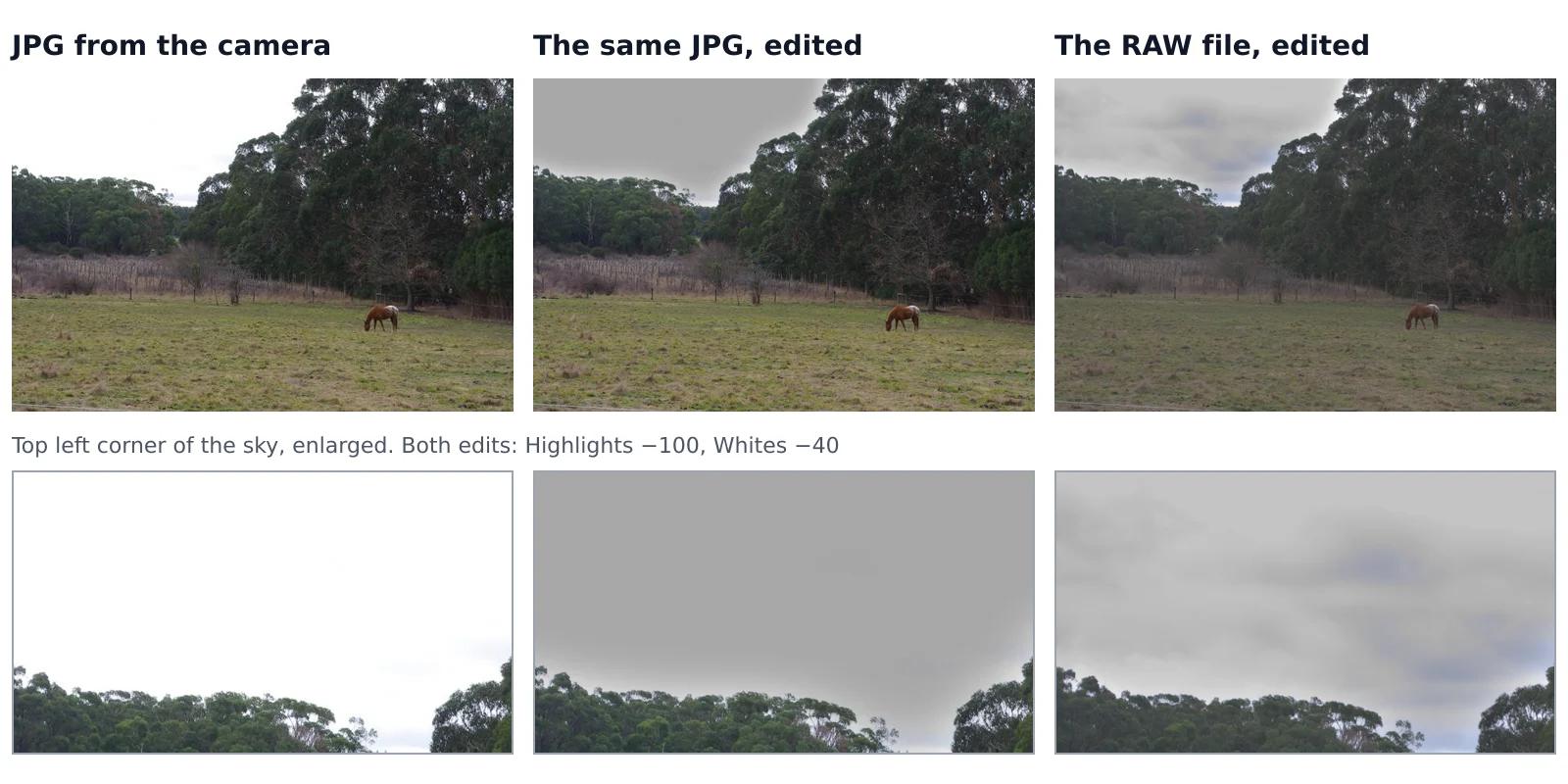
A sky that came out pure white looks the same whether you shot JPG or RAW, but it isn’t the same. In a JPG, the camera has already thrown away everything brighter than white. A RAW file often keeps some of it, and an editor can bring it back. We tested this on one shot that the camera saved both as a RAW file and as a JPG, with the same sliders on both.Read the guide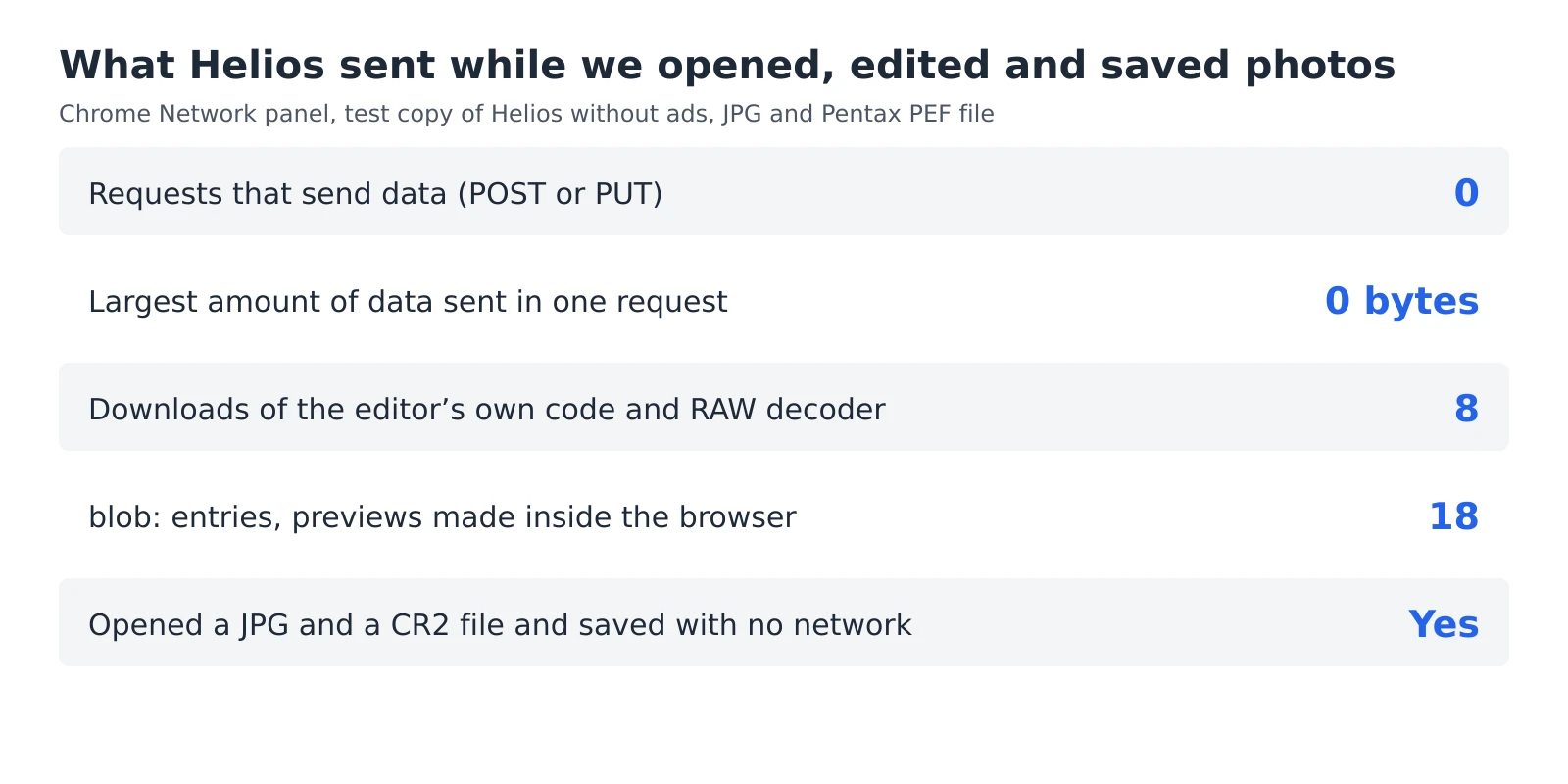 6 min read
How to check whether a photo editor uploads your photos
An editor can say that your photos stay private, but you don’t have to take its word for it. Every browser has a built-in list of everything a web page sends and receives, and a second test needs nothing more than switching off your Wi-Fi. Together they take five minutes and work with any editor that runs in a browser, including ours.Read the guide 7 min read
How to reduce noise in a photo without AI
A photo taken indoors or at dusk often looks fine on the phone screen and grainy on a computer. That grain is noise, and you can reduce it without any AI tool or subscription, with filters that photo editors have used for years. They work well up to a point, and we measured that point on a real photo taken at ISO 6400.Read the guide