Why your photo looks different after you save it
You spend ten minutes on a photo, save it, open the file, and the colours look duller, the image darker or the grain stronger than in the editor. Usually the file is fine and the difference comes from one of five things: the colour space, an HDR photo, the scaled-down preview, compression or the screen you view it on. Each has a simple test and a fix.
Why does a saved photo look different from the editor?
| What you see | Most likely cause | What to do |
|---|---|---|
| Reds, oranges or greens look duller in the saved file | The original used a wide colour space such as Display P3, and the file was saved in sRGB, which can’t hold the most saturated colours. | Usually nothing. In most photos only a tiny part of the colours lies outside sRGB. |
| The phone shows the photo brighter than the saved file | The phone saved an HDR photo with extra brightness information, and the editor saved a standard version without it. | Compare both on a screen that isn’t HDR, such as most laptops. If they match there, the file is fine. |
| The saved file looks sharper or noisier than the editor | The editor showed a scaled-down preview, which hides fine grain and makes sharpening look weaker. | Judge sharpening and noise reduction at 100% zoom before you save. |
| Blocky areas or smudged detail, often in the sky | The file was saved with low JPG quality, or a social network compressed it again after upload. | Save at full quality and upload a photo at the size the service uses, so it doesn’t have to shrink it. |
| The photo looks warmer or darker on another screen | Screens differ in brightness and colour, and settings such as Night Shift on a Mac warm up the whole screen in the evening. | Check the photo on two or three devices before you decide that the file is wrong. |
What happens to colours from a wide colour space?
Most photos on the web use sRGB. Many newer screens can show a wider range of colours called Display P3, including those of the iPhone 7 and later (WebKit). Display P3 is about 50% larger than sRGB, and the greens gain the most (WebKit). When a P3 photo is saved in sRGB, the colours that sRGB can’t hold are moved to the nearest colour it can.
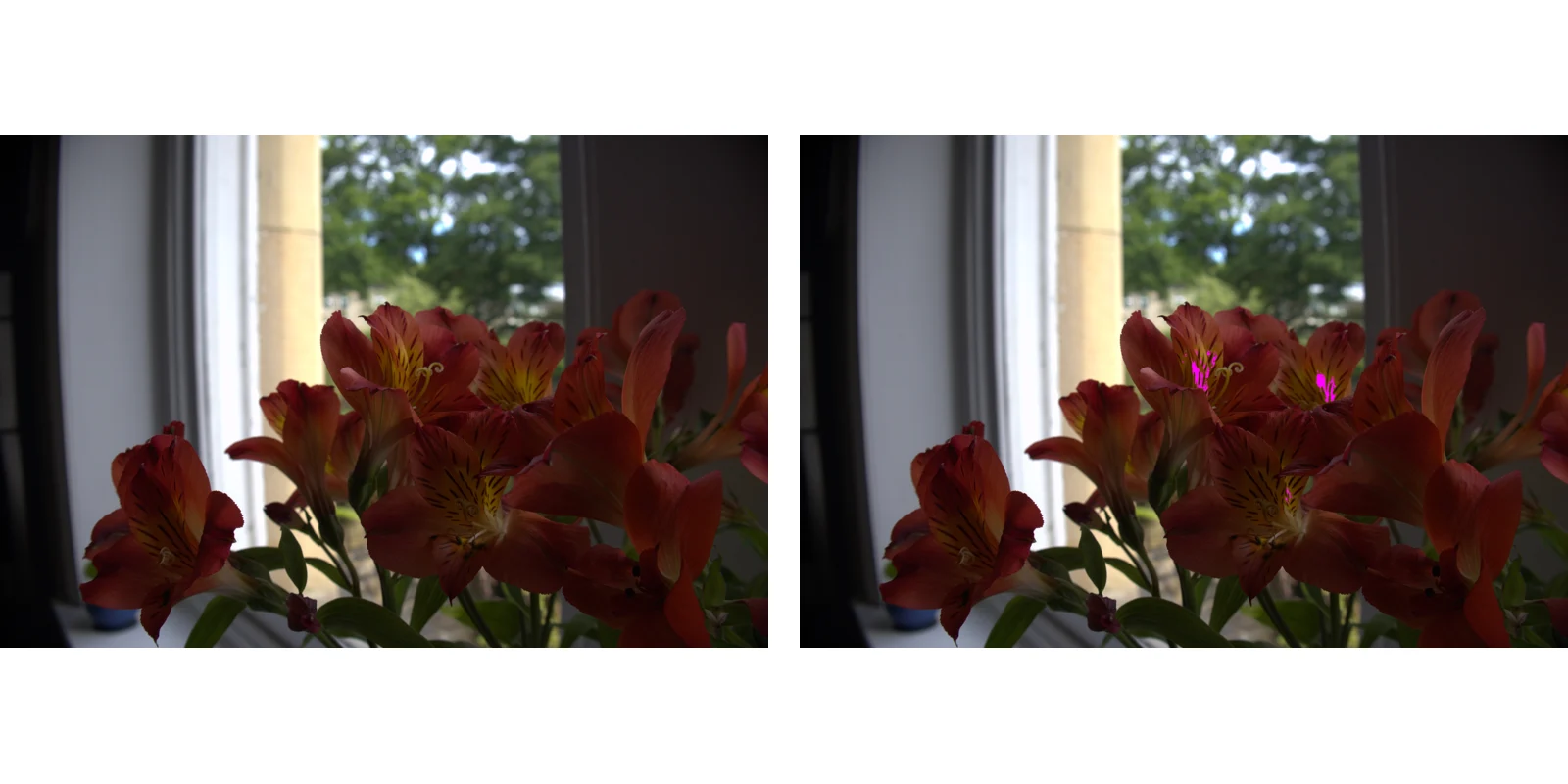
We checked how much that matters on a real photo. We developed a RAW file of orange and red flowers from raw.pixls.us in the P3 colour space. Only 0.13% of its pixels, in the yellow centres of two flowers, had vivid colours outside sRGB, even though the photo is full of red and orange. We opened it in Helios, our free photo editor, and saved it as a JPG without changes. The saved file differed from a reference conversion of the original to sRGB, made with the Little CMS colour library, by 0.57 levels out of 255 on average. So the editor converted the colours correctly, and in an ordinary photo the colours that sRGB can’t show are a tiny part of the picture.
Why does an HDR photo look darker after editing?
Some phones now save HDR photos: a normal JPG plus a second image that tells an HDR screen how much brighter each area can be. Android calls this format Ultra HDR, and a program that doesn’t support it shows the normal image (Android Developers). On an HDR phone screen the original then shows brighter highlights, while an edited copy without that extra image looks flatter next to it.
Helios opens such a photo as a normal one, and when you save, it leaves the old brightness map out on purpose, because it no longer fits the edited photo and would give wrong colours on an HDR screen. On a laptop or any other screen that isn’t HDR, the original is shown without the extra brightness too, so there the two files differ only by your edits.
How do we check that Helios saves what you see?
Different results on screen and in the file are a common complaint about photo editors. We check Helios for it with an automatic test that opens a photo, sets the sliders, shows the preview at 100% zoom and compares it pixel by pixel with the PNG file the editor saved. The difference may be at most 2 levels out of 255 per colour, because the editor adds a very faint noise that prevents visible bands in smooth gradients.
The preview and the saved file match because they go through the same code, the same shader on your graphics card. At 100% zoom, what you see is what you get. Below 100%, the preview is scaled down, and the Sharpening and Noise reduction sliders look weaker there than in the full-size file. Use the zoom buttons in the bottom right corner of the photo to check them before you save.
How do you get a saved photo that matches the editor?
Go through these checks once, and most differences disappear.
1. Check details at 100%
Click 100% in the zoom buttons and look at the sky, faces and dark areas. Sharpening and noise reduction look right only at full size.2. Save in full quality
In the save window, choose Full quality for archiving and printing, or Website and email for a smaller file that is still sharp.3. Compare on a second screen
Open the saved file on another device. If it looks right there, the difference came from your screen or its night mode.4. Compare the original and the edit side by side
Before saving, press Y for Before and after. Dragging the line across the photo shows the original on the left and your version on the right.
Sources
- Wide Gamut Color in CSS with Display-P3, WebKit
- Ultra HDR Image Format v1.1, Android Developers
- Use Night Shift on your Mac, Apple Support
Frequently asked questions about saved photos looking different
Why does my photo look different on Instagram?
Social networks usually resize and compress a photo again after you upload it. The less they have to change, the closer the result stays to your file, so upload a photo that is already the size the service shows and saved at good quality.
Does Night Shift change the saved file?
No. Night Shift only changes how your Mac’s screen shows colours, by shifting them towards the warmer end of the spectrum after dark (Apple Support). The file stays the same, and it looks different only on that screen.
Should I save my photos in Display P3?
Only if you know they’ll be viewed on wide-gamut screens in apps that support it. For sharing, email and most printing services, sRGB gives the most predictable result.
More guides
 6 min read
Can you fix an overexposed photo? What RAW gets back and JPG doesn’t
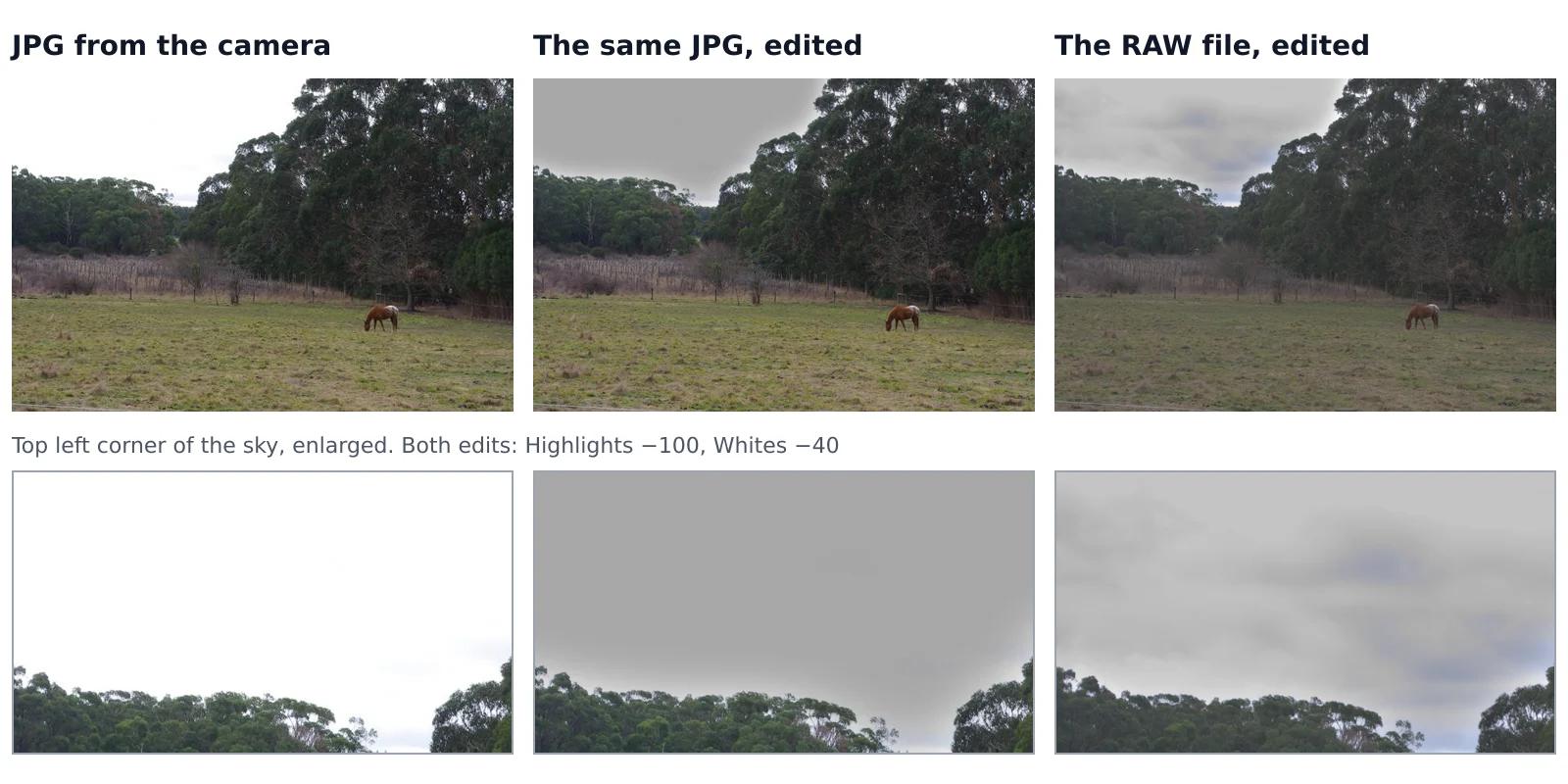
A sky that came out pure white looks the same whether you shot JPG or RAW, but it isn’t the same. In a JPG, the camera has already thrown away everything brighter than white. A RAW file often keeps some of it, and an editor can bring it back. We tested this on one shot that the camera saved both as a RAW file and as a JPG, with the same sliders on both.Read the guide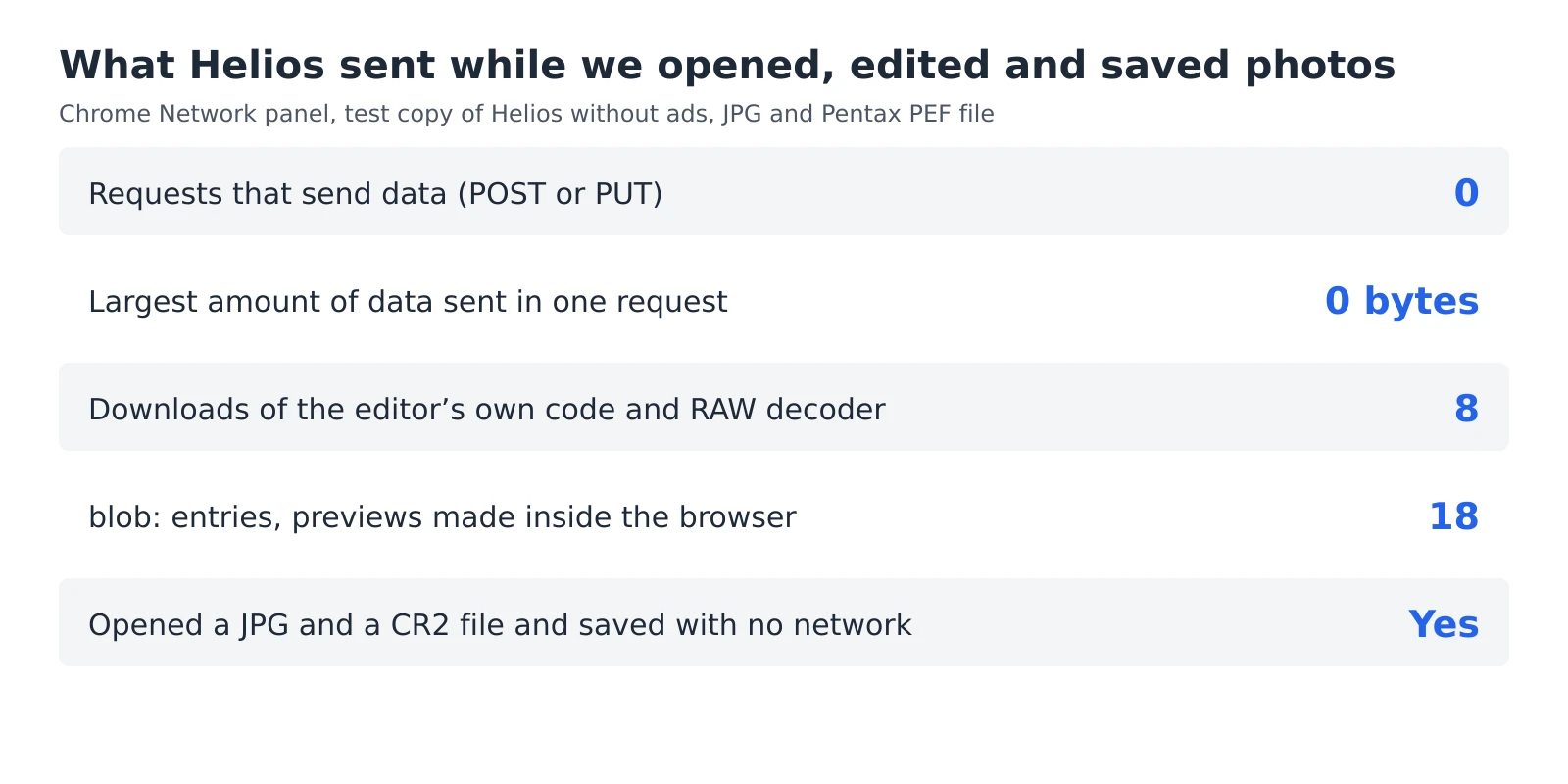 6 min read
How to check whether a photo editor uploads your photos
An editor can say that your photos stay private, but you don’t have to take its word for it. Every browser has a built-in list of everything a web page sends and receives, and a second test needs nothing more than switching off your Wi-Fi. Together they take five minutes and work with any editor that runs in a browser, including ours.Read the guide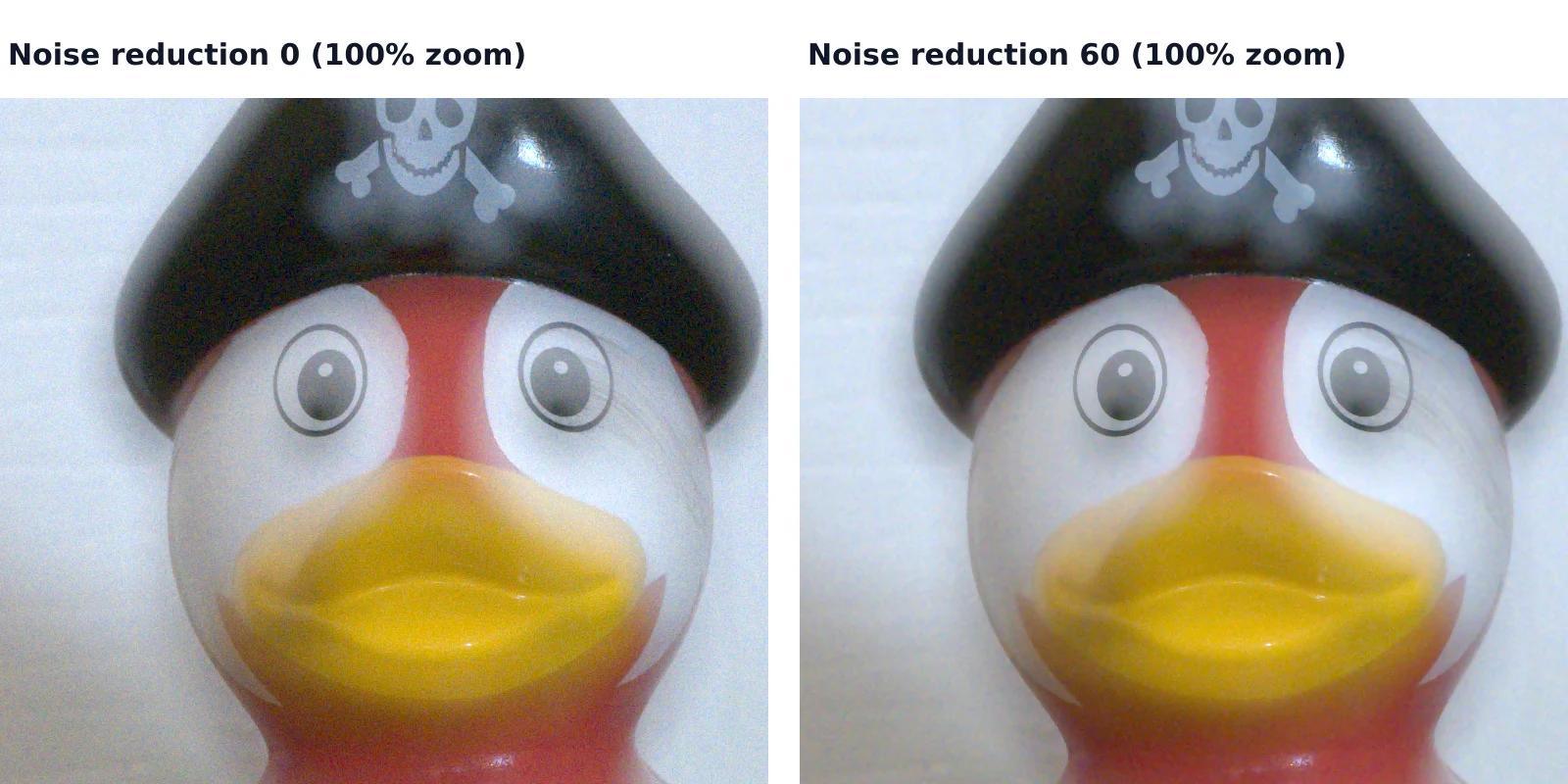 7 min read
How to reduce noise in a photo without AI
A photo taken indoors or at dusk often looks fine on the phone screen and grainy on a computer. That grain is noise, and you can reduce it without any AI tool or subscription, with filters that photo editors have used for years. They work well up to a point, and we measured that point on a real photo taken at ISO 6400.Read the guide