How to remove the location and other hidden data from a photo
A photo from a phone usually carries more than the picture: the exact place it was taken, the date and time and the model of the device. Anyone who gets the original file can read this data. Before you send a photo of your home, your child or something you’re selling, you can remove the location in a minute, without uploading the photo anywhere.
What hidden data does a photo contain?
Cameras and phones save extra information in each photo in a format called Exif. Next to the shooting settings, it can hold the location, the date and time and a small preview of the picture (Wikipedia). Many phones have a GPS receiver and write the location into every photo by default, often without the owner knowing (Wikipedia). Manufacturers can also add their own data block, called MakerNote, which sometimes contains the serial number of the camera (Wikipedia).
This data is real and easy to read. In December 2012, John McAfee was hiding from the police when a magazine published a photo of him on its website. The photo still had the phone’s GPS coordinates, which placed him in Guatemala, and he was caught two days later (Wikipedia).
How do you remove the location from a photo?
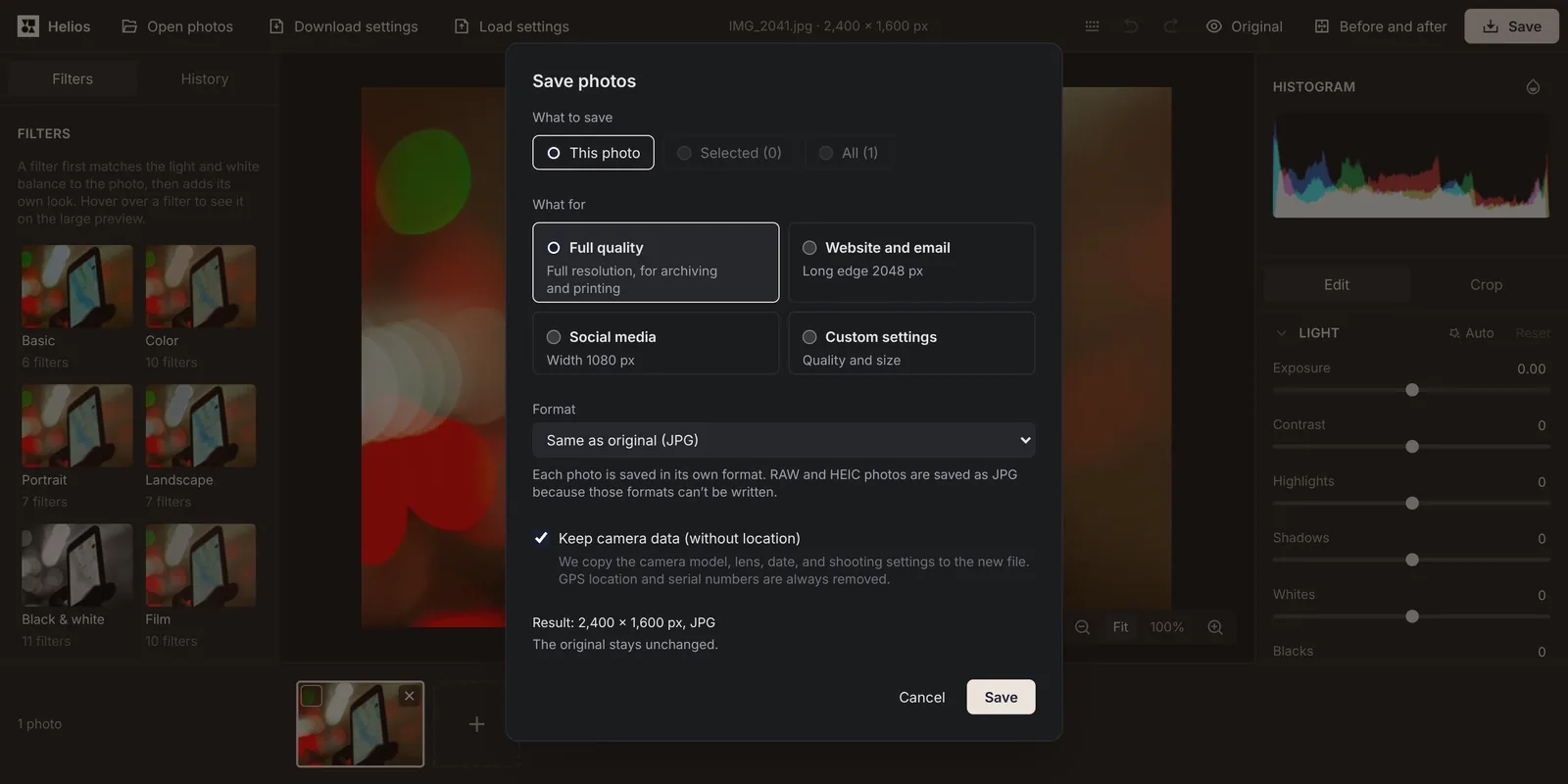
Saving a photo in Helios always removes its location. You don’t need to edit anything.
1. Open the photo
Open Helios, click Open photos and choose one photo or several.2. Click Save
Click Save on the top bar. In the window, choose Full quality under What for so the photo keeps its full size.3. Decide what else should go
With Keep camera data (without location) ticked, the new file keeps the date and camera settings but loses the GPS location and serial numbers. Untick it to remove all camera data, including the date.4. Save and send the new file
Click Save in the window. The new file gets the suffix -helios, for example IMG_2041-helios.jpg. Send that file, not the original, which still has the location.
What stays in the photo and what is removed?
| Data in the photo | Keep camera data ticked | Keep camera data unticked |
|---|---|---|
| GPS location | Removed | Removed |
| Serial numbers of the camera and lens | Removed | Removed |
| Manufacturer’s own data (MakerNote) | Removed | Removed |
| Small preview of the original picture | Removed | Removed |
| XMP data block, which can also hold a location | Removed | Removed |
| Date and time the photo was taken | Kept | Removed |
| Camera and lens model | Kept | Removed |
| Shutter speed, aperture, ISO and focal length | Kept | Removed |
| Description, author and copyright | Kept | Removed |
Why does the small preview matter?
Exif can store a small copy of the photo for quick previews. Some editing programs don’t update it, so after you crop out a car’s number plate or a face, the old preview can still show the uncropped picture (Wikipedia). Helios removes that preview from every saved photo, so the only picture left in the file is the one you see after your edits.
Check the author and copyright fields too. Some cameras write the owner’s name into every photo once it’s set in the camera menu. If you don’t want your name in the files you send, untick Keep camera data (without location) before saving.
Do apps and websites remove the location for you?
It depends on the service, and what counts is the file you send. Some services clean Exif data from uploaded images automatically, while others keep every tag, including the location; GitHub, for example, preserves it (Wikipedia). A photo sent as an email attachment arrives as the same file, with all its data.
Phone galleries don’t always help either. Google Photos can’t remove a location that the camera added, only estimated locations and ones you added yourself, and changing the location there doesn’t affect photos you download and send outside Google Photos (Google Photos Help). Removing the location from the file itself, before you share it, is the only way to be sure.
How do you stop your phone from saving the location?
On an iPhone, go to Settings, then Privacy & Security and Location Services. There you decide, app by app, which apps can use your location (Apple Support). Set the Camera app to Never, and new photos are saved without a location.
This only affects photos you take from now on. Photos already in your gallery keep their location, so before you share one of them, save a clean copy in Helios.
Sources
- Exif, Wikipedia
- Understand, find & edit your photos’ locations, Google Photos Help
- About privacy and Location Services in iOS, iPadOS, and watchOS, Apple Support
Frequently asked questions about photo location data
Does removing the location reduce the quality of the photo?
A JPG is saved again at 95% quality with Full quality, so a tiny part of the detail can change. If every detail matters, choose PNG or TIFF as the format in the save window. Both keep the picture without compression loss.
Can I remove the location from many photos at once?
Yes. Open them all, click Save and choose All under What to save. Every photo loses its location, and the set is saved in one ZIP file called helios-photos.zip.
More guides
 6 min read
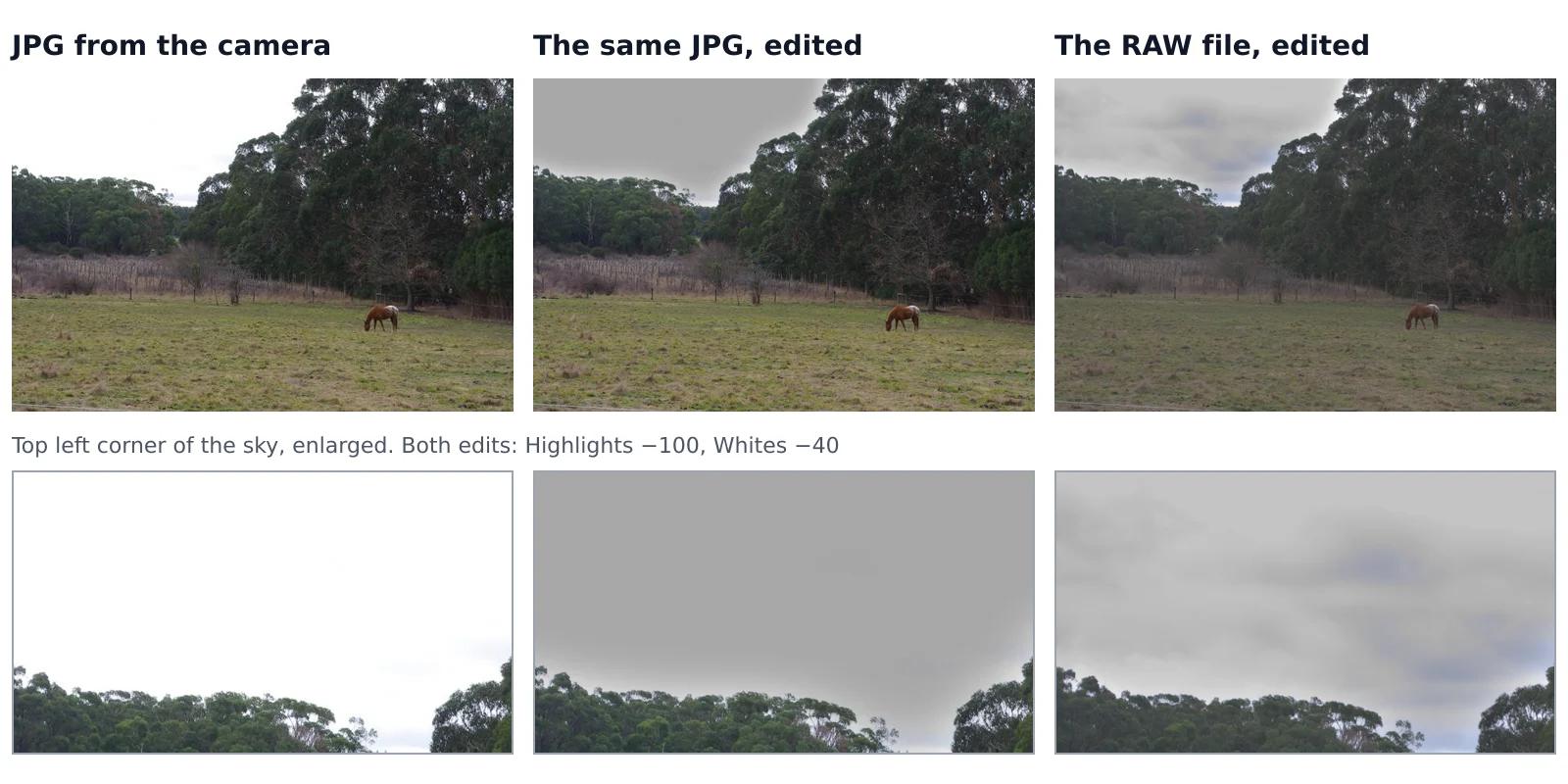
Can you fix an overexposed photo? What RAW gets back and JPG doesn’t
A sky that came out pure white looks the same whether you shot JPG or RAW, but it isn’t the same. In a JPG, the camera has already thrown away everything brighter than white. A RAW file often keeps some of it, and an editor can bring it back. We tested this on one shot that the camera saved both as a RAW file and as a JPG, with the same sliders on both.Read the guide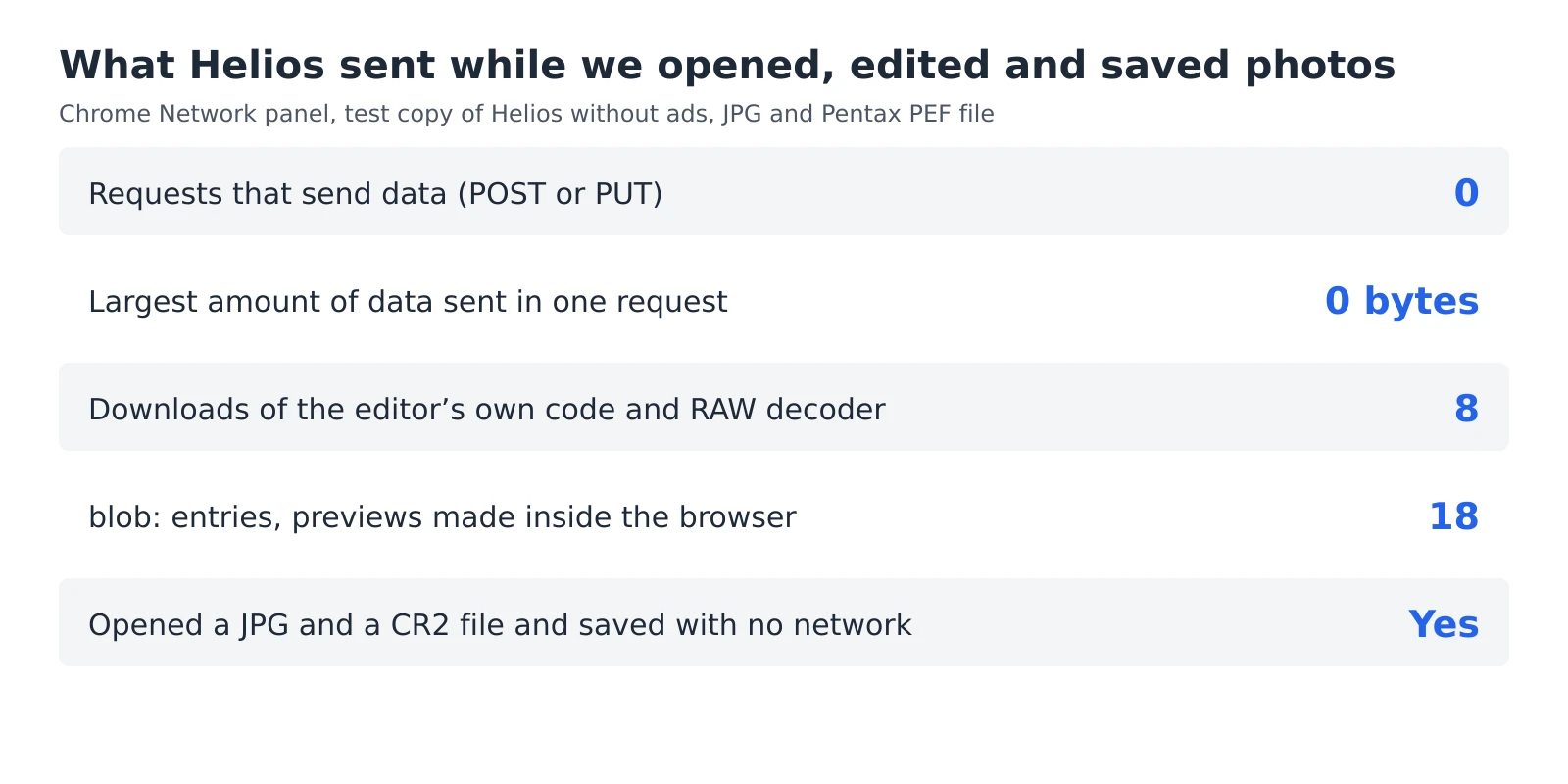 6 min read
How to check whether a photo editor uploads your photos
An editor can say that your photos stay private, but you don’t have to take its word for it. Every browser has a built-in list of everything a web page sends and receives, and a second test needs nothing more than switching off your Wi-Fi. Together they take five minutes and work with any editor that runs in a browser, including ours.Read the guide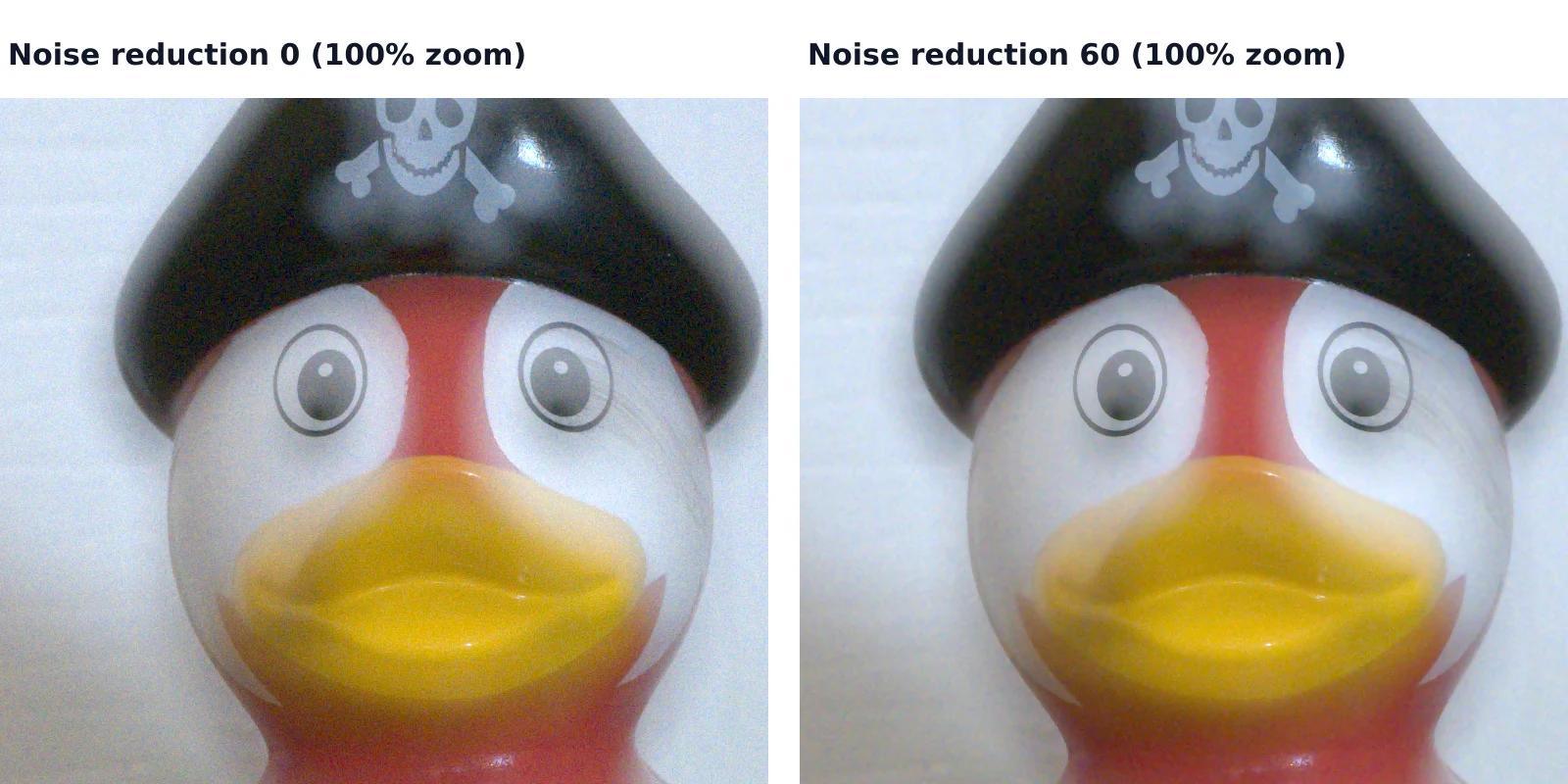 7 min read
How to reduce noise in a photo without AI
A photo taken indoors or at dusk often looks fine on the phone screen and grainy on a computer. That grain is noise, and you can reduce it without any AI tool or subscription, with filters that photo editors have used for years. They work well up to a point, and we measured that point on a real photo taken at ISO 6400.Read the guide