Free Markdown to HTML converter – with page preview
Paste Markdown and click Convert, and the tool writes it out as HTML: a line starting with # becomes a heading, and a table drawn with pipes becomes an HTML table. The Preview button shows the result as a page before you paste the code into your content management system.
What is Markdown, and what is HTML?
Markdown is a way of writing text in which you mark formatting with plain characters. A line that starts with # becomes a heading, and a word wrapped in two asterisks on each side becomes bold. Its creator, John Gruber, describes Markdown as a text-to-HTML conversion tool for web writers[1]. Version 1.0.1 came out on December 17, 2004[1].
HTML is the core markup language of the World Wide Web[2]. It describes a page with tags in angle brackets, for example <h1> for a heading and <strong> for bold text. The browser reads those tags and lays out the page from them.
Gruber put the split between the two formats in one sentence: HTML is a publishing format, and Markdown is a writing format[3]. That is why the text gets written in Markdown, while the page receives the HTML produced from that text.

How do you convert Markdown to HTML?
Paste your text into the Markdown field or add a file with the Add Markdown file link, then click Convert. The finished code appears in the HTML field. A line starting with # gets an h1 tag there, text wrapped in two asterisks on each side gets a strong tag, and lines starting with a hyphen become a ul list.
Next to the HTML field there are two view buttons. HTML code shows the tags, which you can copy with Copy or save with Download as converted.html. Preview shows the same result as a page, so you can see whether the table has columns and the list has bullets.
If the file starts with a front matter block from Jekyll or Hugo, the tool skips it and shows a notice under the result. The conversion uses the marked library, whose documentation lists 99 percent compliance with the CommonMark 0.31 spec[4]. For the reverse direction, from page code back to Markdown, use the HTML to Markdown converter.
Why does the same Markdown look different in different apps?
The authors of the CommonMark spec state plainly that Gruber’s original syntax description does not specify the syntax unambiguously[5]. Each program therefore settled the unclear cases in its own way. The spec gives the example of a document that renders one way in a GitHub wiki and another way after conversion with Pandoc[5]. So its authors wrote the syntax out as rules with examples. The current version of the spec, 0.31.2, dates from January 28, 2024[5].
GitHub described its own variant, GitHub Flavored Markdown, which covers the whole CommonMark spec plus five extensions[6]. They are tables, task lists, strikethrough, autolinks and a filter for selected HTML tags. A table and a task list from a README file therefore come out of this converter as an HTML table and a list with checkboxes.
The static site generators Jekyll and Hugo read a front matter block with the post’s metadata from the top of the file. Jekyll requires that block to be the first thing in the file and to be YAML set between triple-dashed lines[7]. Hugo also accepts TOML between lines of three plus signs[8]. You can read metadata written in YAML as an object with the YAML to JSON converter.
Which HTML tag does each piece of Markdown produce?
| Markdown | HTML output |
|---|---|
| # Heading | <h1>Heading</h1>, and ###### gives <h6> |
| **text** or __text__ | <strong>text</strong> |
| *text* or _text_ | <em>text</em> |
| ~~text~~ | <del>text</del> |
| `code` | <code>code</code> |
| ```js, code and ``` | <pre><code class="language-js"> |
| ~~~, code and ~~~ | <pre><code> |
| [link](address "title") | <a href="address" title="title">link</a> |
|  | <img src="image.jpg" alt="description"> |
| - item | <ul><li>item</li></ul> |
| 1. item | <ol><li>item</li></ol> |
| - [x] task | <li><input checked="" disabled="" type="checkbox"> task</li> |
| > quote | <blockquote><p>quote</p></blockquote> |
| --- or *** | <hr> |
| https://example.com | <a href="https://example.com"> |
| www.example.com | <a href="http://www.example.com"> |
| | A | B | with a | --- | --- | row | <table> with <thead> and <tbody> |
| | :-: | in the delimiter row | align="center" on the cells of that column |
| \*asterisk\* | *asterisk* without italics |
What does the converter do with front matter, line breaks and HTML in the text?
| Part of the file | What reaches the output |
|---|---|
| YAML front matter between --- lines | Block skipped, notice under the result |
| TOML front matter between +++ lines | Block skipped, notice under the result |
| A --- line and a plain sentence without a key | A horizontal rule <hr> and a paragraph |
| A single Enter inside a paragraph | A newline in the code, a space on the page |
| Two spaces or \ at the end of a line | <br> |
| An HTML tag in the text, for example <kbd>Ctrl</kbd> | The same tag, unchanged |
| <script> typed into the text | Tag unchanged in the code, blocked in the preview |
| GitHub alert > [!NOTE] | A <blockquote> quote containing the text [!NOTE] |
| Footnote Text[^1] with a line [^1]: note | A number in <sup> and a <section class="footnotes"> list at the end |
| Image with the path cat.jpg | Address unchanged, resolved against this page’s address in the preview |
| Image with a data:image/png;base64 address | Address unchanged, image visible in the preview |
How do Gruber’s Markdown, CommonMark and GFM differ?
| Feature | Markdown 1.0.1 | CommonMark | GitHub Flavored Markdown |
|---|---|---|---|
| Document | John Gruber’s syntax description | CommonMark Spec | GitHub Flavored Markdown Spec |
| Version | 1.0.1 | 0.31.2 | 0.29-gfm |
| Release date | December 17, 2004 | January 28, 2024 | April 6, 2019 |
| Scope | Basic syntax | Syntax written out as rules with examples | All of CommonMark plus five extensions |
| Tables | — | — | Yes |
| Task lists | — | — | Yes |
| Strikethrough ~~text~~ | — | — | Yes |
| Link from an address without < > brackets | — | — | Yes |
| HTML tag filter | — | — | 9 tags, including script and iframe |
| Compliance of the marked library | 100% for version 1.0 | 99% for version 0.31 | 98% for version 0.29 |
How do you add the result to WordPress?
Three steps from finished code to a published post in the block editor.
1. Check the result in the preview
Click Preview to see tables, lists and images the way the page will show them. The preview blocks scripts pasted into the text. To see how a long post fills the layout, paste in placeholder text from the Lorem Ipsum generator. Then go back to the HTML code view and click Copy.2. Add a Custom HTML block
3. Check the post title and description
Before publishing, check how the post title and description fit in search results. The meta title and description length checker shows it.
Sources
- Markdown — Daring Fireball (John Gruber)
- HTML Standard: Introduction, Background — WHATWG
- Markdown: Syntax — Daring Fireball (John Gruber)
- Marked Documentation — marked
- CommonMark Spec, version 0.31.2 — CommonMark
- GitHub Flavored Markdown Spec, version 0.29-gfm — GitHub
- Front Matter — Jekyll
- Front matter — Hugo
- Custom HTML — WordPress.org
- Basic writing and formatting syntax — GitHub Docs
- US keyboard layout — Microsoft Learn
- United Kingdom keyboard layout — Microsoft Learn
- Pandoc Releases — pandoc.org
- Pandoc User’s Guide — pandoc.org
Every figure in the tables was computed from the unit definitions and checked arithmetically before publication. Historical values and the names of local units come from the sources listed above.
Content last reviewed: · written and checked by the Arteon team
Frequently asked questions about Markdown to HTML conversion
Does the converter add syntax highlighting to code blocks?
The converter adds a class with the language name to the block, for example language-js for ```js. The GFM spec describes the first word after the backticks as the language name, which the parser places in the class attribute of the code tag[6]. The colors come from a highlighting library or the stylesheet of the page where you place the code.
How do I break a line without starting a new paragraph?
How do I type a backtick to open a code block?
On the US layout the backtick is on the key below Esc and needs no modifier[11]. The United Kingdom layout has it on the same key below Esc[12]. Three backticks open a code block, and the CommonMark spec also accepts three tildes[5]. On the US layout a tilde is Shift with the key below Esc, and on the United Kingdom layout it is Shift with the # key.
How do I make an image show up in the preview?
For an image with a path that has no server address, such as cat.jpg, the browser looks under this tool page’s address. Type the full address starting with https://, and the image appears in the preview. You can also embed the image in the text as a data: address prepared by the image to Base64 converter.
How is this converter different from Pandoc?
Pandoc is a program you run from the command line. Its latest version, 3.11, came out on August 28, 2026[13]. You convert a file there with the command pandoc -o output.html input.txt[14]. By default the output is a document fragment, and the -s option gives a complete HTML file with head and body sections[14]. This converter also returns a fragment, ready to paste into a page template or an editor block, and it runs in your browser.
Is my Markdown text sent to a server?
Your browser runs the conversion and the preview, so the pasted text and the added file stay on your computer. In the preview the browser downloads only the images whose addresses you type into the text.
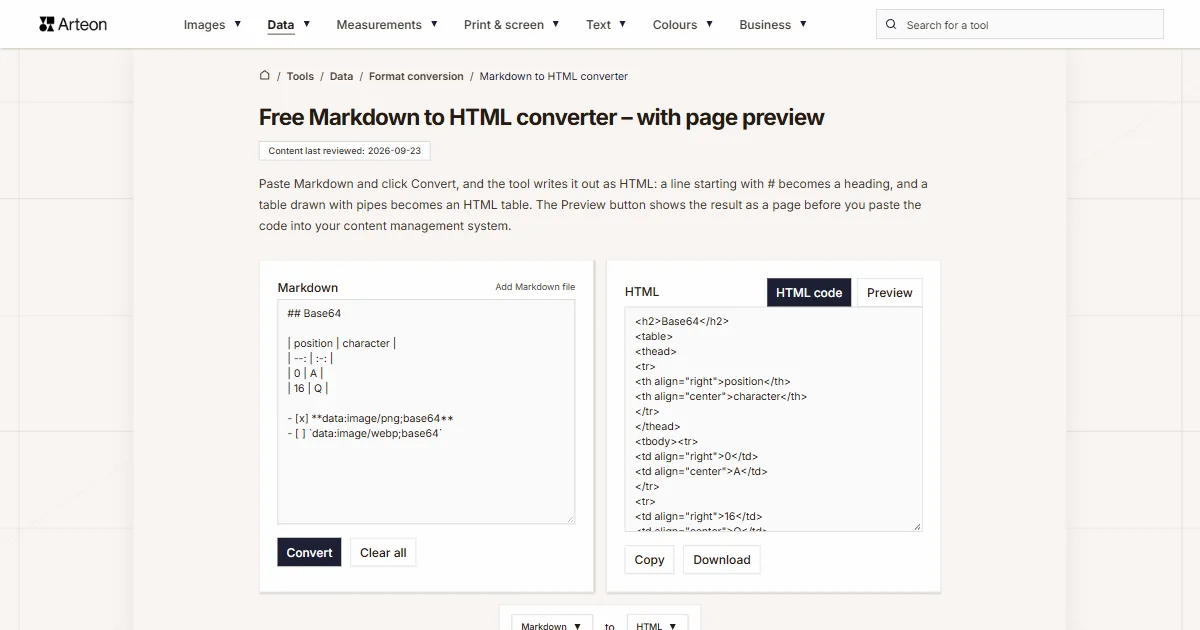
Help us improve our tools
Have an idea, found a bug, or want to suggest a feature? Drop us a message.
Explore other useful tools

Meta title & description checker
Check title and description length in pixels. Live Google preview and optimization tips.
PNG to JPG
Convert PNG files to JPG in your browser. No file limits, no signup, no server uploads.

Favicon generator
Create a complete favicon.ico set for your website from one image. All required sizes, no login.
Color palette generator
Generate 17 palettes from one color: monochromatic, complementary, triadic and more. HEX codes.
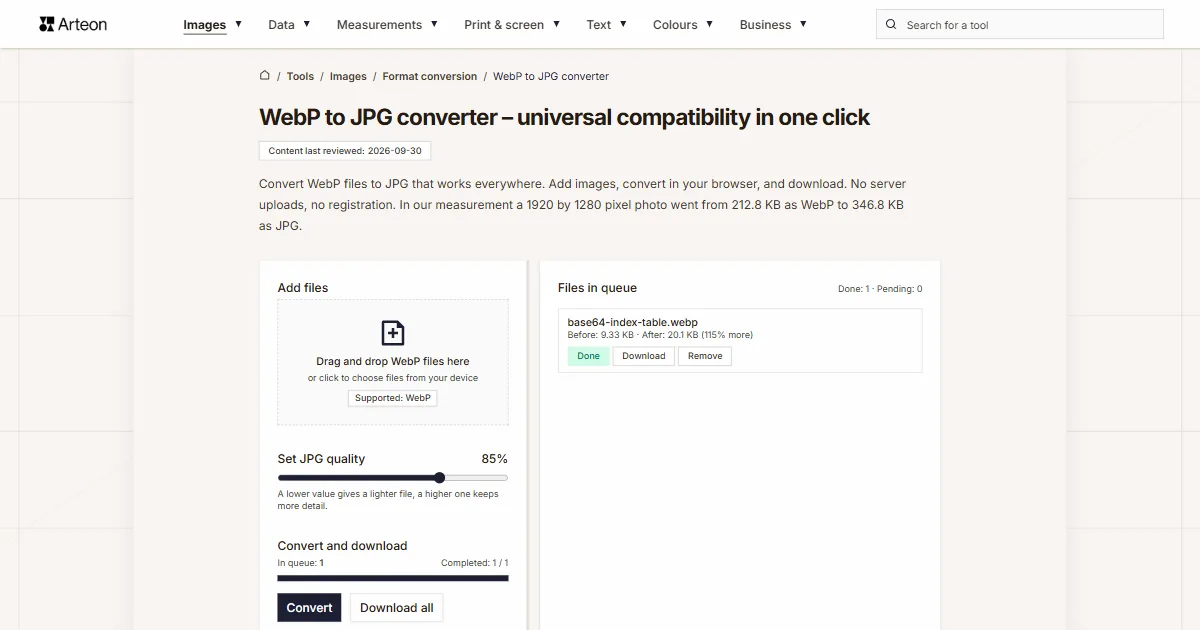
WebP to JPG
Convert WebP files to universally compatible JPG. Works in every app and platform.
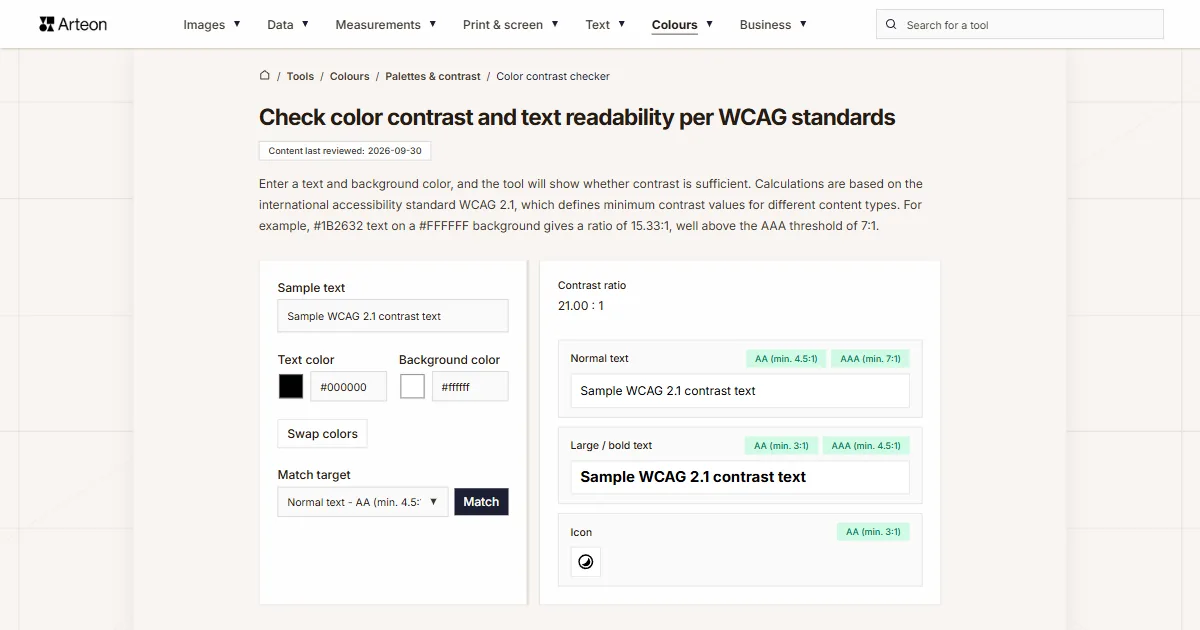
Color contrast checker
Check text and background contrast per WCAG 2.1 AA and AAA. Automatic color correction.
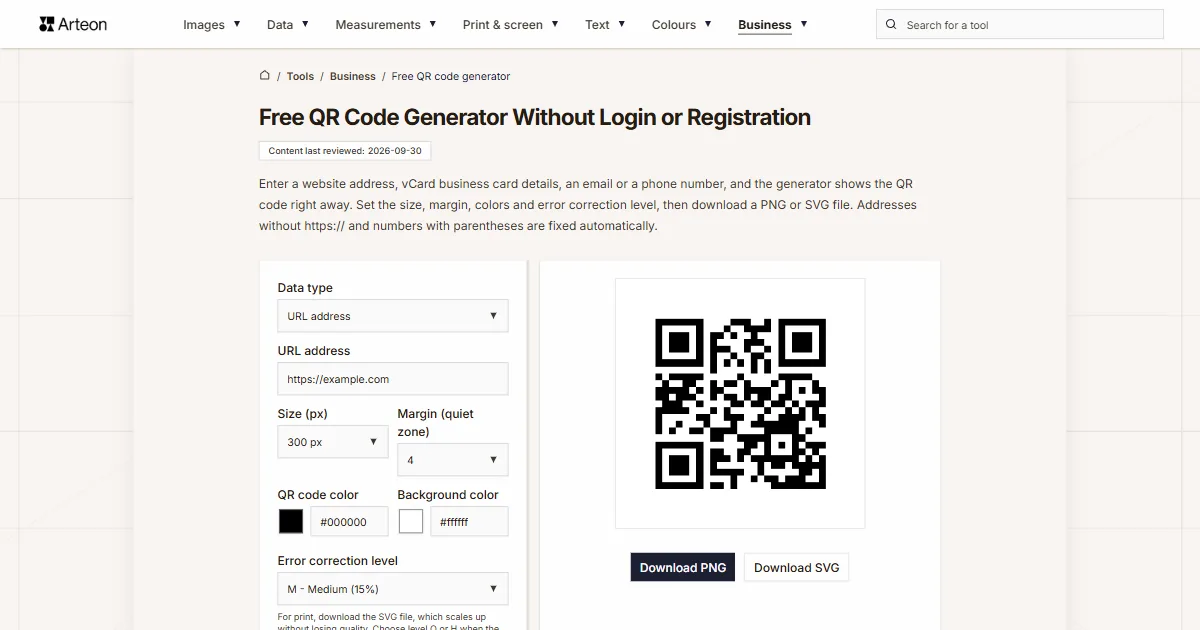
Free QR code generator
Create a QR code for a website, vCard business card or print. Export PNG and SVG, no registration.
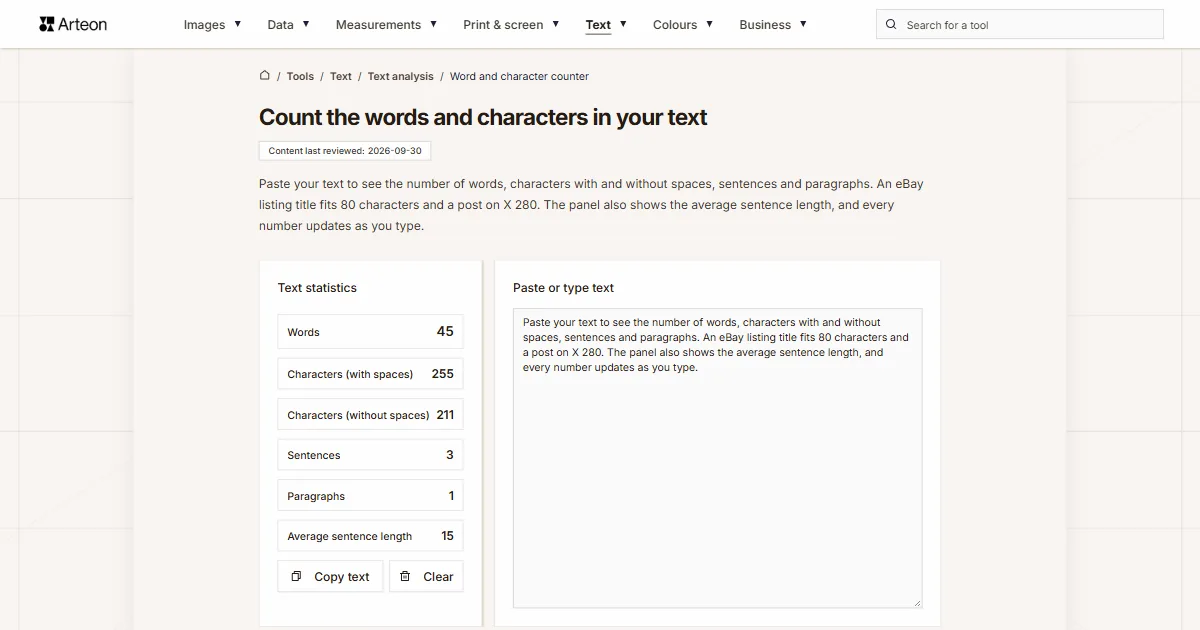
Word & character counter
Count words, characters with and without spaces, sentences, paragraphs and the average sentence length.
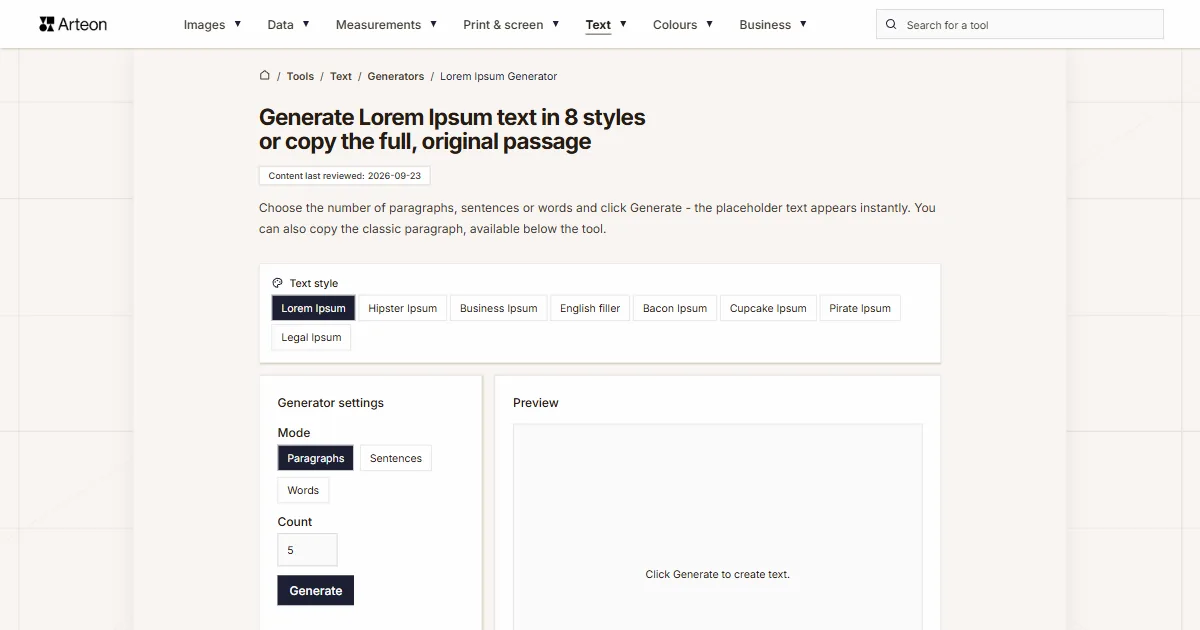
Lorem Ipsum Generator
Free Lorem Ipsum generator — 8 text styles, paragraphs, sentences or words. Copy in one click.