How to batch edit photos: apply the same edits to many photos at once
After a wedding, a holiday or a product shoot you often have dozens of photos taken in the same light, and every one of them needs the same fix. You can edit one of them, copy its settings to the rest and save the whole set at once, for free and in your browser.
When does copying the same edits to many photos work?
Batch editing works when the photos were taken in the same light. Photos from one room, one walk in the park or one product table usually need the same correction: a little more brightness, a less yellow tint or stronger colours. Edit one of them, copy the settings, and the others come out right too.
It works less well when the light changes within a set. A wedding often has photos from the church, from a garden in the sun and from a hall lit by bulbs, and each of those groups needs a different white balance. In that case, split the set into groups and repeat the steps for each group separately, starting from a typical photo of that group.
How do you apply the same edits to many photos?
There’s no limit on the number of photos in a set, so the same steps work for 5 photos and for 500.
1. Open the whole set
Open Helios, click Open photos and select all the photos in the file picker, or drag them onto the editor. They appear in the thumbnail strip at the bottom straight away.2. Edit the photo that best represents the set
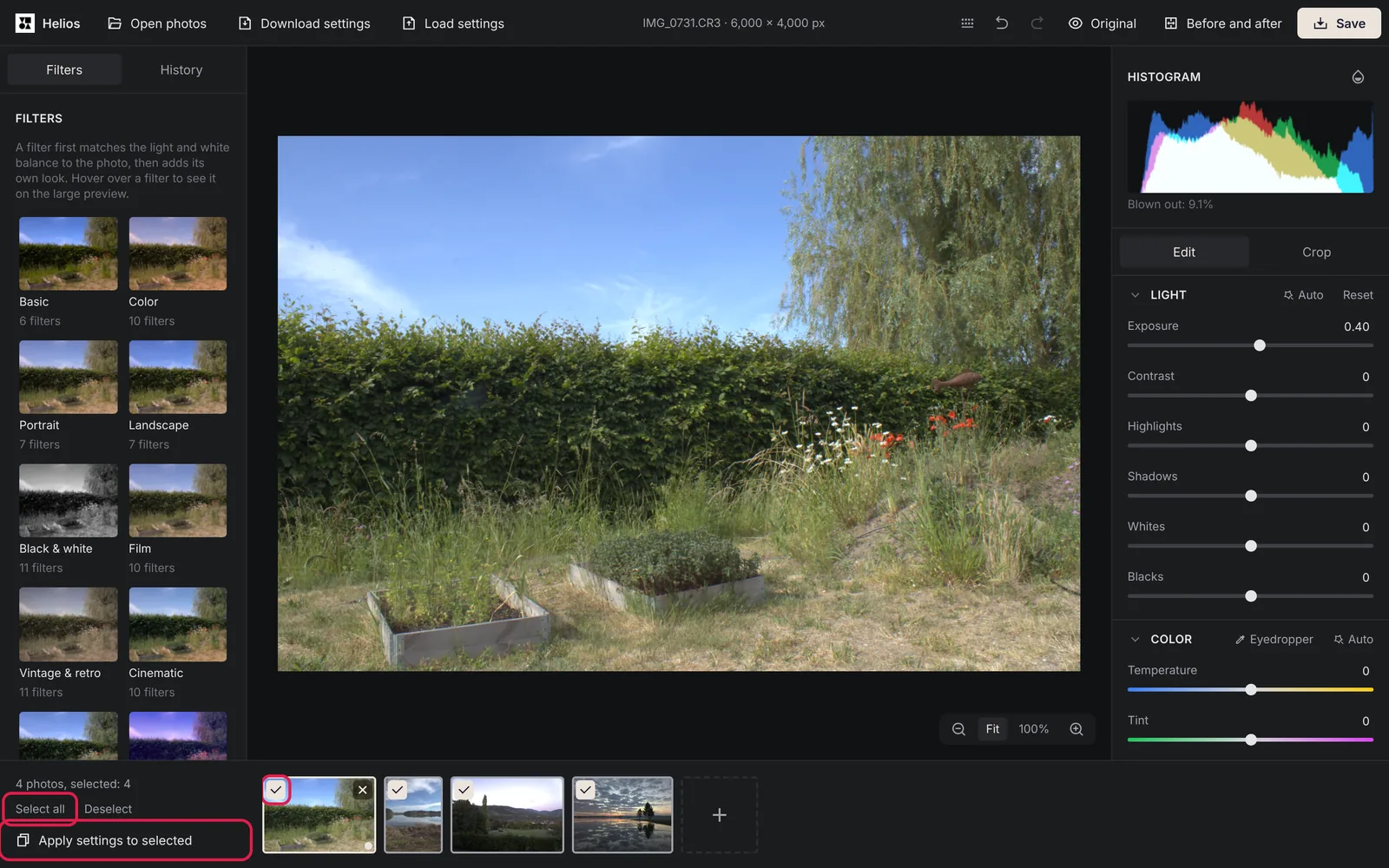
Pick a photo with typical light, not the darkest or the brightest one, and edit it. The left and right arrow keys switch between photos, so you can check the others before you copy anything.3. Select the photos that should get these settings
Click the square in the corner of each thumbnail, or click Select all. Deselect clears the selection if you change your mind.4. Choose what to copy
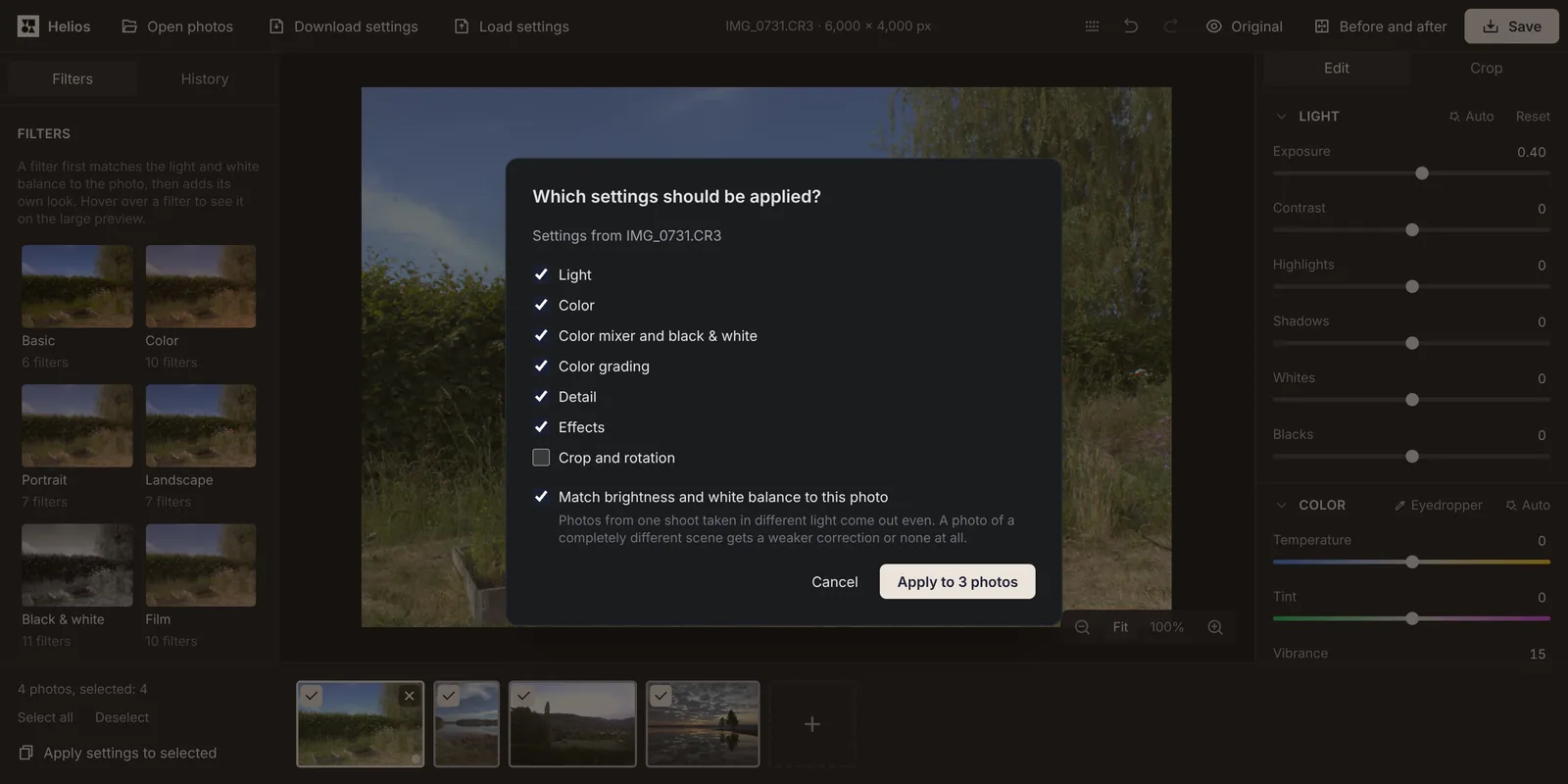
Click Apply settings to selected. In the Which settings should be applied? window, every group is ticked except Crop and rotation. Untick a group to leave it as it is on the other photos, for example Color when some photos already have the right white balance.5. Apply the settings and save the set
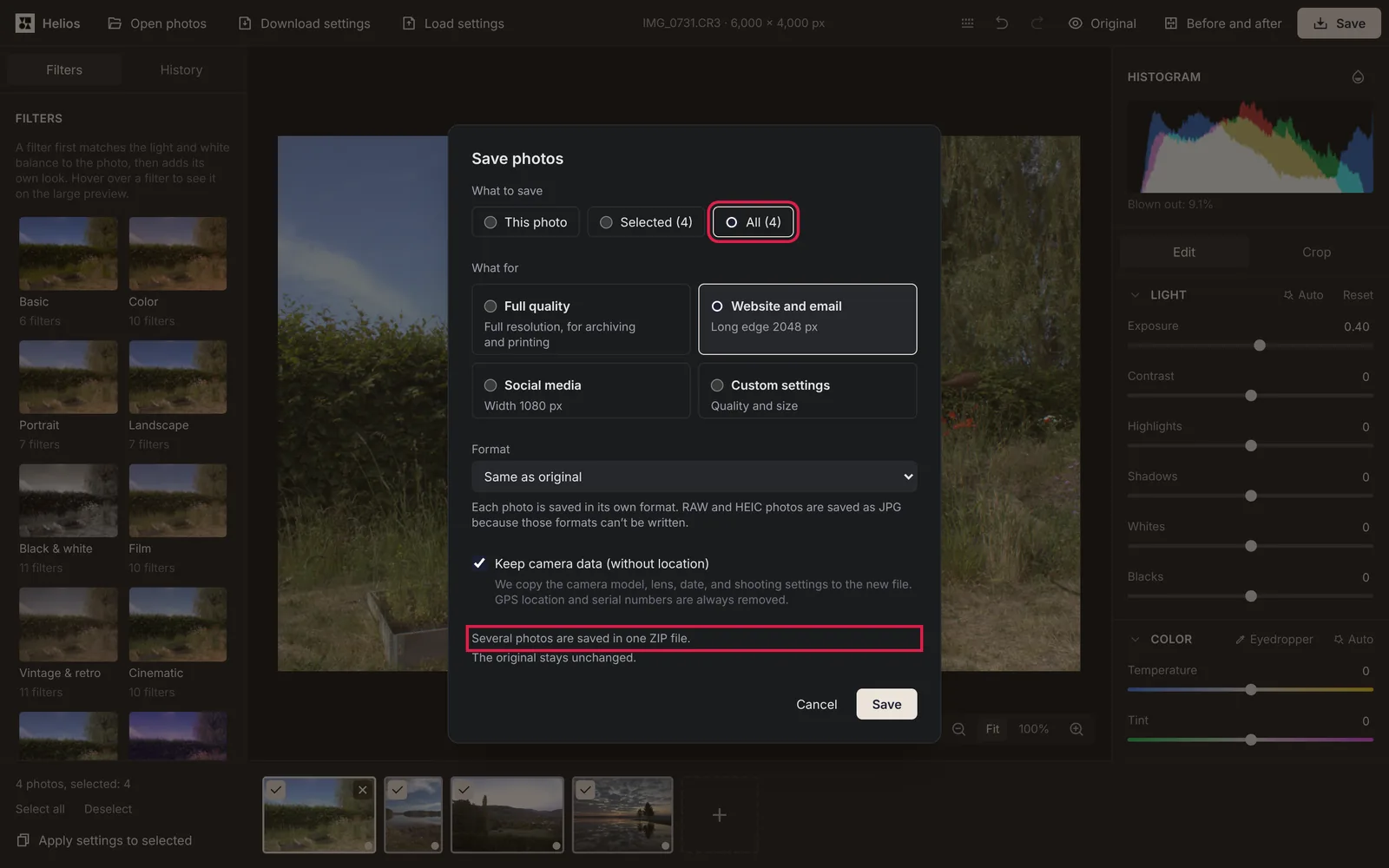
Click the button with the number of photos, for example Apply to 12 photos. Then click Save, choose Selected or All under What to save and save the whole set in one ZIP file called helios-photos.zip.
What does matching brightness and white balance do?
Even photos from one shoot differ a little. A cloud covers the sun, the camera chooses a different exposure, or you step from the shade into the light. If you copied the same settings to all of them, some would come out darker than others.
The Match brightness and white balance to this photo option, ticked by default, measures each photo and corrects it so that it matches the one you edited. Photos of the same scene taken in slightly different light then come out even. A photo of a completely different scene gets a weaker correction or none at all, so the editor doesn’t force it to look like a photo it has nothing in common with. For JPG, HEIC, TIFF and other formats except RAW, the editor also uses the shutter speed, aperture and ISO that the camera saved in the file. The option works when the Light or Color group is ticked.
Should you copy the crop to the other photos?
Usually not, which is why Crop and rotation is unticked by default. A crop only fits photos with the same aspect ratio and composition. Copied to a portrait photo or to a photo where the subject stands elsewhere, it cuts off the wrong part of the picture, and the window reminds you of this.
Copying the crop does make sense for photos taken from a tripod, such as a series of products shot on the same table. Then every photo has the same frame, and one crop fits all of them.
How do you copy edits to just one other photo?
Click Copy settings at the bottom of the right panel (Ctrl+C), go to the other photo and click Paste settings (Ctrl+V). Pasting copies the whole look of the photo, meaning the light, colour, detail, colour grading, effects and colour mixer, while each photo keeps its own crop.
If you edit photos from similar shoots regularly, for example product photos in the same studio, save the look as your own filter with Save the current look as a filter. Next time you open a new set, you apply the filter and don’t have to set the sliders again.
What should you check before saving the set?
Go through the set with the arrow keys before you save. Look at the photos that differ most from the one you edited: the darkest, the brightest and those with people, because a wrong white balance is easy to see on skin. Any photo can still be fine-tuned on its own after you apply the settings, and a dot in the corner of its thumbnail shows that it has your changes.
Then choose the size that fits the set. Website and email scales the photos so the long edge is 2048 px, which makes the files much lighter for sending, while Full quality keeps the full resolution for printing. If two photos in the set differ only in upper and lower case letters, such as IMG_0001.JPG and img_0001.jpg, they get different names in the ZIP file, so Windows and macOS don’t overwrite one with the other when you unpack it. When the whole set comes from RAW files and you only need JPGs, our guide on converting RAW to JPG explains which settings keep the most detail.
Frequently asked questions about batch editing photos
How long does it take to open a large set?
The editor opens up to three photos at a time, depending on your processor cores and memory. In our test it opened a set of 200 photos of 800 × 600 px in 35 s, and the page responded to clicks the whole time.
Can I batch edit RAW files and JPGs together?
Yes. Helios opens RAW files, JPGs, HEIC photos and other formats in the same set, and Apply settings to selected copies the settings to all of them.
More guides
 6 min read
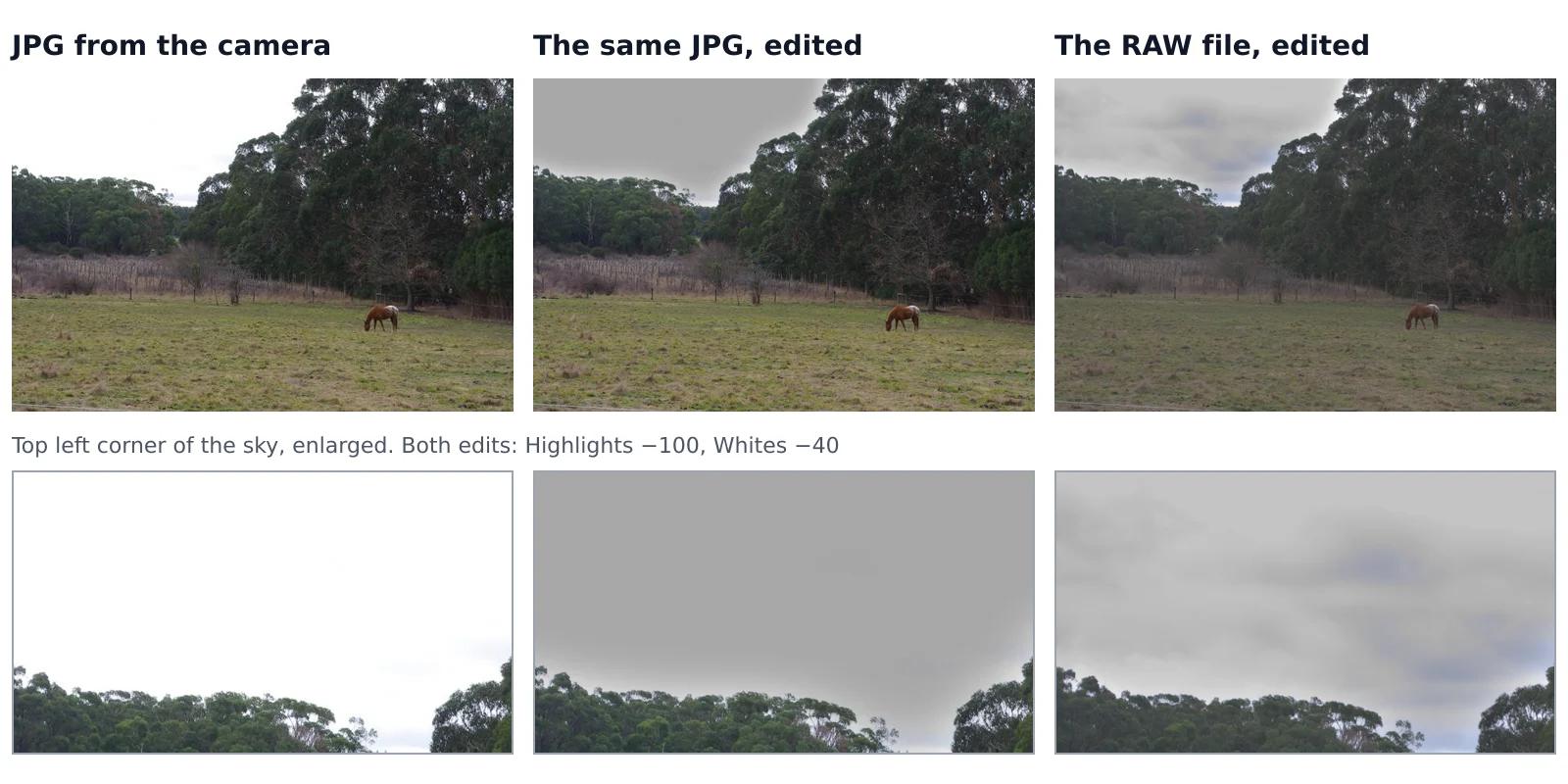
Can you fix an overexposed photo? What RAW gets back and JPG doesn’t
A sky that came out pure white looks the same whether you shot JPG or RAW, but it isn’t the same. In a JPG, the camera has already thrown away everything brighter than white. A RAW file often keeps some of it, and an editor can bring it back. We tested this on one shot that the camera saved both as a RAW file and as a JPG, with the same sliders on both.Read the guide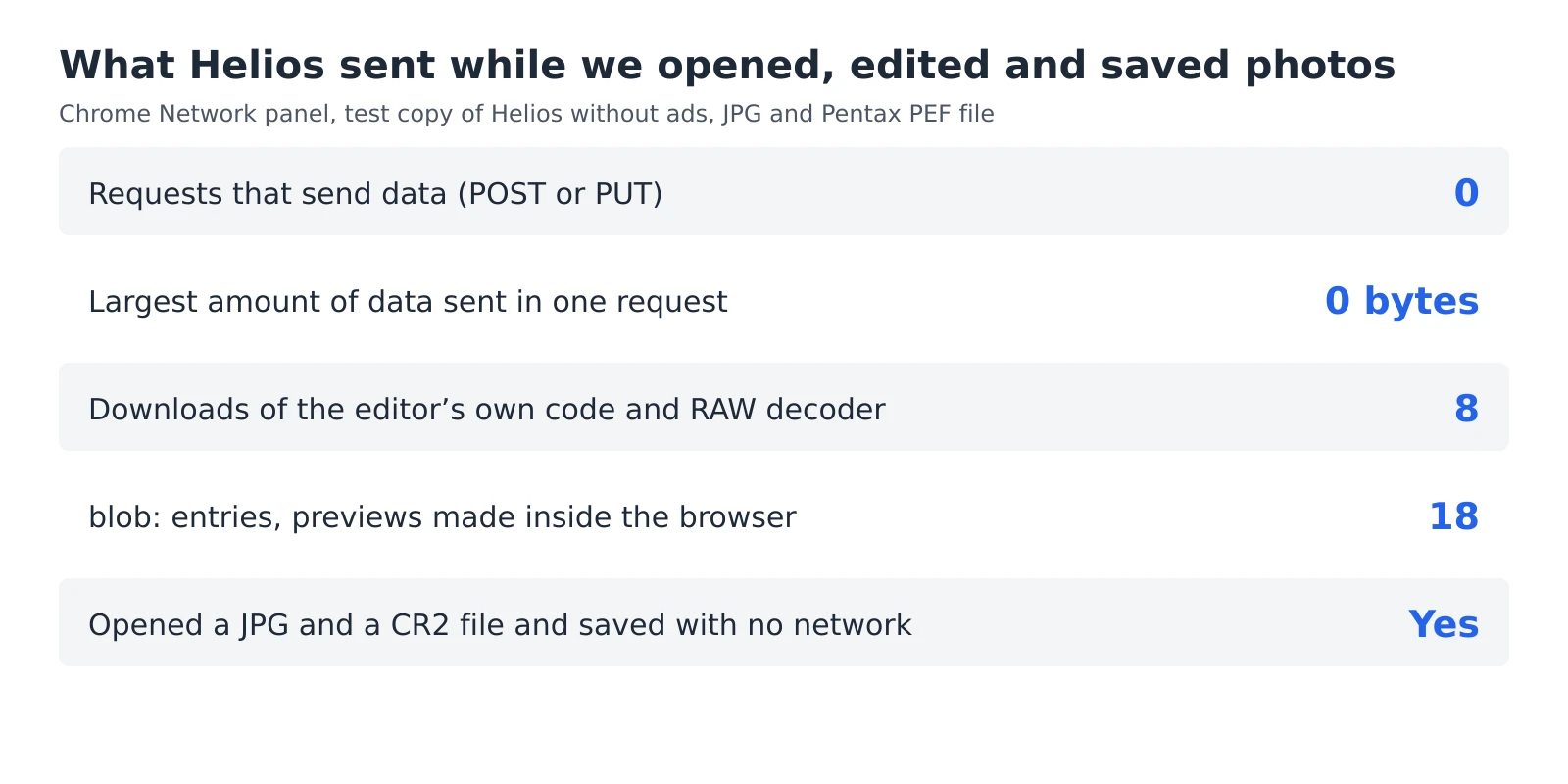 6 min read
How to check whether a photo editor uploads your photos
An editor can say that your photos stay private, but you don’t have to take its word for it. Every browser has a built-in list of everything a web page sends and receives, and a second test needs nothing more than switching off your Wi-Fi. Together they take five minutes and work with any editor that runs in a browser, including ours.Read the guide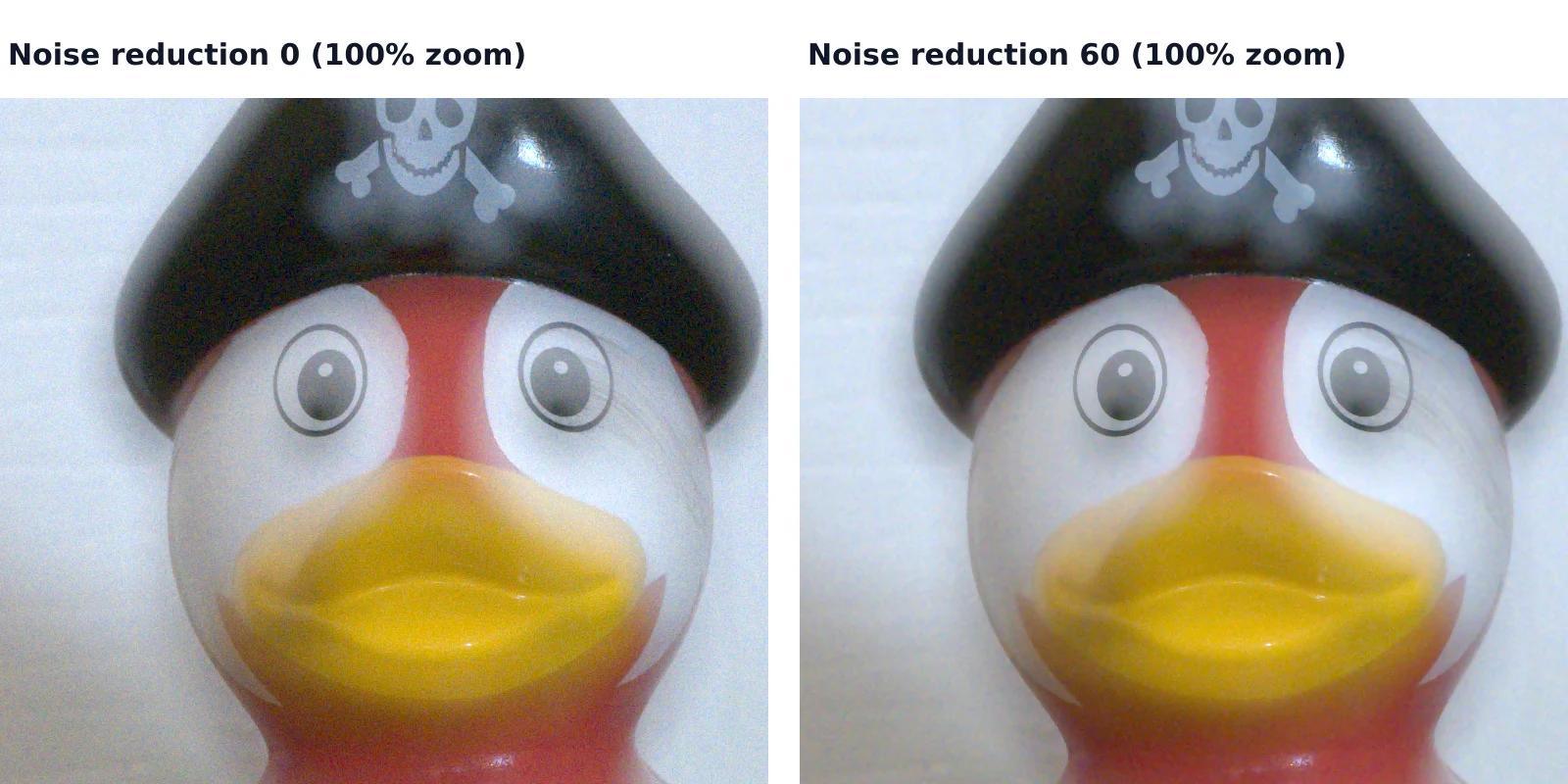 7 min read
How to reduce noise in a photo without AI
A photo taken indoors or at dusk often looks fine on the phone screen and grainy on a computer. That grain is noise, and you can reduce it without any AI tool or subscription, with filters that photo editors have used for years. They work well up to a point, and we measured that point on a real photo taken at ISO 6400.Read the guide