SVG to PDF converter
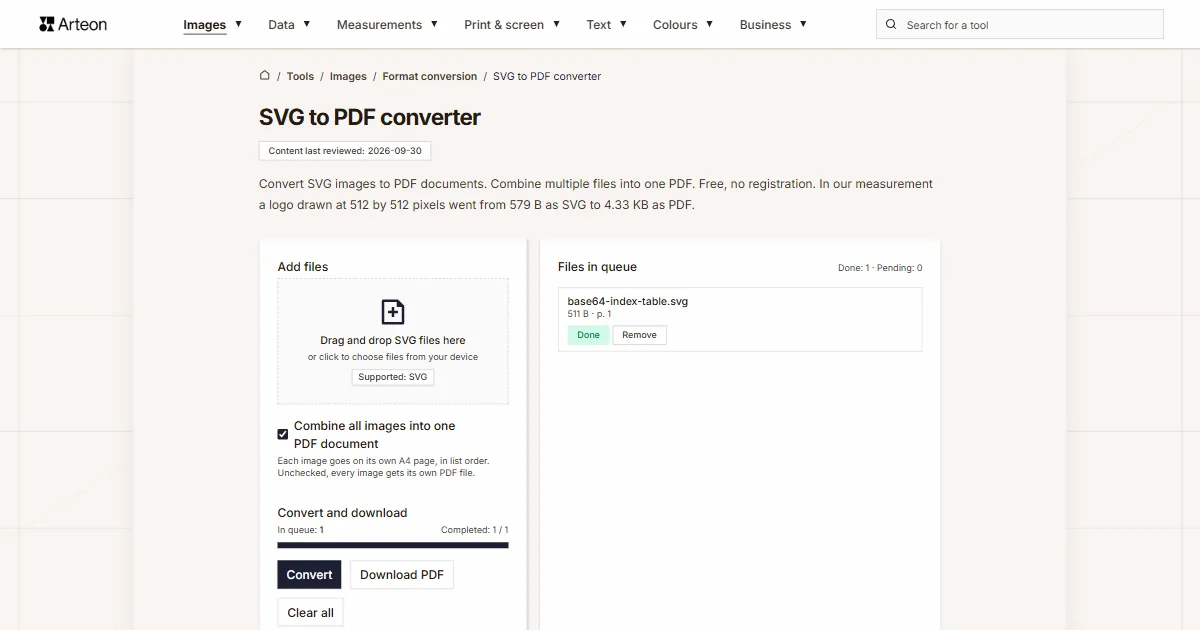
Convert SVG images to PDF documents. Combine multiple files into one PDF. Free, no registration. In our measurement a logo drawn at 512 by 512 pixels went from 579 B as SVG to 4.33 KB as PDF.
Files in queue
Why convert SVG to PDF?
SVG is a vector format for the web, but print shops, clients, and document workflows typically require PDF. Converting SVG to PDF preserves the vector quality — the output scales to any size without pixelation, making it ideal for logos, diagrams, icons, and technical drawings.
PDF supports both vector and raster content, CMYK color space, and embedded fonts. Converting SVG to PDF is essential for preparing web graphics for print production, creating brand assets, and generating documents from vector illustrations.
This converter processes files locally in your browser — nothing is sent to any server. No registration, no limits, no watermarks.
How to convert SVG to PDF
Add your SVG file
Drag and drop your SVG file onto the converter or click to browse.Choose the layout and click Convert
With Combine all images into one PDF document checked you get one document in which every image takes its own A4 page in list order; the Move up and Move down buttons change that order. There is no quality slider, because SVG enters the PDF without loss.Download the PDF
With Combine all images into one PDF document checked, the Download PDF button saves one document. Unchecked, every image gets its own PDF file and Download all packs them into one ZIP archive.
How much does a file weigh before and after SVG to PDF conversion?
| Test file | Dimensions in pixels | SVG | Change | |
|---|---|---|---|---|
| Diagram with text | 1.55 KB | 6.80 KB | 4.4 times larger | |
| Icon, 24 × 24 grid drawn at 256 × 256 | 318 B | 4.23 KB | 13.6 times larger | |
| Illustration with gradients | 956 B | 6.55 KB | 7 times larger | |
| Logo with a gradient and lettering | 579 B | 4.33 KB | 7.6 times larger | |
| Map with 220 paths | 137.9 KB | 357.9 KB | 2.6 times larger | |
| Pattern from a repeated tile | 443 B | 5.38 KB | 12.4 times larger |
What makes this converter different?
Complete privacy
Your files are processed entirely in your browser. Nothing is uploaded to any server.Many files at once
Add any number of SVG files, each up to 100 MB. The converter processes them one by one and shows the status of each.One document or separate files
The Combine all images into one PDF document option assembles all images into one PDF with a separate page for each; the Move up and Move down buttons set the page order. Unchecked, every image gets its own file.Download in one archive
The Download all button packs all finished files into one ZIP archive, so you do not have to approve a dozen downloads one after another.
SVG vs PDF – format comparison
| Feature | SVG | |
|---|---|---|
| Lossy compression | not applicable (text file) | ✓ (JPEG inside the document) |
| Lossless compression | not applicable (text file) | ✓ |
| Transparency (alpha channel) | ✓ | ✓ |
| Animation support | ✓ | — |
| Web browser support | All browsers | Built-in PDF viewer |
| Metadata (EXIF) | — | — |
Why there is no quality slider when converting SVG to PDF
An SVG drawing enters the document as vector objects: paths, curves and text turned into outlines, so there is nothing to compress or set. Files with filters, masks or styles in a <style> block are drawn as a bitmap with a longer side of 2480 pixels, that is A4 print resolution at 300 DPI, and such a document weighs correspondingly more.
Tips for converting SVG to PDF
A few tips to help you avoid common issues during conversion:
Very large files
Converting images above 4000×4000 pixels may be slower and strain the browser. If processing many large files, consider splitting them into batches of 10–20.Document weight
Only files with filters and masks weigh more, because the converter rasterises them to 2480 pixels on the longer side.Transparency
The converter places the image on a white page, so transparent areas of the SVG file come out white in the PDF. If the background has to stay transparent, keep the file as PNG or WebP.Keep the originals
The document holds the image without loss, but getting it back out of a PDF needs a separate program. Keep the SVG files if the graphic is still needed for editing.
How SVG to PDF conversion preserves vector quality
SVG and PDF can both store vector data, and this converter keeps it that way: paths, curves and shapes are written into the PDF as vector objects, so the page stays sharp at any zoom and prints cleanly at any size, just like the original SVG.
That makes it the right route for logos, brand assets, technical diagrams and any graphic that will be printed at different sizes. Text stays text; fonts the PDF does not carry are replaced by its standard fonts (Helvetica, Times, Courier), so a custom typeface may look different from the one in your design tool.
A few SVG features have no vector equivalent in PDF: filters, masks and styles written in a <style> block. When a file uses them, the converter renders the drawing as a bitmap with the longer side at 2480 pixels, which is the width of A4 at 300 DPI, so the page still prints sharp.
Convert other files to PDF
Convert SVG to other formats
Sources
- Image file type and format guide — MDN Web Docs
- Can I use: AVIF, WebP, HEIF — caniuse.com
The file sizes in the tables were measured by running finished images through this converter in a browser, and we report them the way the tool counts them. What the page says about either format rests on the sources listed above.
Content last reviewed: · written and checked by the Arteon team
Frequently asked questions about SVG to PDF conversion
Is converting SVG to PDF free?
Yes, this converter is completely free with no limits. No registration, no watermarks.
Does the converter upload my files?
No. All processing happens locally in your browser. Your files never leave your device.
Can I convert multiple files at once?
Yes. The option Combine all images into one PDF document is ticked by default: every image goes onto its own A4 page of one document, in list order, and the Move up and Move down buttons change that order. Untick it and each image gets its own PDF, which Download all packs into one ZIP archive. Each file may weigh up to 100 MB.
Does the converter work on mobile?
Yes, the converter works on any device with a modern web browser, including smartphones and tablets.
Is converting SVG to PDF safe for my files?
Yes. All conversion happens locally in your browser using the Canvas API. Files are never sent to any external server. When you close the page, data is automatically cleared.
Can I set the page order in the PDF?
Yes. Images go onto pages in list order, and the Move up and Move down buttons next to each file move it one place. Changing the order invalidates the finished document, so click Convert again afterwards.
Is PDF supported by all browsers?
Yes. Chrome, Firefox, Safari, Edge and Opera open PDF files in their built-in viewer, so the recipient needs no separate program.
How do I download several PDF documents at once?
Uncheck the Combine all images into one PDF document option and every image gets its own PDF; the Download all button then packs all finished files into one ZIP archive.
Help us improve our tools
Have an idea, found a bug, or want to suggest a feature? Drop us a message.
Explore other useful tools

Meta title & description checker
Check title and description length in pixels. Live Google preview and optimization tips.
PNG to JPG
Convert PNG files to JPG in your browser. No file limits, no signup, no server uploads.

Favicon generator
Create a complete favicon.ico set for your website from one image. All required sizes, no login.
Color palette generator
Generate 17 palettes from one color: monochromatic, complementary, triadic and more. HEX codes.
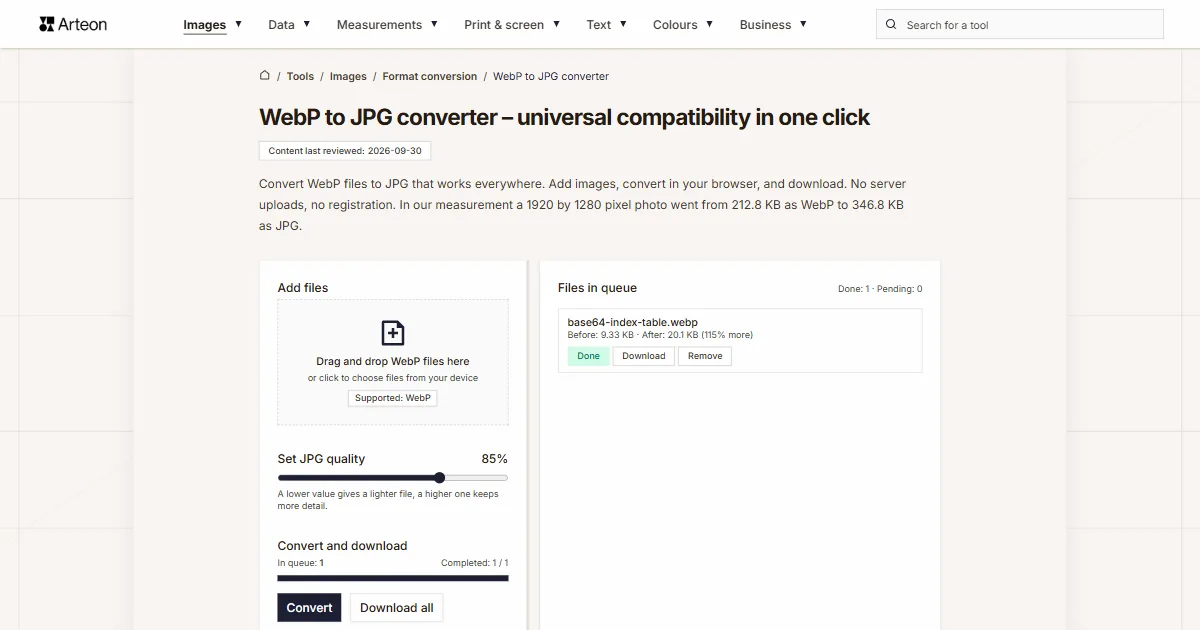
WebP to JPG
Convert WebP files to universally compatible JPG. Works in every app and platform.
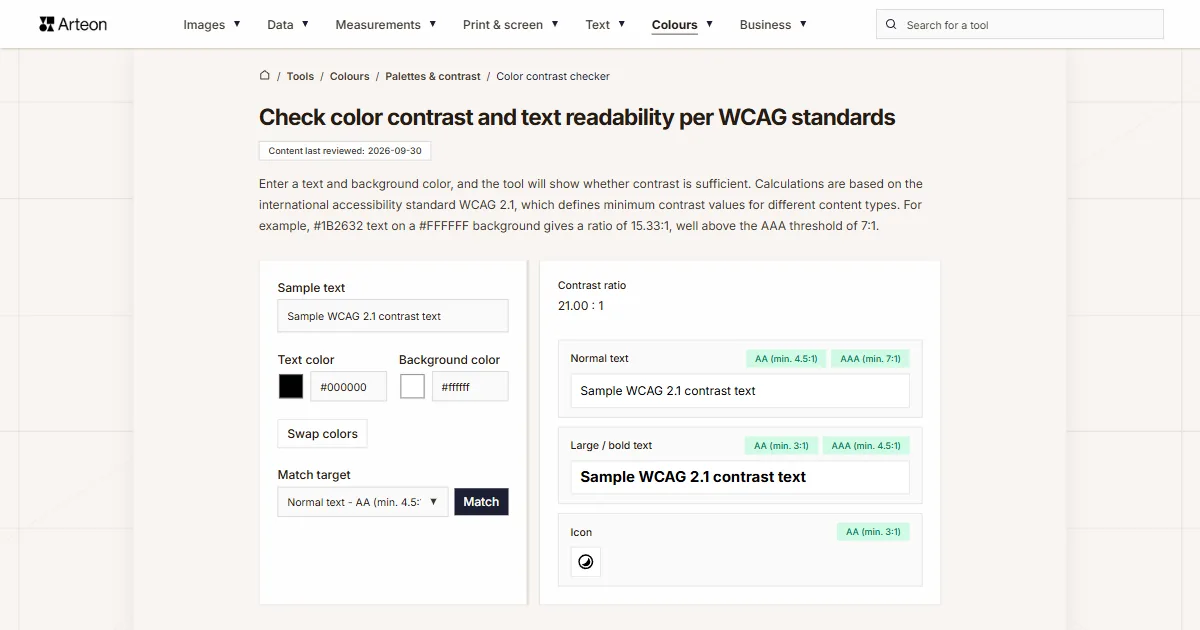
Color contrast checker
Check text and background contrast per WCAG 2.1 AA and AAA. Automatic color correction.
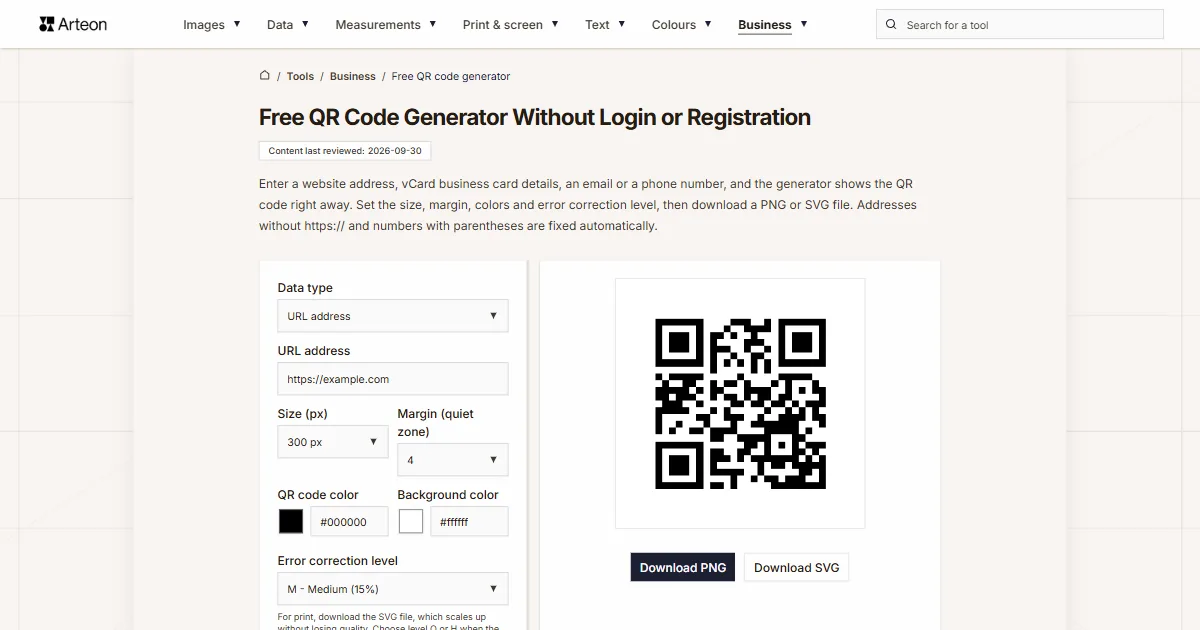
Free QR code generator
Create a QR code for a website, vCard business card or print. Export PNG and SVG, no registration.
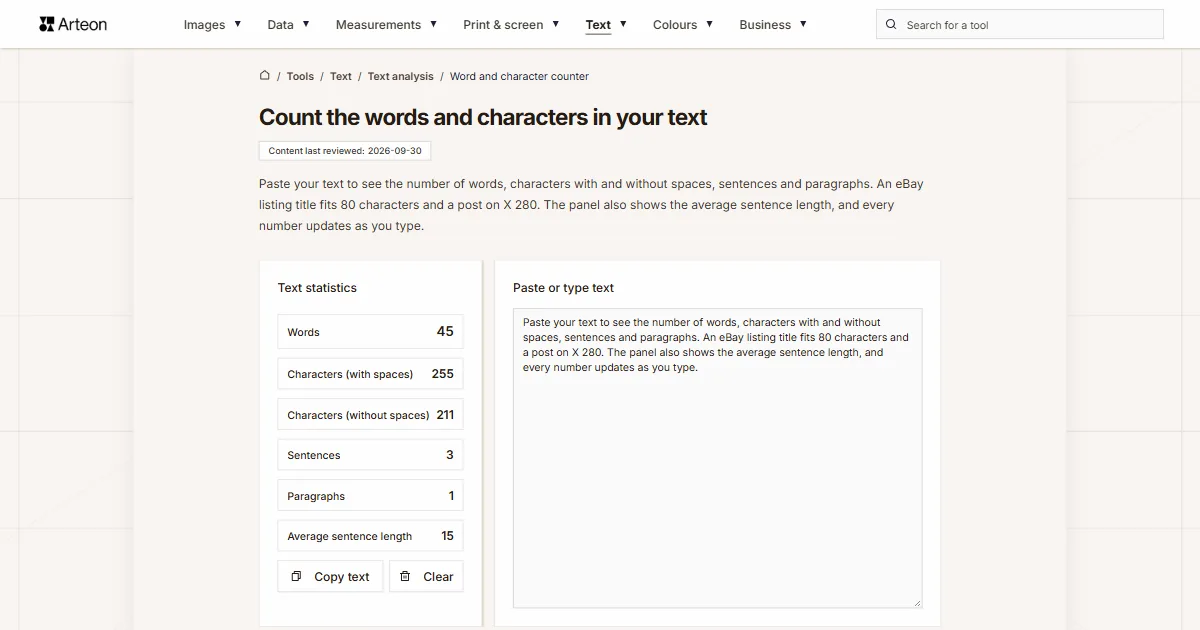
Word & character counter
Count words, characters with and without spaces, sentences, paragraphs and the average sentence length.
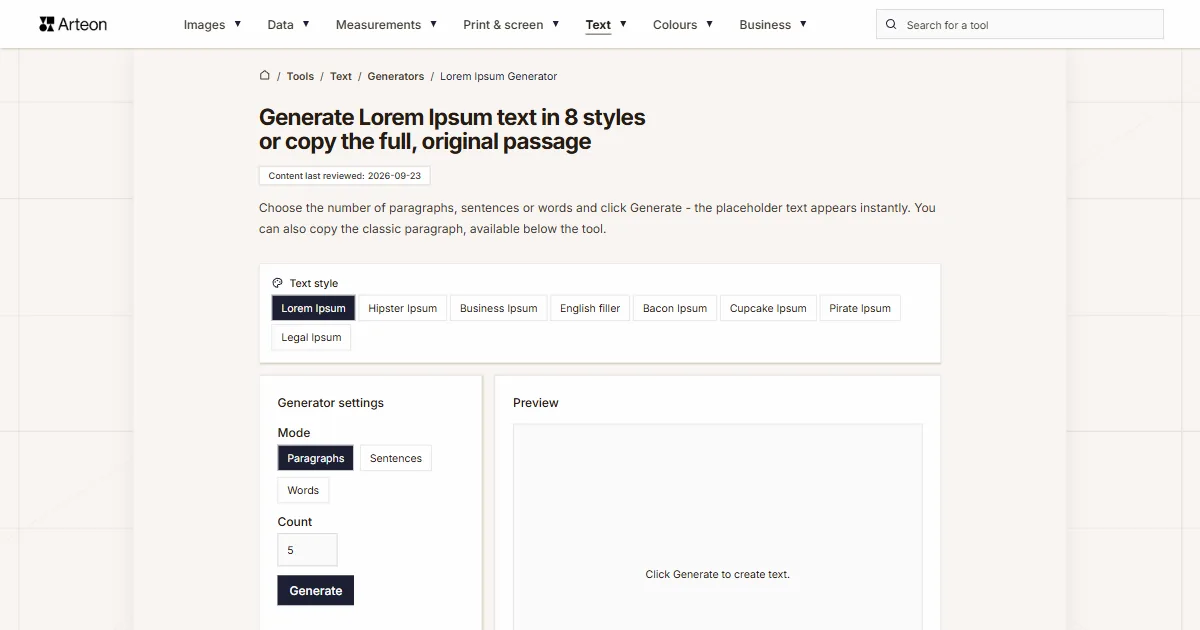
Lorem Ipsum Generator
Free Lorem Ipsum generator — 8 text styles, paragraphs, sentences or words. Copy in one click.