Turn PNG files into PDF in your own browser
Add your PNG files and download a document with every image centred on an A4 page. Several images can make one PDF file, and the image enters it with no lossy compression.
Files in queue
What is PNG and what is PDF?
PNG stores an image losslessly: it keeps every pixel and full transparency, and the W3C specification of 24 June 2025 allows 8 or 16 bits per colour channel[1]. A PNG file opens in every browser, and in Windows with no add-ons[2][3].
PDF is a document format Adobe released in 1993, and an ISO 32000 standard since 2008[4]. A file holds pages of a fixed size, so an image in it has its place on the sheet and comes out of a printer the way you see it on screen.
Turning PNG into PDF helps when an image has to become a document: an email attachment, a file to sign, or a printout. The converter puts every image on its own A4 page, centred and with a margin, and with the Combine all images into one PDF document option checked it builds one document out of several images.
How do you convert PNG to PDF?
- Drag your files onto the Add files area, or click it to pick them from your disk. Any number of PNG files is fine.
- Change the page order with Move up and Move down, and the Combine all images into one PDF document option turns them into a single file.
- Click Convert. Every finished file gets the Done status.
- Save it with Download PDF when combining is checked, or Download all when each image gets its own file.
The queue shows every file with its Before and After weight, the difference in percent, and the batch totals.
The quality slider shows up for lossy sources such as JPG or HEIC. For PNG files it is absent, because the image enters the document with no further lossy compression.
Remove takes one file out of the queue, Clear all empties it.
Everything happens in your own browser: the PNG file is read by an image element, and the jsPDF library assembles the document in that same browser.
How much does a file weigh before and after PNG to PDF conversion?
| Test file | Dimensions in pixels | PNG | Change | |
|---|---|---|---|---|
| Landscape photo | 1920 × 1280 | 3.06 MB | 3.13 MB | 2 percent larger |
| High-resolution camera photo | 4000 × 2667 | 11.1 MB | 11.3 MB | 2 percent larger |
| Product photo on a light background | 1200 × 1200 | 2.12 MB | 1.97 MB | 7 percent smaller |
| Leaf macro with fine detail | 1600 × 2015 | 6.52 MB | 6.66 MB | 2 percent larger |
| Screenshot with text | 1440 × 900 | 100.5 KB | 131.4 KB | 31 percent larger |
| Logo with a transparent background | 1024 × 1024 | 52.1 KB | 68.2 KB | 31 percent larger |
| Icon with transparency | 256 × 256 | 6.57 KB | 10.4 KB | 59 percent larger |
| Text page, as from a scanner | 1654 × 2339 | 240.1 KB | 295.4 KB | 23 percent larger |
Does a PDF make the image worse?
No. A PNG image enters the document as PNG, so no pixel is coded lossily and text on a screenshot stays sharp. That is why this page has no quality slider: it appears for the other sources, JPG and HEIC among them, which are stored lossily anyway.
The file weight does move in both directions, because the document packs the pixels with its own algorithm rather than the one from your file. In the measurement the landscape photo comes out 2 percent larger, the product photo on a light background actually comes out 7 percent smaller, and the screenshot with text comes out 31 percent larger. The icon with transparency grew the hardest: it comes out 59 percent larger. That is a difference in how the same pixels are packed, not in how many there are.
The image is never enlarged: one smaller than the page area keeps its own size, and a larger one comes down to the size of the sheet with its margin. The page is A4, the international ISO 216 size that North America does not use[5], so a document printed on US Letter will have slightly different margins. If you would rather set the dimensions yourself first, change them in the Helios editor, and an image out of a finished document comes from the PDF to JPG converter.
How does the converter lay an image out on a PDF page?
| Page setting | What the converter does |
|---|---|
| Page size | A4, the international ISO 216 size |
| Orientation | chosen from the proportions of the image, landscape or portrait |
| Margin | 20 points on every side |
| Position of the image | centred in the page area |
| Scaling | an image smaller than the page area keeps its own size |
| How the image is stored | PNG, with no lossy compression |
| Background under the image | white |
| The Combine all images into one PDF document option | every image on its own page of one document, in the order of the list |
Which PNG files does the converter take?
| The file you add | What goes into the PDF |
|---|---|
| A photo or graphic saved as PNG | one A4 page with the image at the same pixel dimensions |
| A PNG with a transparent background | a page with a white background under the image, because the image lands on a white sheet |
| A PNG with a semi-transparent shadow or glow | a page on which semi-transparent pixels are blended with white |
| A PNG with 16 bits per colour channel | an image with 8 bits per channel, because that is what the browser canvas hands over |
| An animated PNG (APNG) | the first frame of the animation, and the queue carries a note: This file is animated, so only the first frame is saved. |
| A file with EXIF data, for example a rotated photo | a page with no EXIF data, but in the orientation stored in that data |
| A damaged file, or text with a .png extension | the Error status and the message Failed to load the image. |
What happens to transparency, colours and EXIF data?
The image lands on a white sheet, so a transparent background comes out white in the document and semi-transparent pixels are blended with white. In print it looks the same as on screen, because the sheet is white anyway.
EXIF data does not reach the document, and the orientation stored in that data is applied. The colour comes out on 8 bits per channel, because that is what the browser canvas we read the pixels from hands over[2].
The document is assembled here by the jsPDF library running in the browser, so the image never leaves your device. If the file is meant to stay an image rather than become a document, pick the PNG to JPG converter or the PNG to WebP converter, and for a print shop that asks for an uncompressed file the PNG to TIFF converter.
Convert other files to PDF
Convert PNG to other formats
Sources
- Portable Network Graphics (PNG) Specification (Third Edition) — W3C
- Image file type and format guide — MDN Web Docs
- About the Windows Imaging Component — Microsoft Learn
- PDF — Wikipedia
- ISO 216 — Wikipedia
The file sizes in the tables were measured by running finished images through this converter in a browser, and we report them the way the tool counts them. What the page says about either format rests on the sources listed above.
Content last reviewed: · written and checked by the Arteon team
Common questions about turning PNG into PDF
How do you turn PNG into PDF for free?
Drag your PNG files onto the Add files area, click Convert and save the result with Download PDF or Download all. The converter is free, needs no account, and your files stay on your own device.
Will several PNG files make one document?
Yes. Check Combine all images into one PDF document and every image lands on its own page of a single PDF file, in the order of the list. You change that order with the Move up and Move down buttons.
Does the image quality drop?
No. A PNG image enters the document as PNG, with no lossy compression, so text on a screenshot stays sharp. That is why this page has no quality slider. The only change is with files that hold 16 bits per colour channel, because those come out with 8 bits.
Why does the PDF weigh something different from the PNG?
Because the document packs the pixels with its own algorithm. In our measurement the landscape photo comes out 2 percent larger, the product photo on a light background comes out 7 percent smaller, and the icon with transparency comes out 59 percent larger. The number of pixels stays the same.
What happens to a transparent background?
The image lands on a white sheet, so a transparent background comes out white. In print it looks the same as on screen.
What size is the page of the document?
A4, with a margin of 20 points on every side, so a printout on US Letter will have slightly different margins. The orientation is chosen from the proportions of the image, and an image smaller than the page area keeps its own size instead of being stretched.
Can I add images in another format?
Yes, the converter also takes JPG, WebP, BMP, SVG, HEIC and TIFF files, and a multi-page TIFF enters the document with all of its pages. With sources like those the Photo quality in the PDF slider appears.
Are the files uploaded to a server?
No. The PNG file is read by the browser on your own device, and the document is assembled by a library running in that same browser. Nothing of them is left once you close the page.
Have a question or a suggestion?
If a PNG file did not get through the converter, or the result looks different from what we describe, write to us.
Explore other useful tools

Meta title & description checker
Check title and description length in pixels. Live Google preview and optimization tips.
PNG to JPG
Convert PNG files to JPG in your browser. No file limits, no signup, no server uploads.

Favicon generator
Create a complete favicon.ico set for your website from one image. All required sizes, no login.
Color palette generator
Generate 17 palettes from one color: monochromatic, complementary, triadic and more. HEX codes.
WebP to JPG
Convert WebP files to universally compatible JPG. Works in every app and platform.
Color contrast checker
Check text and background contrast per WCAG 2.1 AA and AAA. Automatic color correction.
Free QR code generator
Create a QR code for a website, vCard business card or print. Export PNG and SVG, no registration.
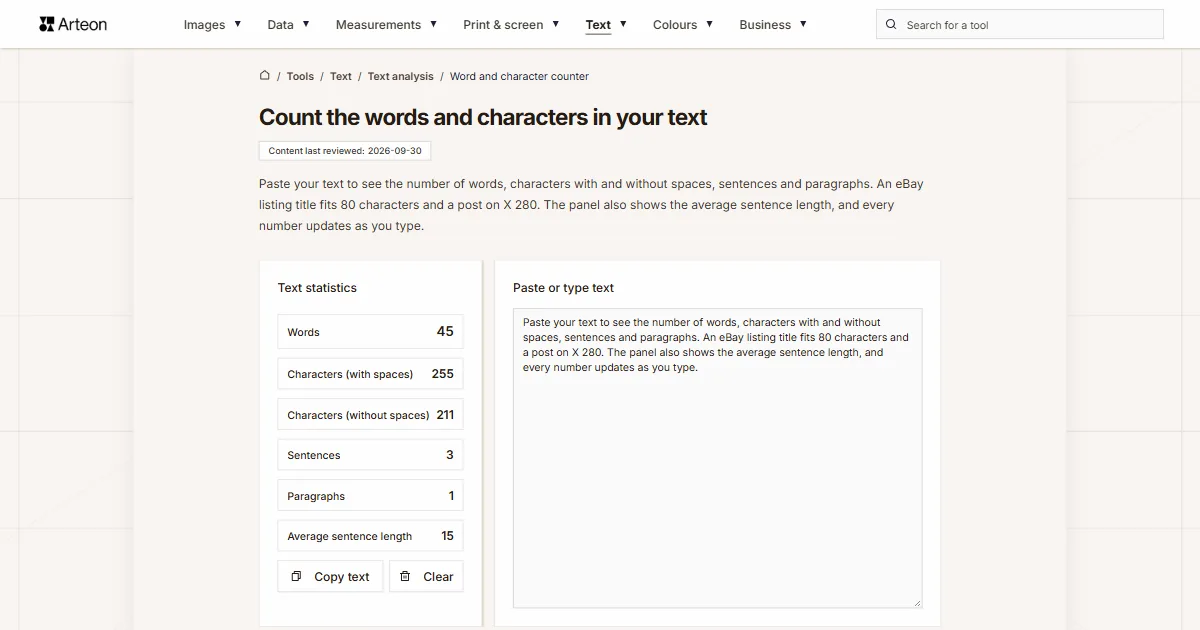
Word & character counter
Count words, characters with and without spaces, sentences, paragraphs and the average sentence length.
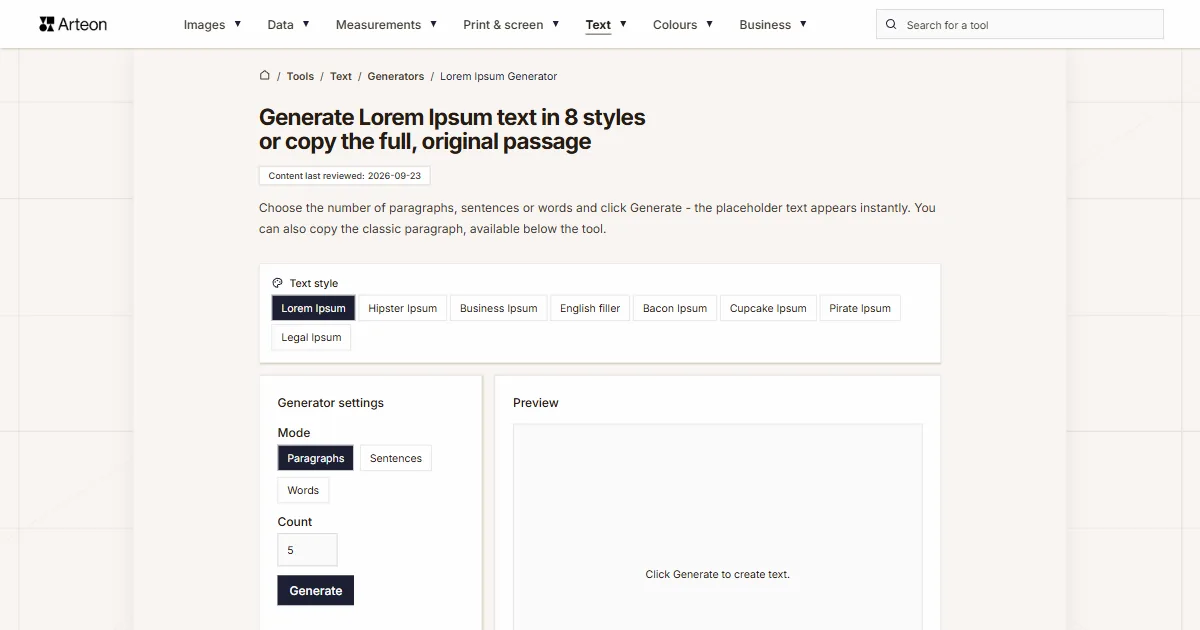
Lorem Ipsum Generator
Free Lorem Ipsum generator — 8 text styles, paragraphs, sentences or words. Copy in one click.