Convert HEIC photos to PDF in your browser
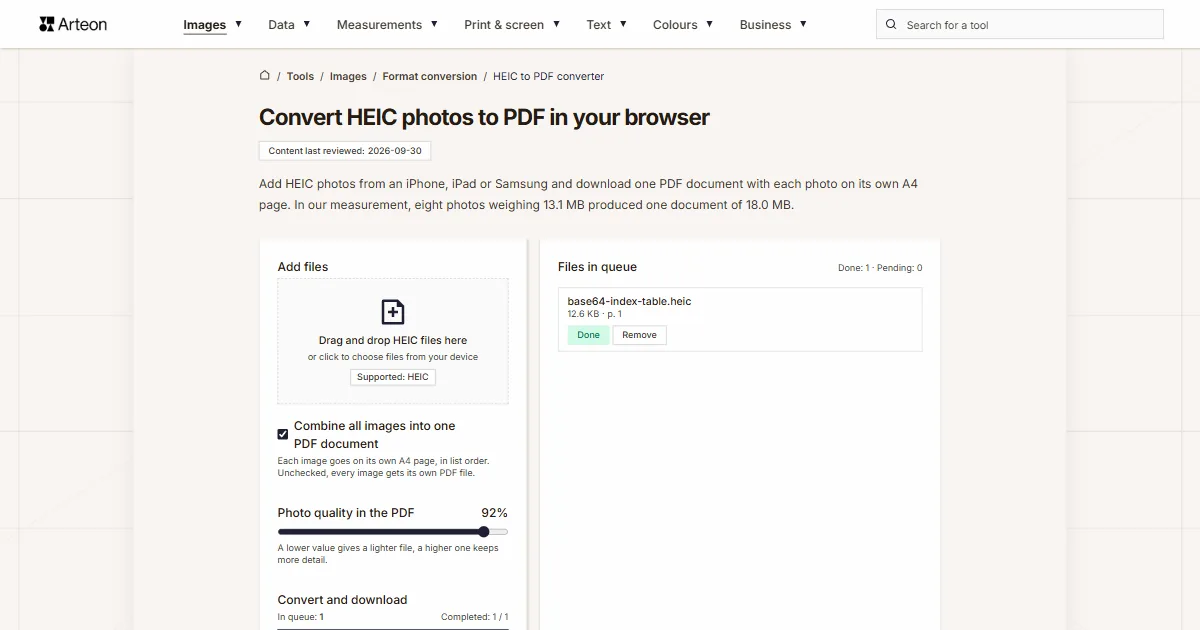
Add HEIC photos from an iPhone, iPad or Samsung and download one PDF document with each photo on its own A4 page. In our measurement, eight photos weighing 13.1 MB produced one document of 18.0 MB.
Files in queue
What is HEIC, and what is PDF?
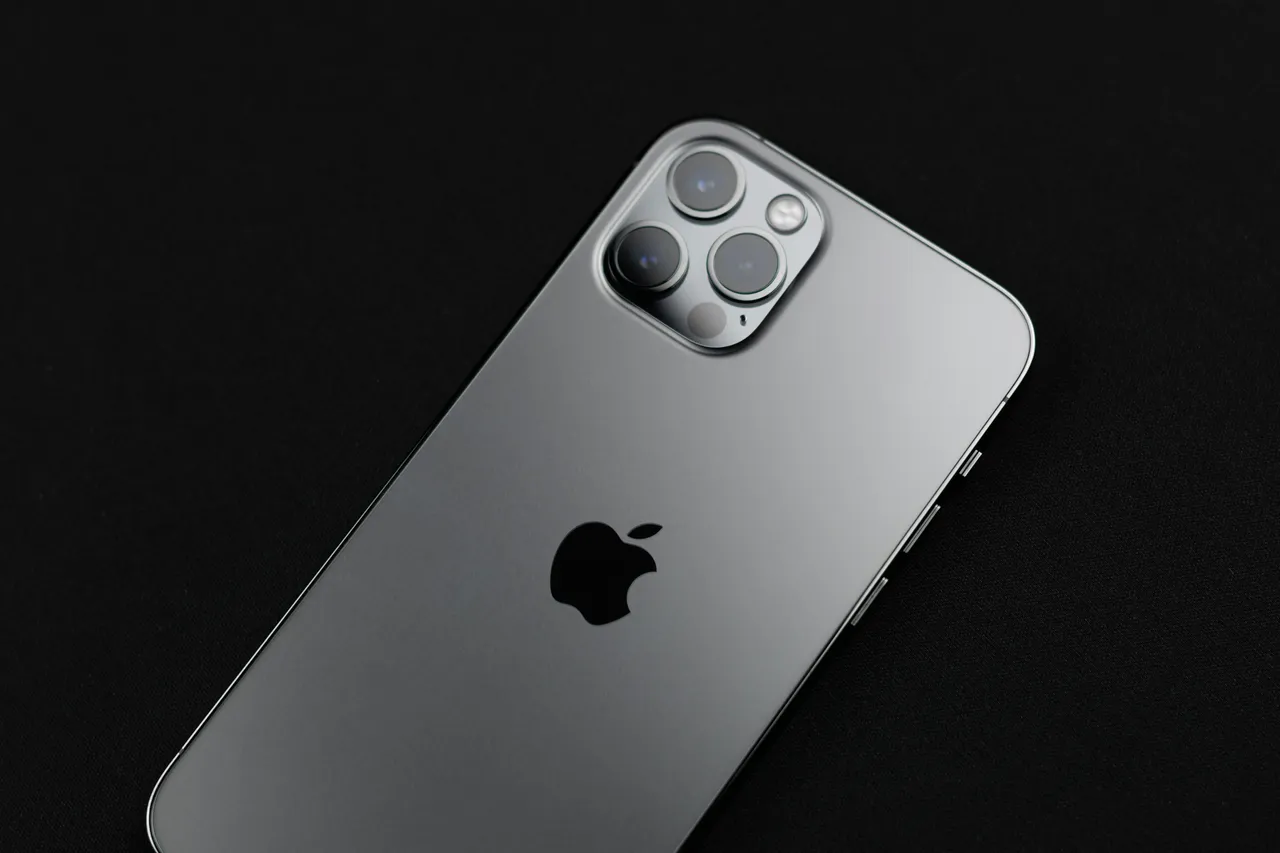
A HEIC file holds a photo encoded with the HEVC codec inside a HEIF container, defined in the ISO/IEC 23008-12 standard[1]. The iPhone 7 and later models running iOS 11 or later save photos in this format[2], and since Android 10 in 2019, so do phones with a suitable hardware encoder[1].
PDF was developed by Adobe in 1993, and since 2008 the format has been the ISO 32000 standard. A PDF file describes a whole fixed-layout page together with its images, so the document looks the same regardless of the program and operating system you open it in[3].
Among browsers, only Safari 17 and later displays HEIC files[4], and Windows opens them only when two extensions from the Microsoft Store are installed[5]. A PDF document with your photos goes out as a single attachment or prints on A4 sheets.
How do you convert HEIC to PDF?
- Drag your photos onto the Add files field, or click it and pick files. The converter accepts .heic and .heif files.
- Leave Combine all images into one PDF document checked for one file, and set the page order with Move up and Move down.
- Move the Photo quality in the PDF slider to a value between 60 and 95 percent (default 92).
- Click Convert, then Download PDF. Several photos download as images.pdf, and a single photo under its own file name.
With the option unchecked, each photo gets its own PDF, saved with Download or with Download all in a ZIP archive.
In one document, the queue shows each photo’s page, for example p. 3. After changing the order, the slider or the option, click Convert again, because the finished document is discarded.
Everything happens in your browser: its HEVC decoder reads the HEIC photo, and the jsPDF library assembles the document.
How much does a file weigh before and after HEIC to PDF conversion?
| Test photo | Device | Dimensions in pixels | HEIC | Change | |
|---|---|---|---|---|---|
| Theater stage in colored light | iPad Air (5th generation) | 4032 × 3024 | 1.54 MB | 2.01 MB | 30 percent larger |
| Scene from a children’s show | iPad Air (5th generation) | 4032 × 3024 | 1.27 MB | 1.78 MB | 40 percent larger |
| Car against the sun | iPhone 12 Pro | 3024 × 4032 | 1.87 MB | 2.36 MB | 26 percent larger |
| Café interior with two dogs | iPhone 12 Pro | 3024 × 4032 | 1.64 MB | 2.64 MB | 61 percent larger |
| Brick pillar with a wall safe | iPhone 12 Pro | 3024 × 4032 | 2.70 MB | 3.40 MB | 26 percent larger |
| Spools of colored thread | Samsung Galaxy A32 5G | 4000 × 3000 | 1.52 MB | 2.22 MB | 46 percent larger |
| Shelf with Christmas decorations | Samsung Galaxy A32 5G | 4000 × 3000 | 1.38 MB | 1.87 MB | 36 percent larger |
| Close-up of a mixing console | Samsung Galaxy A32 5G | 3000 × 4000 | 1.16 MB | 1.78 MB | 53 percent larger |
How much does a PDF made from HEIC photos weigh?
Every document came out larger than the HEIC file, by 26 to 61 percent. The car photo from the iPhone 12 Pro produced a PDF of 2.36 MB from 1.87 MB as HEIC, and eight photos weighing 13.1 MB together produced one document of 18.0 MB.
The photo goes into the document as a JPEG image with its full pixel count. In the document made from the 3024 by 4032 pixel photo, we found an image with exactly those dimensions. The Photo quality in the PDF slider sets the quality of that image, and the document weight depends on it: at 60 percent, the same car photo produced a document of 821.7 KB.
The page is A4, and its orientation follows the shape of the photo: a landscape photo gets a landscape page, and a portrait photo a portrait page. A margin of 20 points stays around the photo. A photo with a 4:3 aspect ratio fills an area of 26.12 by 19.59 centimeters (10.28 by 7.71 inches) on the page, which with 4032 pixels on the longer side gives about 392 dots per inch in print.
Single photos for sending are lighter as files from the HEIC to JPG converter. Photos you already have as JPG go into a document with the JPG to PDF converter, and a page of a finished document turns back into an image with the PDF to JPG converter. Multi-page scans saved as TIFF become a PDF with every page in the TIFF to PDF converter.
How much does a PDF weigh at different slider settings?
| Slider setting | Car, iPhone 12 Pro, HEIC 1.87 MB | Change | Thread spools, Samsung Galaxy A32 5G, HEIC 1.52 MB | Change |
|---|---|---|---|---|
| 60% | 821.7 KB | 2.3 times smaller | 997.1 KB | 36 percent smaller |
| 65% | 912.0 KB | 2.1 times smaller | 1.06 MB | 31 percent smaller |
| 70% | 1021.3 KB | 47 percent smaller | 1.15 MB | 24 percent smaller |
| 75% | 1.12 MB | 40 percent smaller | 1.26 MB | 17 percent smaller |
| 80% | 1.31 MB | 30 percent smaller | 1.43 MB | 6 percent smaller |
| 85% | 1.60 MB | 15 percent smaller | 1.66 MB | 9 percent larger |
| 90% | 2.10 MB | 13 percent larger | 2.04 MB | 34 percent larger |
| 95% | 3.17 MB | 69 percent larger | 2.85 MB | 87 percent larger |
HEIC vs PDF: how do these formats differ?
| Feature | HEIC | |
|---|---|---|
| What the file describes | a photo or a series of photos | fixed-layout document pages |
| Standard | ISO/IEC 23008-12 | ISO 32000, since 2008 |
| Origin | MPEG group, specification finished in 2015 | Adobe, 1993 |
| Dimensions | in pixels | in points; this converter uses A4 |
| Image in the file | encoded with the HEVC codec | in this converter, JPEG at the slider quality |
Which HEIC files does the converter accept?
| File you add | What goes into the PDF |
|---|---|
| Photo from an iPhone, iPad or Samsung phone | an A4 page in the orientation of the photo, with the photo at its full pixel count |
| File with the .heif extension instead of .heic | the same as with a .heic file |
| HEIC file with several images | a page with the primary image, the one the phone shows as the photo |
| HEIC file with transparent or semi-transparent pixels | the photo without transparency, because the image in the PDF is saved as JPEG |
| Photo with EXIF data, such as location | a document without the photo’s EXIF data, so also without location coordinates |
| Damaged file or text with a .heic extension | the status Error and the message Failed to load the image. |
| HEIC photo added in a browser without an HEVC decoder, such as Firefox | a warning above the Add files field saying that this browser cannot read HEIC photos, and the status Error next to the file |
When is a PDF of photos useful?
Three situations in which photos from your phone are easiest to send or print as one document.
Several photos in one attachment
With Combine all images into one PDF document checked, all the photos go into one file, so the recipient gets them together, in the order you set.Printing on A4 sheets
Each photo sits on its own A4 page with a 20-point margin, in an orientation that matches the photo. A 4032 by 3024 pixel photo prints at about 392 dots per inch. Screenshots and graphics in PNG go onto pages the same way with the PNG to PDF converter, and scans saved as TIFF with the TIFF to PDF converter.Photos in a set order
The Move up and Move down arrows set the page order before conversion, and the page number is shown next to each photo in the queue.
Convert other files to PDF
Convert HEIC to other formats
Sources
- High Efficiency Image File Format — Wikipedia
- Using HEIF or HEVC media on Apple devices — Apple Support
- PDF — Wikipedia
- HEIF/HEIC image format — Can I use
- HEIF Image Extension — Microsoft Store
- AV1, H265 support in 2026: Data from 1M+ devices — WebCodecs Fundamentals
The file sizes in the tables were measured by running finished images through this converter in a browser, and we report them the way the tool counts them. What the page says about either format rests on the sources listed above.
Content last reviewed: · written and checked by the Arteon team
Common questions about converting HEIC to PDF
How do I turn HEIC photos into one PDF file?
Add the photos to the Add files field, leave Combine all images into one PDF document checked, click Convert and download the document with Download PDF. Each photo goes on its own A4 page.
How do I set the order of photos in the PDF?
Before converting, use the Move up and Move down arrows next to the photos in the queue. The document pages follow the order of the list.
Can I get a separate PDF for each photo?
Yes. Uncheck Combine all images into one PDF document, and each photo gets its own file. Download all packs several of these files into one ZIP archive.
How much does a PDF of iPhone photos weigh?
In our measurement, each single-photo document came out 26 to 61 percent larger than the HEIC file, and eight photos in one document weighed 18.0 MB. A lower setting on the Photo quality in the PDF slider gives a lighter file.
Does the photo in the PDF keep its full resolution?
Yes. The photo goes into the document as a JPEG image with the same pixel count as the original, and on the A4 page only its size in centimeters changes.
What page size does the document use?
A4, in an orientation that matches the photo: a landscape photo gets a landscape page, and a portrait photo a portrait page. A margin of 20 points stays around the photo.
Does the document contain the photos’ EXIF data?
No. Only the image goes into the document, without the phone model, date and location coordinates.
Which browsers can convert HEIC photos?
You can use Safari, as well as Chrome and Edge on devices that have an HEVC decoder. Firefox almost never has one. If your browser cannot read HEIC photos, you will see a warning above the Add files field as soon as the page opens.
Are the photos uploaded to a server?
No. Your browser’s HEVC decoder reads the HEIC photo, and the jsPDF library, which also runs in the browser, assembles the document.
Have a question or a suggestion?
If a HEIC file did not go through the converter or the result looks different from what we describe, write to us.
Explore other useful tools

Meta title & description checker
Check title and description length in pixels. Live Google preview and optimization tips.
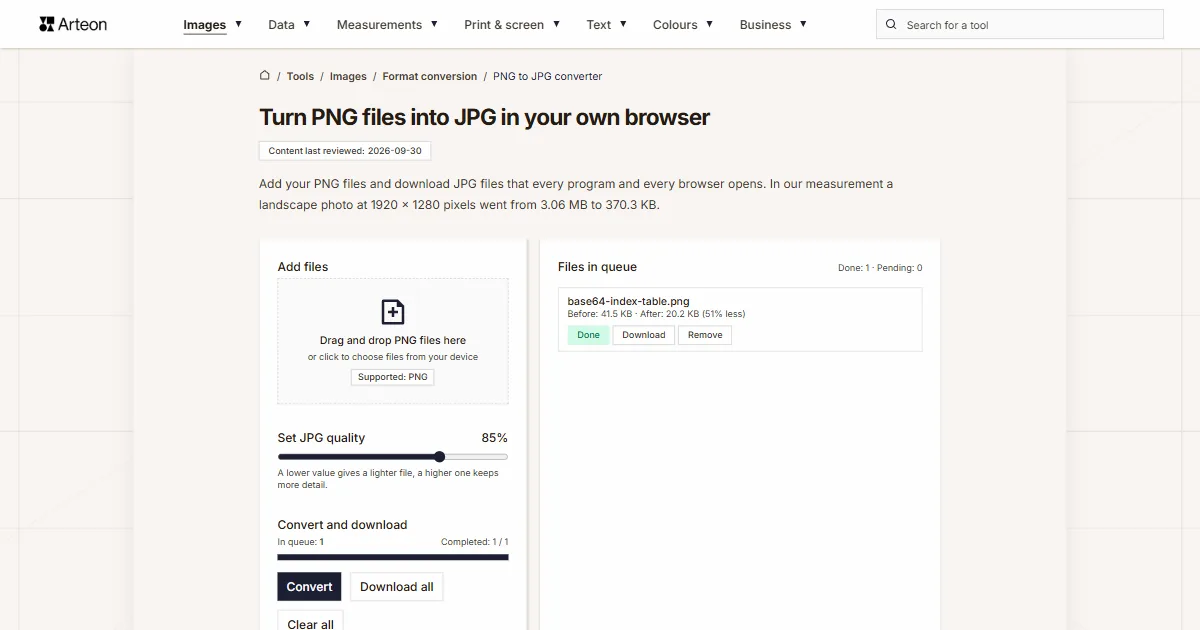
PNG to JPG
Convert PNG files to JPG in your browser. No file limits, no signup, no server uploads.

Favicon generator
Create a complete favicon.ico set for your website from one image. All required sizes, no login.
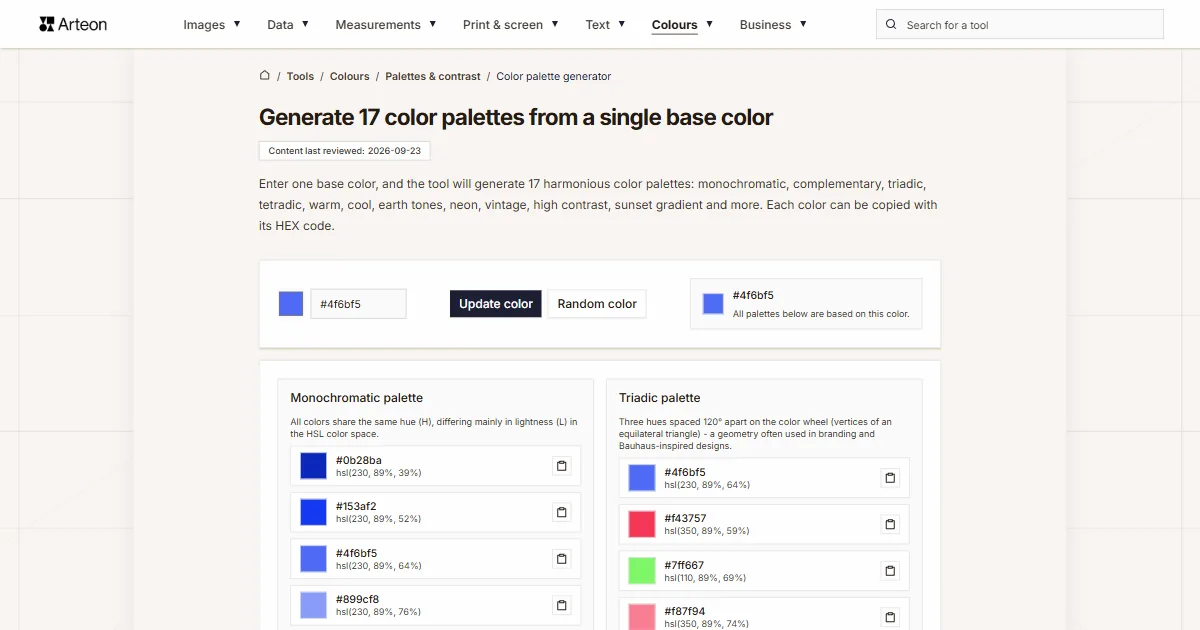
Color palette generator
Generate 17 palettes from one color: monochromatic, complementary, triadic and more. HEX codes.
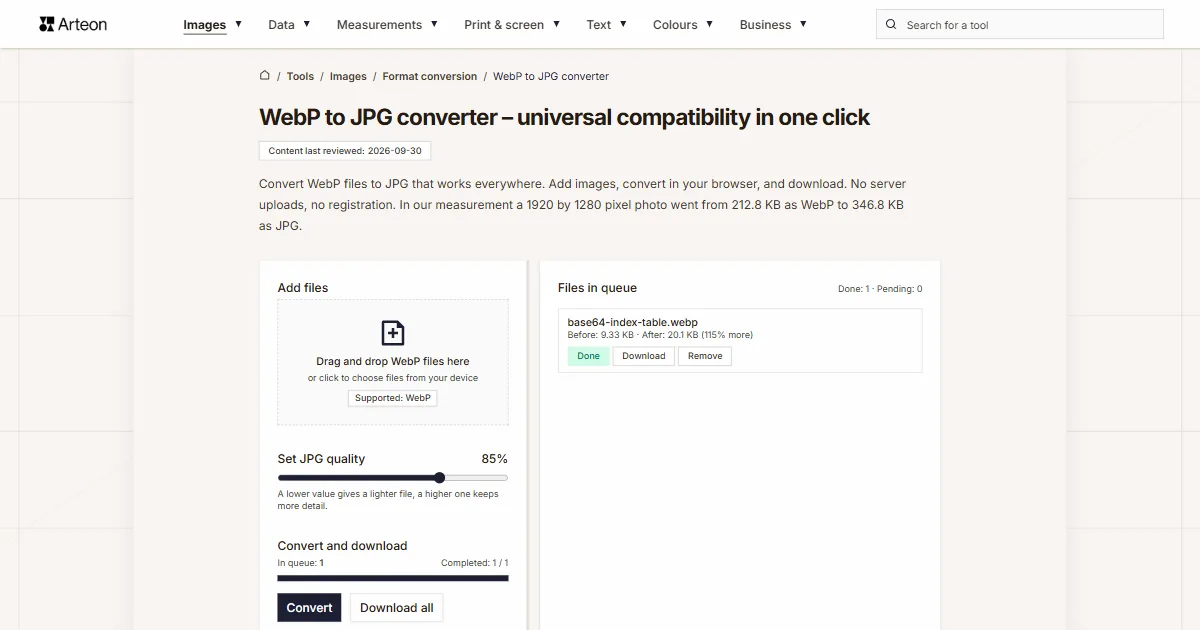
WebP to JPG
Convert WebP files to universally compatible JPG. Works in every app and platform.
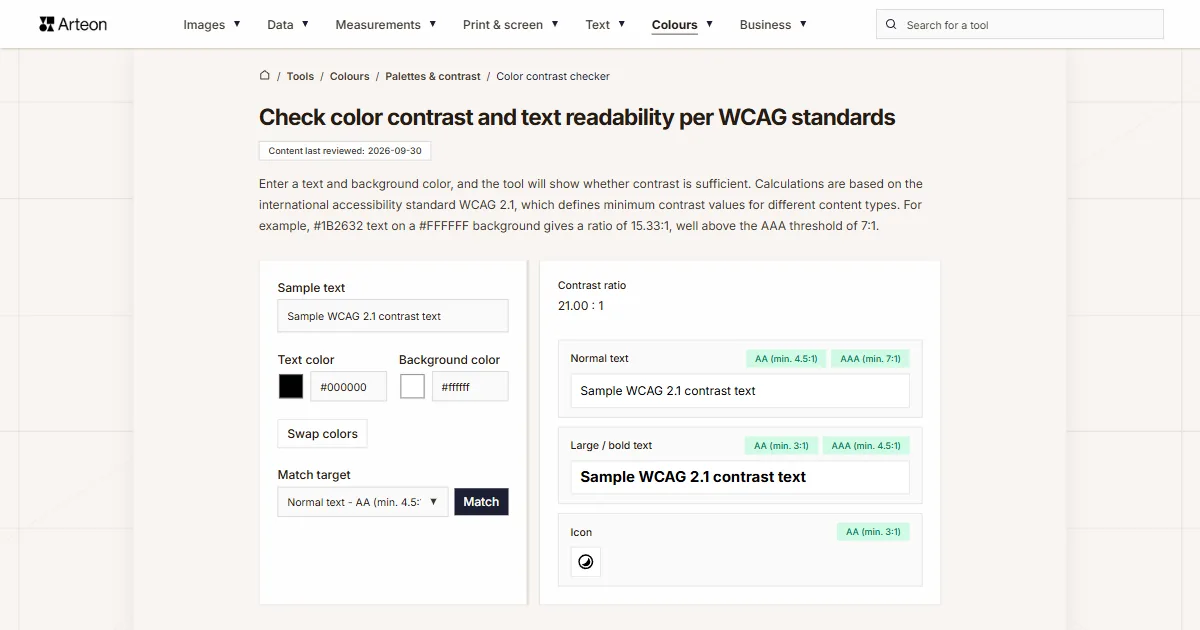
Color contrast checker
Check text and background contrast per WCAG 2.1 AA and AAA. Automatic color correction.
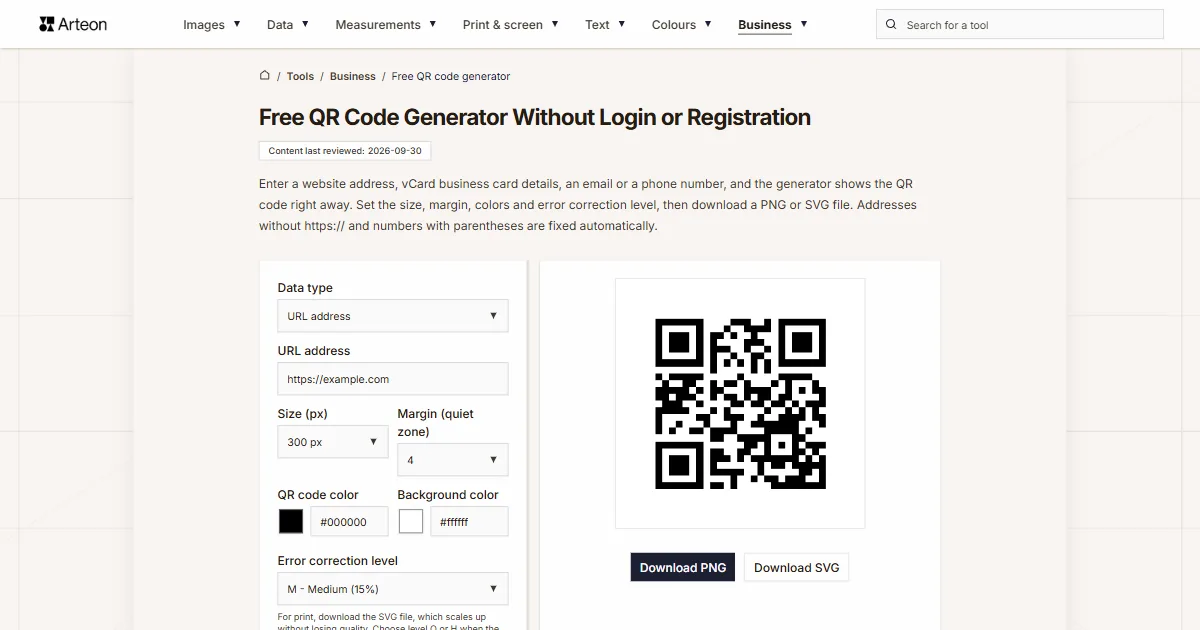
Free QR code generator
Create a QR code for a website, vCard business card or print. Export PNG and SVG, no registration.
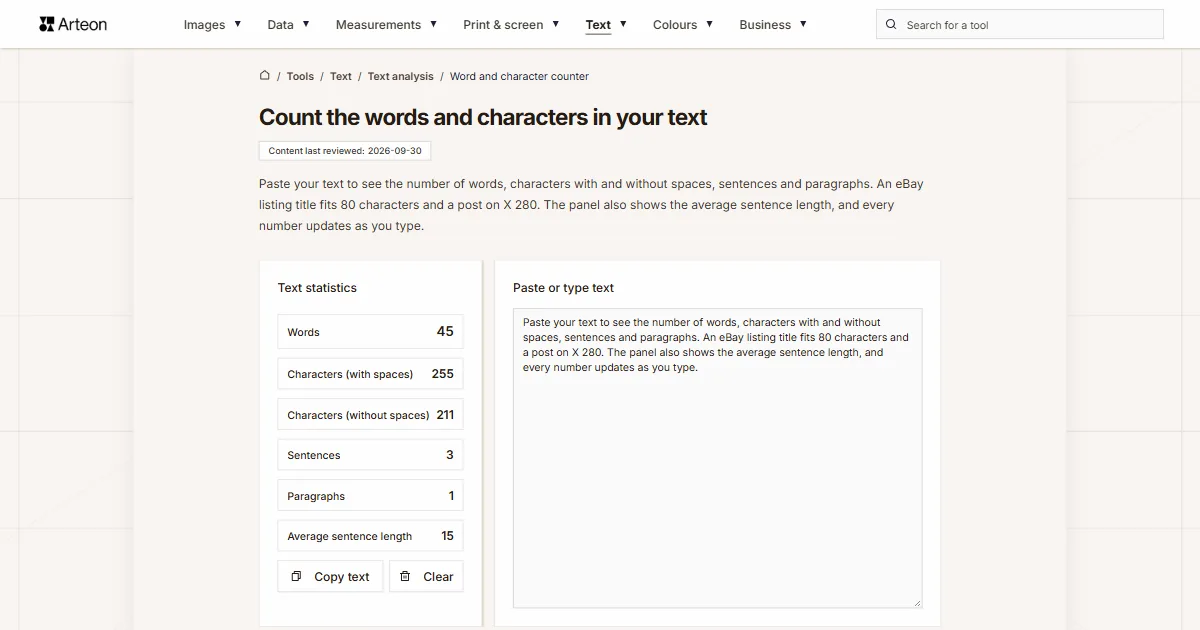
Word & character counter
Count words, characters with and without spaces, sentences, paragraphs and the average sentence length.
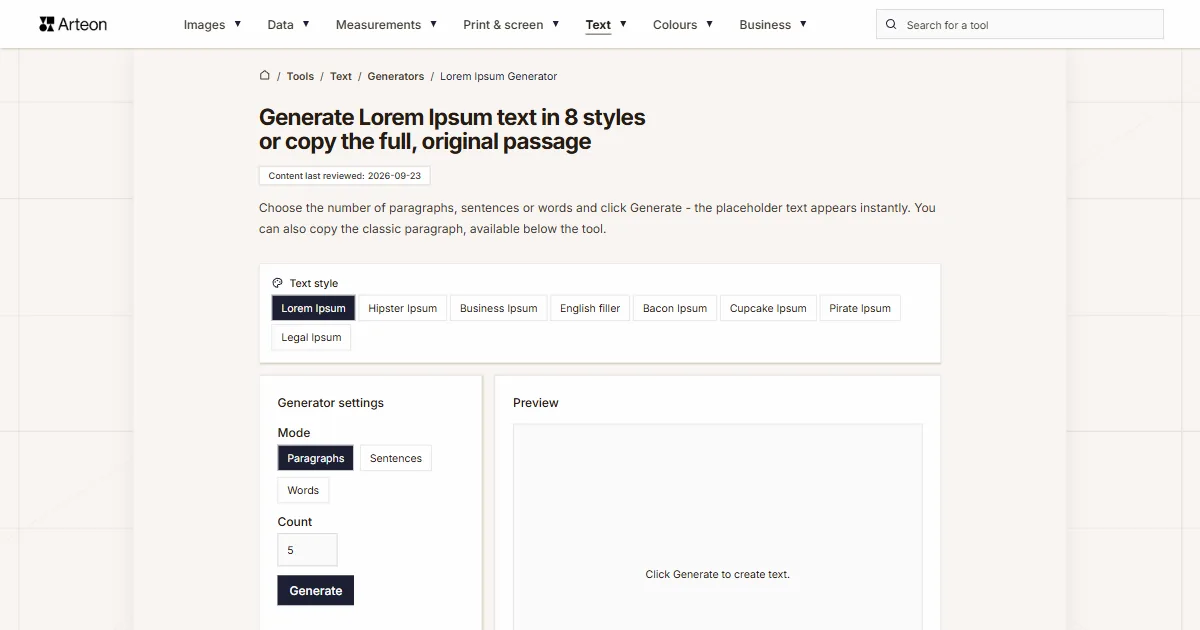
Lorem Ipsum Generator
Free Lorem Ipsum generator — 8 text styles, paragraphs, sentences or words. Copy in one click.